
When you name a service, Pabau checks its curated library of common treatments and offers ready-made content for it: a description clients will love, key facts for your booking page, add-ons, and finishing touches such as the category and forms. You pick what you want, and your picks go into the service as a draft until you save it.
NOTE: Suggestions are available for treatments in Pabau's library. If there's no match for your service name, you'll see No matching suggestions yet. You can continue creating your service.
Step 1: Enter the Service Name
- Go to Setup → Services and click New Service, or open an existing service. In the General tab, type the Service name (at least three characters), then click or tab out of the box. Pabau looks for a match and shows Finding ideas for your service… under the name.
- You can also click the sparkle button beside the name (Review service suggestions) at any time to look again.
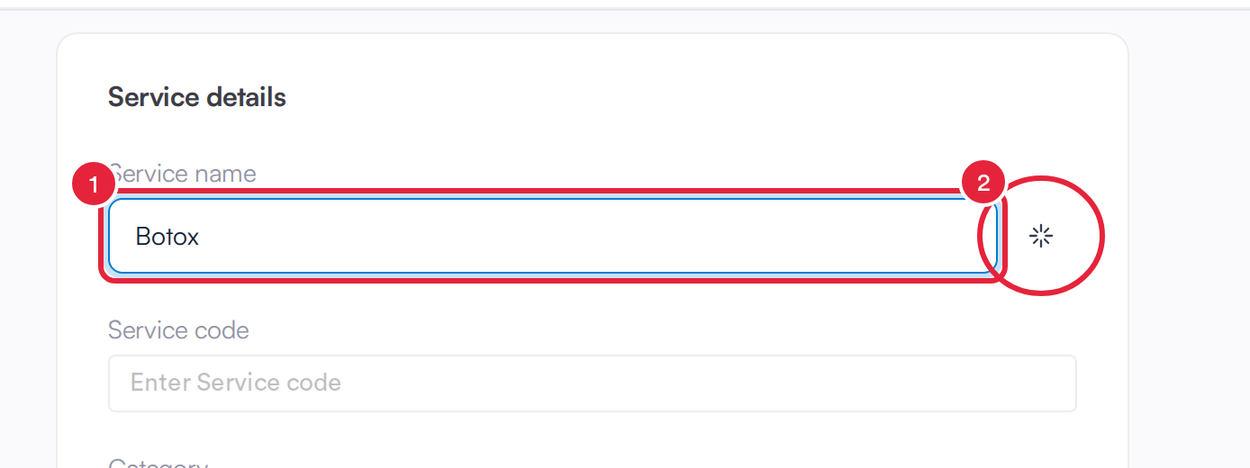
Type the name, or click the sparkle button
Step 2: Choose a Description and Booking-Page Details
When there's a match, Make your service stand out opens. Suggestions for shows the library treatment it matched, for example Anti-Wrinkle Injections for a service called Botox. Nothing is ticked to start with.
- Under A description clients will love, tick Use this description, and switch between Option 1 and Option 2 to pick the wording you prefer. It becomes the service's online booking description. If the service already has one, the card says Replaces your current description.
- Under The details at a glance, tick the facts you want clients to see on your booking page, such as Appointment length or Typical duration. They're added to the service's highlights.
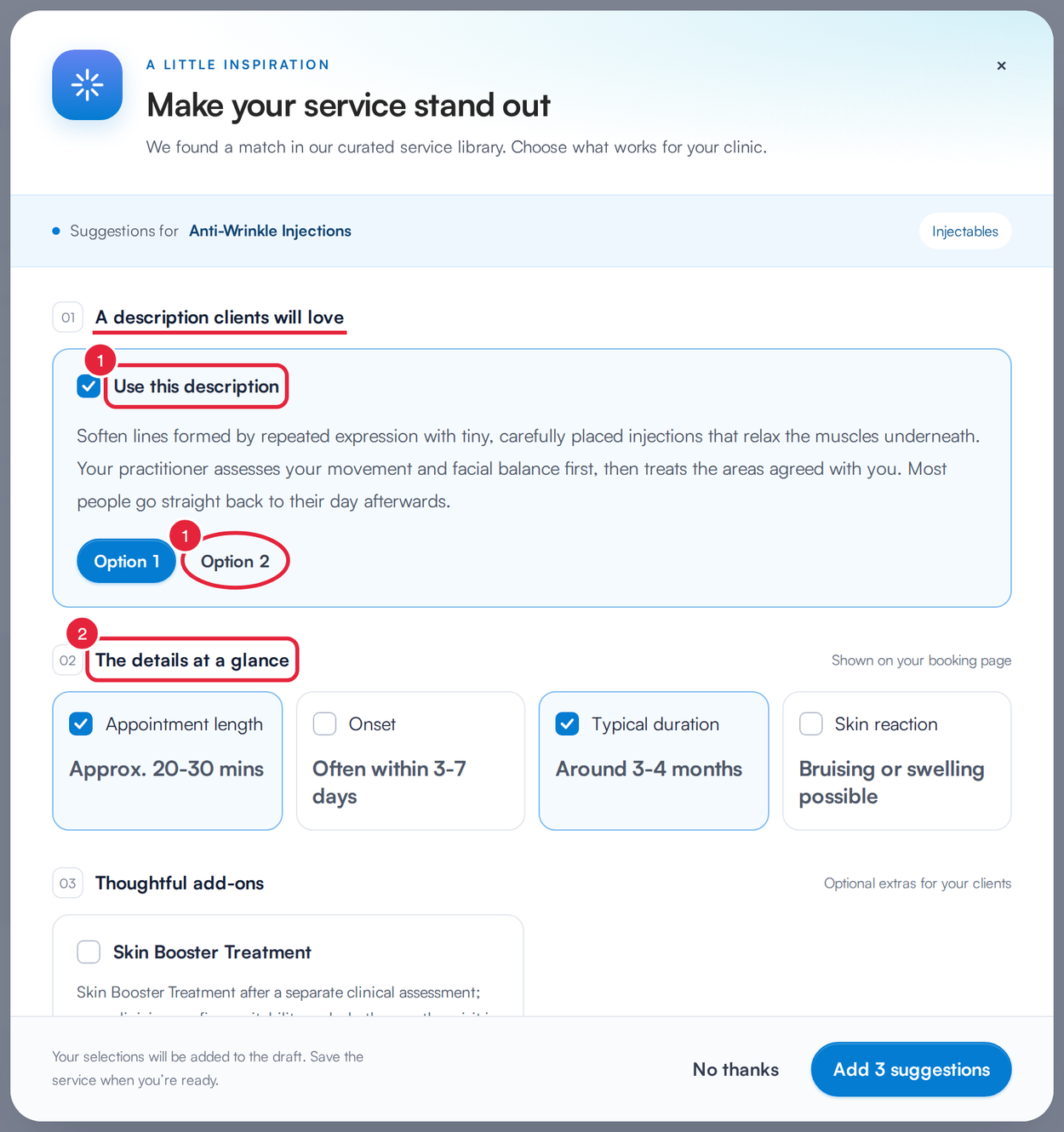
Pick a description and the details to show online
Step 3: Add Extras and Finishing Touches
- Under Thoughtful add-ons, tick any optional extras you'd like to offer with this service. Each shows the extra time and a suggested price (or Set your own price). They're added to the Addons tab as an option group called Enhance your treatment.
- Under Finishing touches, tick the suggested category, forms and aftercare email you want. A category or form can only be ticked if your clinic already has one with that name. If it doesn't, the card tells you, for example Suggested category. Create it in your categories to use it here. If you tick the aftercare email, Pabau adds that email to your clinic's message templates as soon as you click Add, so it's ready to link when you save the service.
- Click Add 3 suggestions (the number matches what you ticked). Click No thanks to close without adding anything.
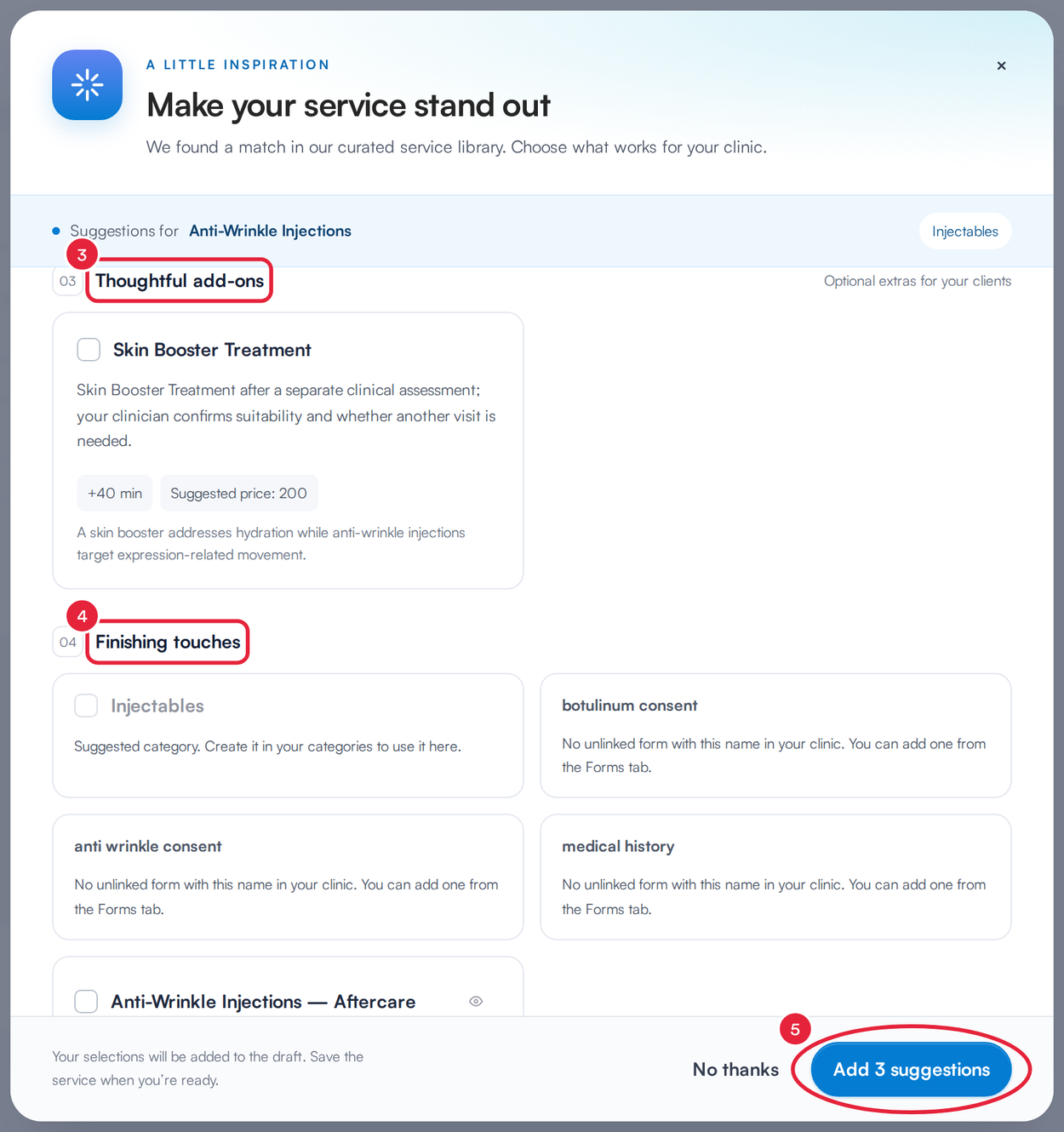
Add-ons and finishing touches, then add your picks to the draft
NOTE: Add-on suggestions can only be ticked if add-ons are switched on for your clinic. Otherwise the card says Add-ons are not enabled for your clinic.
Step 4: Review and Save the Service
Your picks are added to the service you're editing, and Suggestions added to your draft. You can fine-tune them in the service tabs. appears under the name. Check the Online Booking, Addons and Forms tabs, change anything you like, then click Create (or Save when editing). Until you do, none of your picks are saved to the service.
What's next?
- How to Create a Service
- How to Add Addons to a Service
- How to Attach Forms and Messages to a Service
- How to Make a Service Bookable Online
Was this guide helpful? Let us know by voting below - your feedback helps us write clearer articles.
For more guides, browse the related articles below or use the search bar at the top of the page. You can also watch our video learning series, the Pabau Academy, or visit the Support page for additional help.