
Step 1: Navigate to the Client Card.
Start by logging in to your Pabau account using your login credentials. Then navigate to the search bar at the top of the page and proceed to type the client's name. Pabau will filter the results as you type.
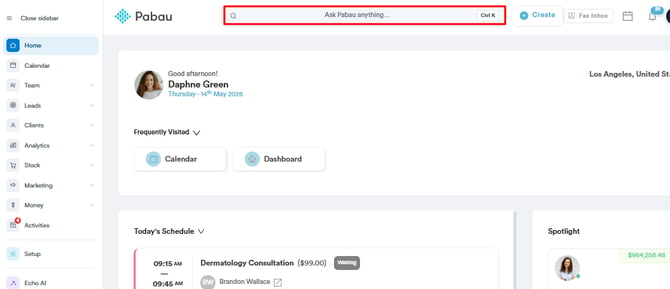
Step 2: Click the Create Button
Navigate to the bottom right corner of the page and click the Create button (represented as a blue plus sign) to access all actions.
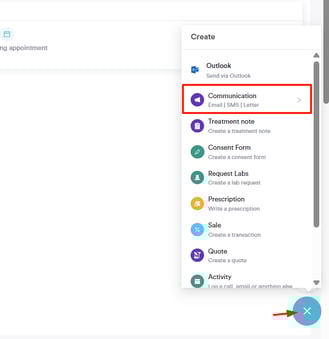
Step 3: Write a Letter
Click the "Communications" option. This will reveal the option to write a letter to the client.
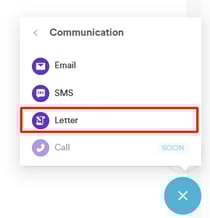
Step 4: Insert from Previous Letter
After selecting the letter template, the Write a Letter modal will appear. At the bottom of the modal, you will find the Insert from Previous Letter option.
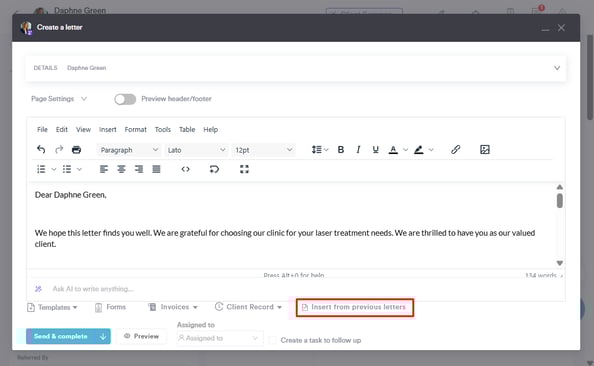
Select a previous letter written in Pabau from the first field. By clicking this option, a dropdown will show all previous letters, which you can choose from.
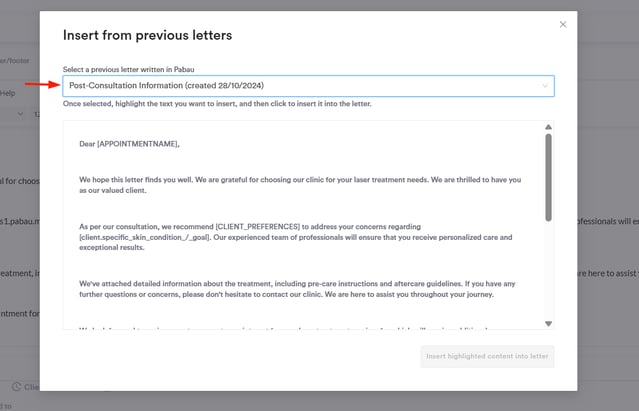
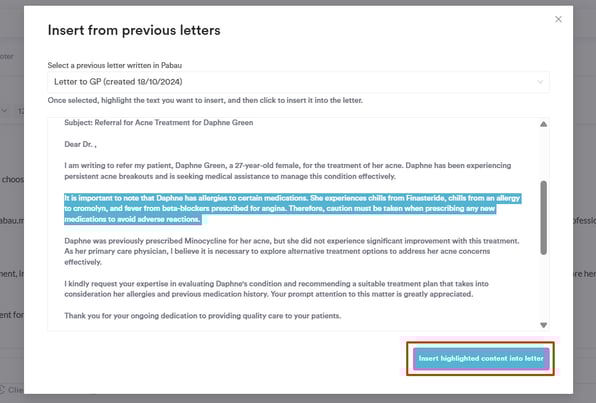
The text from the letter selected above will show in the textbox below. Highlight the text you want to include and click the button in the bottom right corner to insert it into the letter you are writing.
The text will now show on the Write Letter modal.
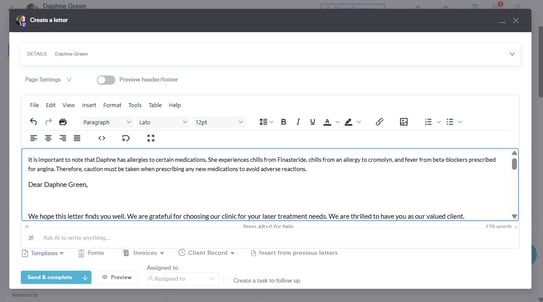
By following these steps, you can insert text from previous letters easily.
For more guides, refer to related articles below, select additional guides, or use the search bar at the top of the page. These guides will help you get the most out of your Pabau account.
Additionally, to help you fully utilize and understand your Pabau account, we recommend exploring additional guides and resources offered at the Pabau Academy. It offers in-depth video tutorials and lessons, offering a holistic learning experience that can equip you with the essential skills for achieving success with Pabau.