
Step 1: Navigate to Analytics
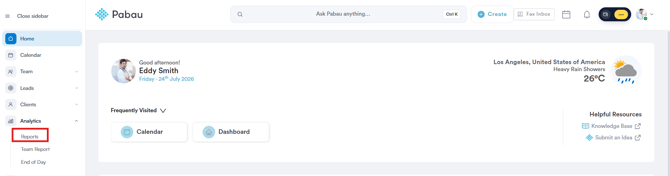
Start by logging into your Pabau account using your login credentials. Then, navigate to the left sidebar menu, where you can find the Analytics tab. Click to expand it, and it will reveal Reports.
Step 2: Open the Vouchers Outstanding Balance Report
Under the Sales section, you will find the Vouchers Outstanding Balance.
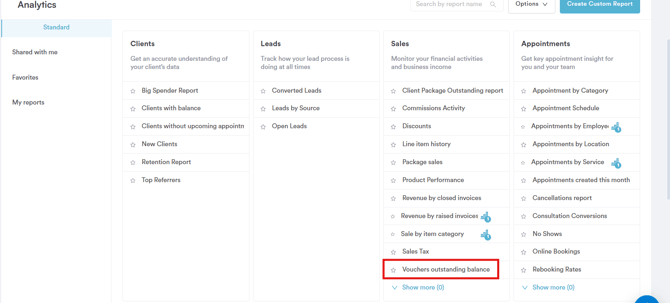
Click on the report name to continue.
Step 3: Review the Default Filters
The Vouchers Outstanding Balance report builds both of its default filters on the Line Item object, since a voucher's remaining value is a property of the item itself rather than the invoice it was sold on. It opens with 2 filters applied, stacked together with "and," meaning both must be true for a record to appear:
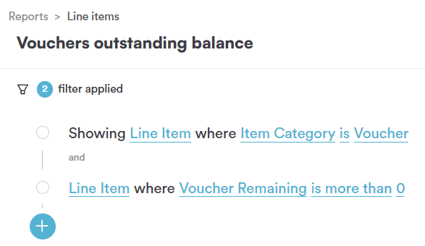
- Line Item where Item Category is Voucher — restricts the report to line items sold as gift vouchers, so services, products, and packages aren't mixed in
- and Line Item where Voucher Remaining is more than 0 — excludes vouchers that have already been fully redeemed, so only vouchers with an actual outstanding balance are shown
Each part of a filter — object, field, operator, and value — can be clicked and changed independently, which is what the rest of this article walks through.
Step 4: Change the Object
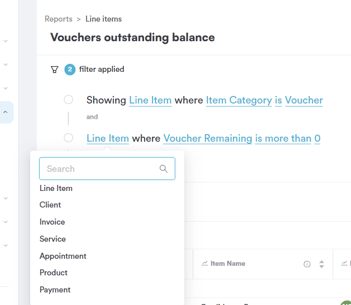
Clicking on the object (e.g. "Line Item") opens a dropdown of everything you can build a filter around.
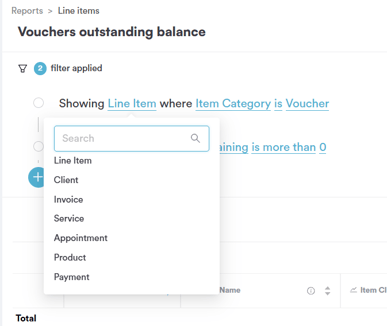
- Line Item — an individual product, service, or package sold; use this for anything relating to what was sold
- Client — the person the sale relates to
- Invoice — the invoice the sale sits on
- Service — the treatment itself
- Appointment — the booking linked to the sale
- Product — a physical stock item
- Payment — the payment taken against the invoice
Step 5: Change the Field
Clicking on the field opens a long, scrollable list, since a line item carries a lot of detail.
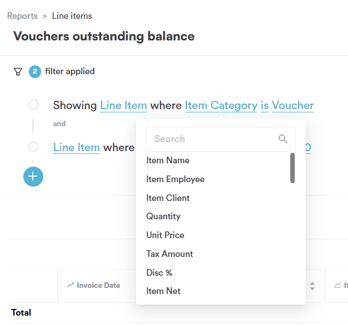
Every field available for the Line Item object is listed below:
- Item Name — the name of the product/service/package sold
- Item Employee — the team member the sale is attributed to
- Item Client — the client the item was sold to
- Quantity — number of units sold
- Unit Price — price per unit before discount
- Tax Amount — tax charged on the item
- Disc % — the percentage discount applied
- Item Net — item value after discount, excluding tax
- Item Category — the type of item sold (Service, Product, Package, Voucher, On Account, Service Charge, Membership, Gift Cards), which is what powers the first default filter
- Unit Discount — discount amount applied per unit
- Product Code — the stock/SKU code for a product item
- Discount — the monetary value of the discount applied
- Discount Reason — the reason recorded for the discount
- Item Gross — item price before discount, tax, or additional charges
- Item Tax — tax charged on the item
- Profit — the margin remaining on the item after cost is accounted for
- Voucher Code — the unique code printed or emailed on the voucher
- Voucher Type — the kind of voucher sold
- Voucher Status — whether the voucher is active, expired, or fully redeemed
- Voucher Amount — the original value of the voucher when sold
- Voucher Remaining — how much value is left to redeem, which is what powers the second default filter
- Voucher Expiration Date — when the voucher stops being valid
- Tax Rate — the tax rate applied to the item
- Package Status / Package Redeemed / Package Remaining / Package Remaining Gross / Package Expiration Date / Package Service Name / Package Valid From Date / Number of Sessions — details of a package, relevant only if the item is a package or package redemption
- Commission — the commission earned on the item
- Paid Item Total — the portion of the item's value that has been paid
- Item Total Price — the full price of the item as billed
Picking a field here decides what the operator and value in the next steps will actually test.
Step 6: Change the Operator (Category-Style Fields)
For a field like Item Category, which has a fixed set of possible answers rather than a number or date, the operator list looks like this:
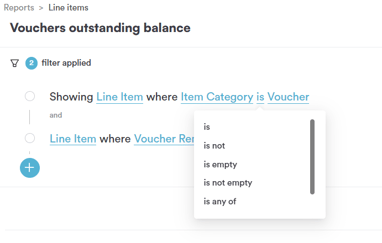
- is — only include the exact category chosen, which is how the default filter isolates Voucher line items
- is not — exclude the category chosen
- is empty — only include records with no category recorded
- is not empty — only include records that have a category recorded
- is any of — include records that match any of several categories you select at once
- is none of — exclude every category you select at once, the inverse of "is any of"
Step 7: Choose the Value
Clicking on the value for Item Category opens a search box along with every category type currently used in your account:
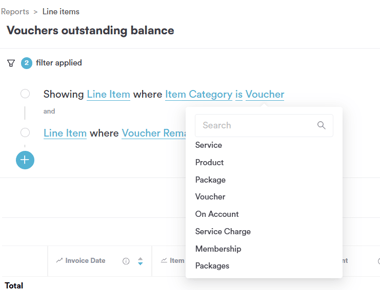
- Service
- Product
- Package
- Voucher — the value used by the default filter
- On Account
- Service Charge
- Membership
- Packages
- Gift Cards
Step 8: Adjust the Second Filter — Voucher Remaining
The second filter row uses the same object/field logic. Clicking on the object shows the same list from Step 4, so you can repoint this row at a different object entirely if needed.
Clicking on the field opens the same scrollable list of Line Item fields from Step 5:
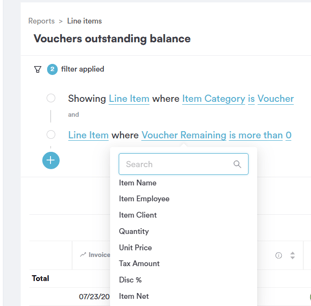
For a numeric field like Voucher Remaining, the operator list is different again, since it compares an amount rather than a category or a date:
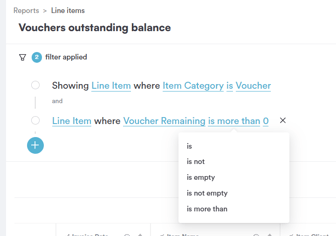
- is — only vouchers with an exact remaining amount
- is not — excludes vouchers with an exact remaining amount
- is empty — only include records with no amount recorded
- is not empty — only include records that have an amount recorded
- is more than — only vouchers with a remaining balance above a given number, which is how the default filter excludes fully-redeemed vouchers by testing against 0
- is less than — only vouchers with a remaining balance below a given number
- is more or equal to — includes the number itself plus everything above it
- is less or equal to — includes the number itself plus everything below it
Clicking on the value for a numeric field like this opens a simple input where you type the number to compare against — 0 is what's used by default, so that only vouchers with something still left to redeem are included.
Step 9: Review the Data
Once your filters are set the way you want, the report updates automatically, listing every voucher with an outstanding balance, along with columns like Invoice Date, Item Name, and Item Client.
By following these steps, you can easily generate and customize the Vouchers Outstanding Balance report.
Was this guide helpful? Let us know by voting below - your feedback helps us write clearer articles.
For more guides, browse the related articles below or use the search bar at the top of the page. You can also watch our video learning series, the Pabau Academy, or visit the Support page for additional help.