
Step 1: Navigate to Analytics
Start by logging into your Pabau account using your login credentials. Then, navigate to the left sidebar menu, where you can find the Analytics tab. Click to expand it, and it will reveal Reports.
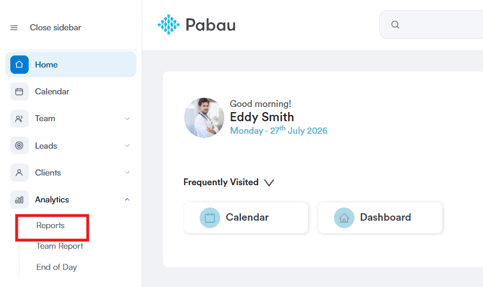
Step 2: Open the Outstanding Invoices Report
Under the Financials section, you will find the Outstanding invoices pre-created report. Click on the report name to continue.
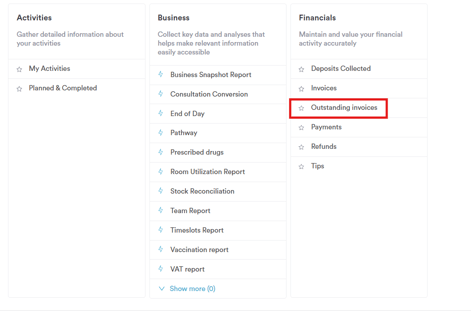
Step 3: Review the Default Filter
The Outstanding invoices report opens with 1 filter applied:
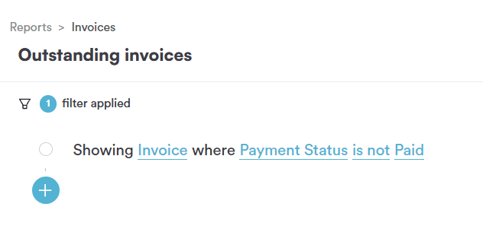
Invoice where Payment Status is not Paid — restricts the report to invoices that have not been fully paid
Each part of the filter — object, field, operator, and value — can be clicked and changed independently, which is what the rest of this article walks through.
Step 4: Change the Object
Clicking on the object opens a dropdown of everything you can build a filter around:
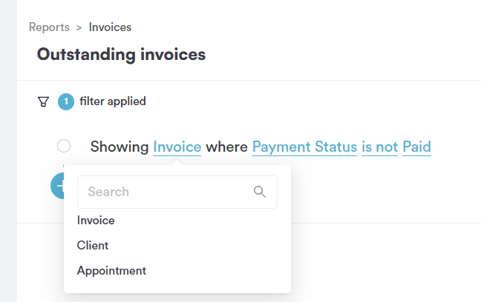
- Invoice — the invoice the report is built around, and the default object for this report
- Client — the client the invoice belongs to
- Appointment — the appointment linked to the invoice
Choosing a different object changes the entire list of fields available in Step 5, since each object carries its own set of details.
Step 5: Change the Field
Clicking on the field opens a scrollable list, since an invoice record carries a lot of detail. This is where you choose exactly what aspect of the invoice you want to filter on.
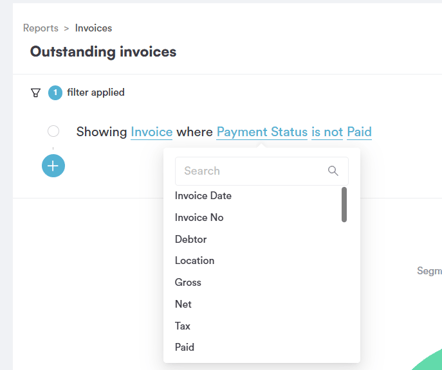
The fields available for the Invoice object include:
- Invoice Date — the date the invoice was raised
- Invoice No — the invoice number
- Debtor — the party responsible for paying the invoice
- Location — the clinic/site the invoice was raised at
- Gross — the gross value of the invoice
- Net — the net value of the invoice
- Tax — the tax value of the invoice
- Paid — the amount paid on the invoice
- Payment Method(s) — the method(s) used to pay the invoice
- Balance — the outstanding balance on the invoice
- Payment Status — the current payment status of the invoice, which is what powers the default filter
- Client — the client the invoice belongs to
- Type — the invoice type
- Issued By — the team member who issued the invoice
- Issuing Company — the company the invoice was issued under
- Invoice Created Date — when the invoice record was created
- Price List — the price list applied to the invoice
- Last update time — when the invoice was last updated
- Invoice Note — any note recorded on the invoice
- Healthcode — the healthcode reference on the invoice, if applicable
- Tip — the tip value recorded on the invoice
- Credit Type — the type of credit applied, if any
- Invoice Created by — the user who created the invoice
- Inv Team — the team associated with the invoice
- Sent Date — when the invoice was sent
- Sent Status — the current sent status of the invoice
- Tax group — the tax group applied to the invoice
- Service Charge — the service charge value on the invoice
- Last Payment Date — the date of the most recent payment against the invoice
- Credit Notes (Total) — the total value of credit notes applied to the invoice
- Items — the number of line items on the invoice
- Item Employees — the team member(s) associated with items on the invoice
- Payment Date — the date a payment was made against the invoice
Picking a field here decides what the operator and value in the next steps will actually test.
Step 6: Change the Operator (Category-Style Fields)
For a field like Payment Status, which is a category, the operator list is:
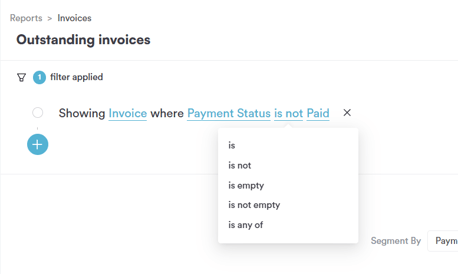
- is — only include invoices whose payment status matches exactly
- is not — excludes invoices whose payment status matches exactly, and the default operator for this report
- is empty — only include invoices with no payment status recorded
- is not empty — only include invoices that do have a payment status recorded
- is any of — include invoices matching any status from a list you select
- is none of — exclude invoices matching any status from a list you select
Step 7: Choose the Value
Clicking on the value for Payment Status opens a list of the statuses you can filter by:
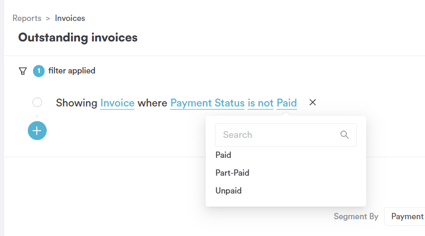
- Paid — invoices that have been paid in full, and the default value for this report, which is excluded by the "is not" operator so only unpaid balances show
- Part-Paid — invoices that have received a partial payment
- Unpaid — invoices that have received no payment at all
Step 8: Review the Data
Once your filter is set the way you want, the report updates automatically, showing you the invoices that match your rule, measured by outstanding balance.
By following these steps, you can easily generate and customize the Outstanding invoices report.
Was this guide helpful? Let us know by voting below - your feedback helps us write clearer articles.
For more guides, browse the related articles below or use the search bar at the top of the page. You can also watch our video learning series, the Pabau Academy, or visit the Support page for additional help.