
Community Templates is a shared library of ready-made resources built by the Pabau community: consent forms, medical questionnaires, treatment forms, charts, email templates and more. Instead of building a form or message from scratch, you can preview one, add a copy to your account in one click and adapt it to your clinic.
Step 1: Open Community Templates
- Go to Setup ▸ Marketing & Communication ▸ Communications ▸ Templates and click Choose template.

Choose template opens the Community Templates library
You can also get there from two other places:
- On the Templates page, click Create Template. The Community section at the bottom of the window shows a few popular templates. Click one to preview it, or click View All.
- Go to Setup ▸ Clinical ▸ Forms, click Create Form and choose Browse Templates.
Step 2: Find a Template
- Type in Search all resources to search by name. Results update once you’ve typed at least three letters.
- Click a collection to narrow the list: Forms, Consent, Medical Questionnaires, Treatment Forms, Email Templates, SMS Templates, Letters or Charts. Click All to see everything again.
- Use Professions to show only templates made for your type of clinic. Click Reset to clear your filters.
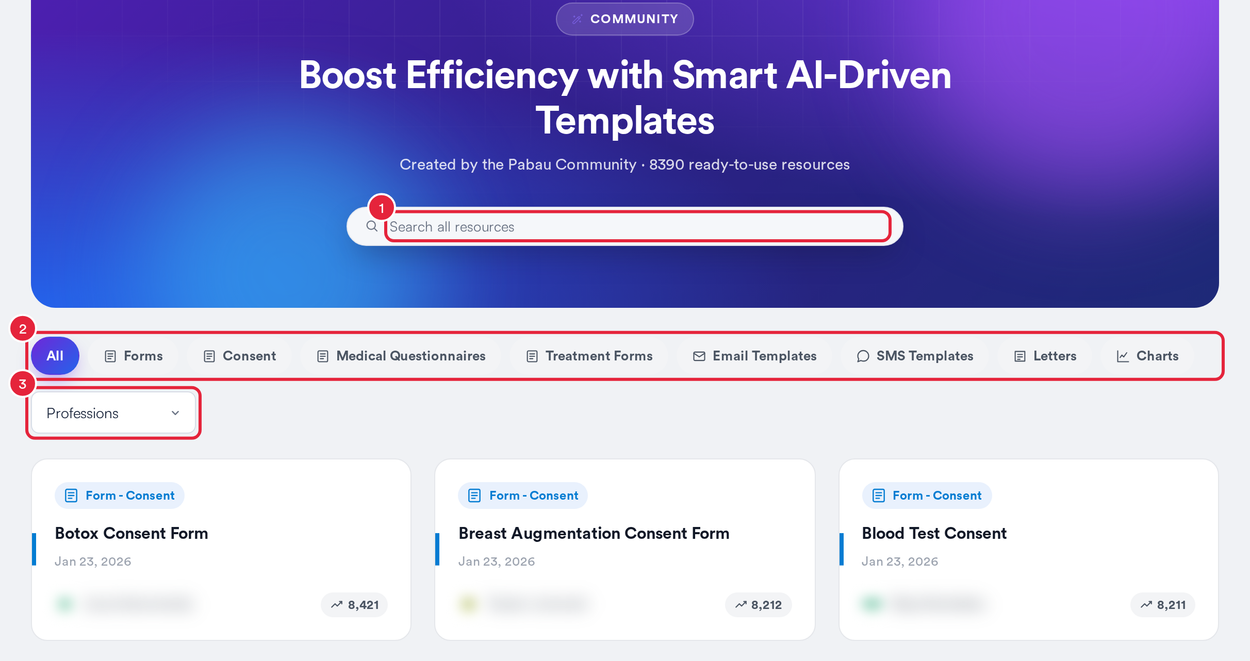
Search, then filter by collection and profession
Each card shows the template’s type, the date it was published and how many times clinics have used it (hover over the number to see Used … times). Two badges can also appear:
- Setup for measures: the form comes with outcome measures already set up. Numeric answers, such as weight or BMI, are tracked automatically when the form is filled in and chart over time on the client card, with no extra measures setup.
- An AI Powered icon marks templates that include AI smart prompts.
Step 3: Preview and Use a Template
Click a card to open its preview. The left side describes the template and lists the professions it suits. The right side shows the template itself.
- Click Use template. The button shows Installing… while Pabau copies the template into your account, then Template used successfully appears.
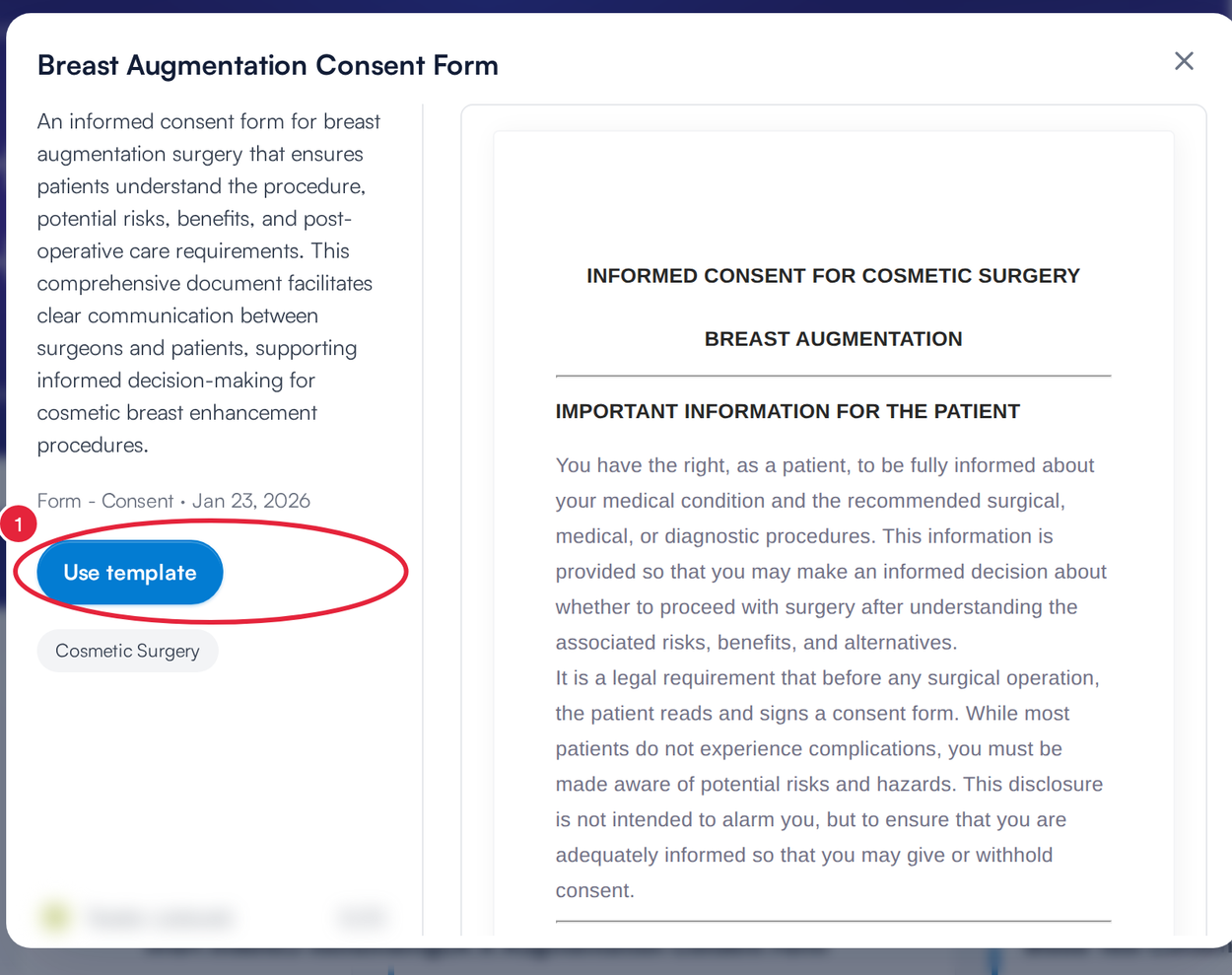
Preview a template, then click Use template
Pabau then takes you to your copy so you can adjust it:
- Forms (consent, questionnaires, treatment forms) open in the form editor in Setup ▸ Clinical ▸ Forms.
- Email, SMS and letter templates are added to Setup ▸ Templates, where you can open and edit them.
- Charts are managed in Setup ▸ Clinical ▸ Forms.
NOTE: The copy belongs to your clinic. Editing it changes only your version, not the template in the community library.
Step 4: Find a Template You Have Already Used
If your account already has a template with the same name and type, its preview shows that it is installed instead of offering it again.
- Installed confirms your clinic already has this template.
- Click Open in editor to go straight to your copy.
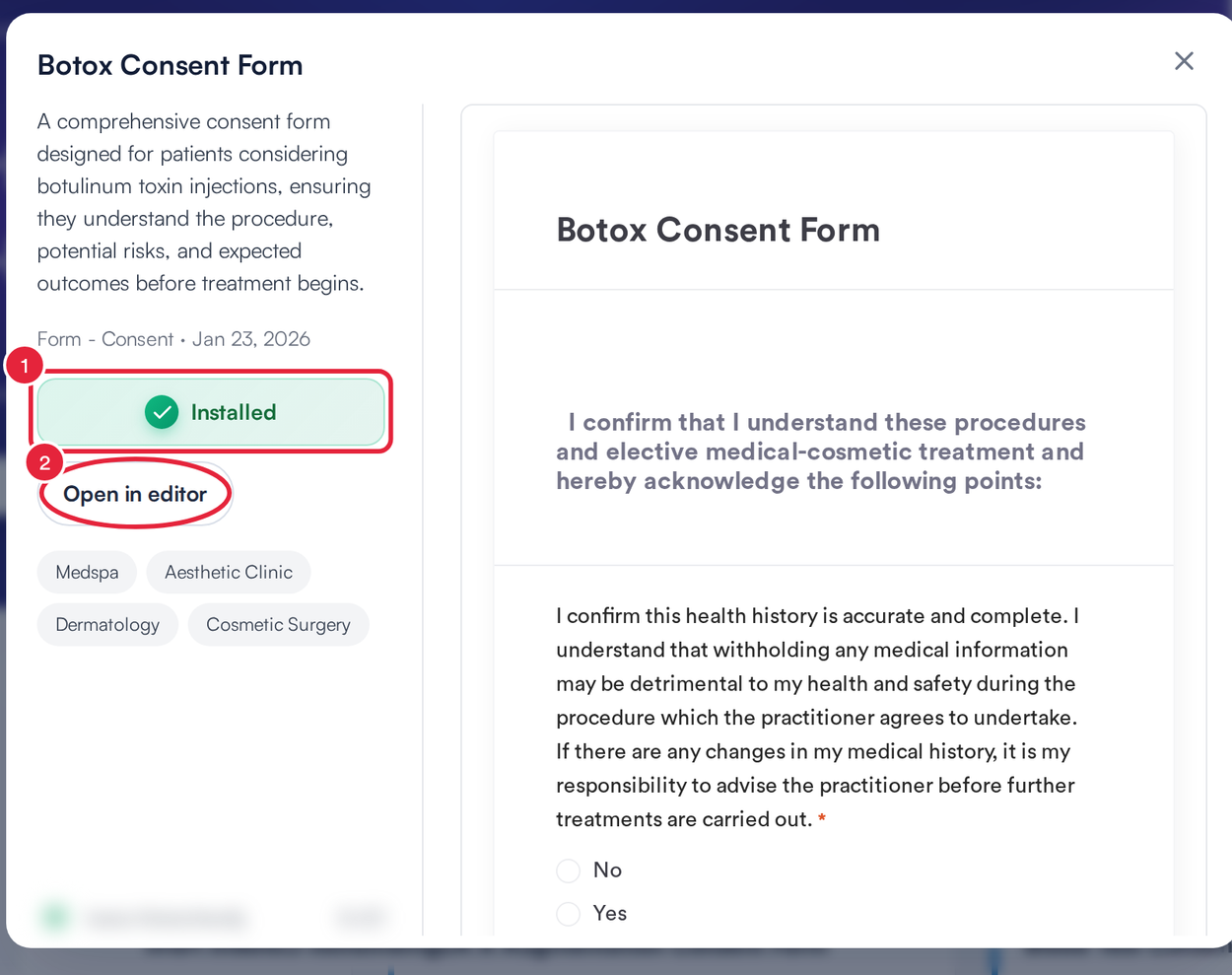
Templates you already have show Installed
TIP: If a template won’t install, you’ll see Could not install this template. Please try again. Try again in a moment, or message us via the in-app chat if it keeps happening.
What's next?
- Communication Templates
- How to Create SMS Templates
- How to Create Email Templates
- How to Download a Medical Form Template
Was this guide helpful? Let us know by voting below - your feedback helps us write clearer articles.
For more guides, browse the related articles below or use the search bar at the top of the page. You can also watch our video learning series, the Pabau Academy, or visit the Support page for additional help.