
Step 1: Launch the Pabau GO iOS App
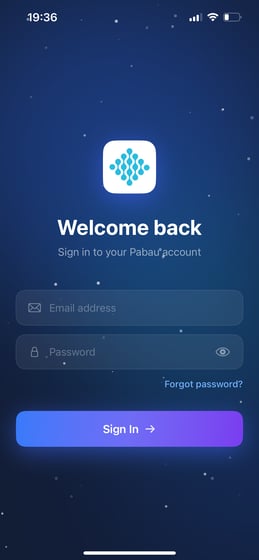
Start by launching the Pabau GO app on your iOS device and logging into your Pabau account using your credentials.
Step 2: Access the calendar
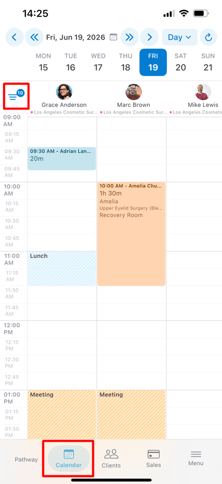
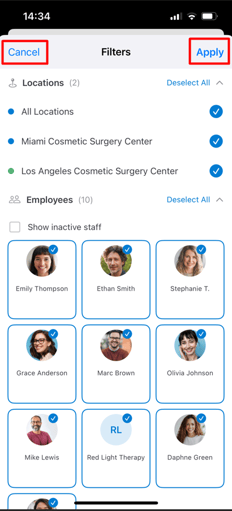
Tap Calendar in the bottom navigation bar. Once in the calendar view, tap the filter icon (the three horizontal lines) in the top left corner to open the Filters panel.
Step 3: Configure your filters
Once the Filters panel is open, you can customise your calendar view using the following options:
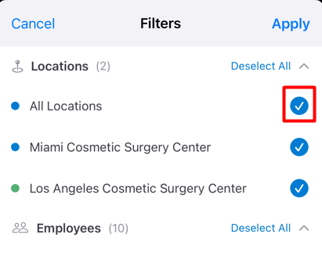
Locations - select one or more locations to display, or tap All Locations to include all of them. Each location is colour-coded to help you identify them at a glance. Tap Deselect All to clear all location selections.
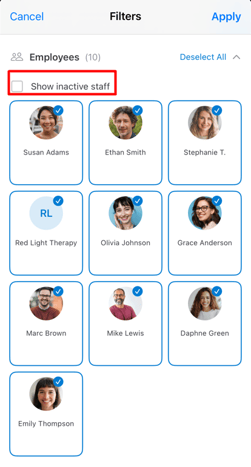
Employees - all active staff members are displayed as cards. Tap a staff member's card to include them in your calendar view - selected employees will appear with a blue checkmark. You can select multiple employees at once.
Enable the Show inactive staff checkbox at the top of the section to also display inactive team members. Tap Deselect All to clear all employee selections.
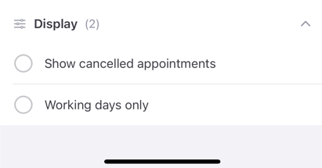
Display - use these options to further control what appears on your calendar:
-
- Show cancelled appointments - when enabled, cancelled appointments will remain visible on the calendar.
- Working days only - when enabled, the calendar will only show working days, hiding weekends.
Once you have made your selections, tap Apply in the top right corner to update the calendar view. To discard your changes, tap Cancel.
NOTE: Filters are saved per user account, so your selections will still be in place the next time you log back in, and will not affect other staff members' views.
By following these steps, you can easily customise your calendar view in Pabau GO to display the locations, employees, and appointment types that are most relevant to you.
📱Please note: The latest version of Pabau GO requires iOS 17 / iPadOS 17 or later. Devices that can't update to iOS 17 / iPadOS 17 won't be able to run it.
Download Pabau GO on your iPhone or iPad from the App Store.
For more guides, refer to related articles below, select additional guides, or use the search bar at the top of the page. These guides will help you get the most out of your Pabau account.
Additionally, to help you fully utilize and understand your Pabau account, we recommend exploring additional guides and resources offered at the Pabau Academy. It offers in-depth video tutorials and lessons, offering a holistic learning experience that can equip you with the essential skills for achieving success with Pabau.