
NOTE: This feature is only available with the Care Plus plan. To learn more about upgrading to Care Plus, refer to this guide.
Step 1: Navigate to the Client Card
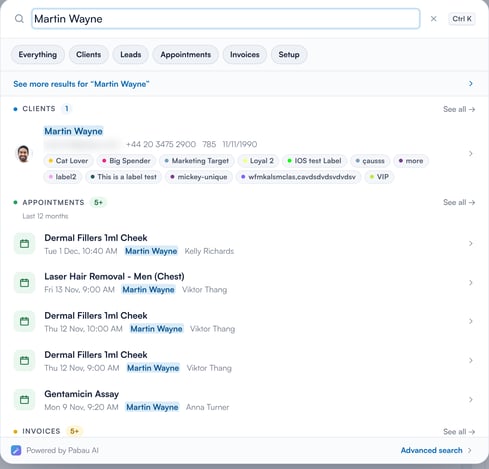
Start by logging into your Pabau account using your login credentials. Then, navigate to the top of the screen to the search bar and type in the client's name. Then select the client from the search results.
Step 2: Access the Documents Tab
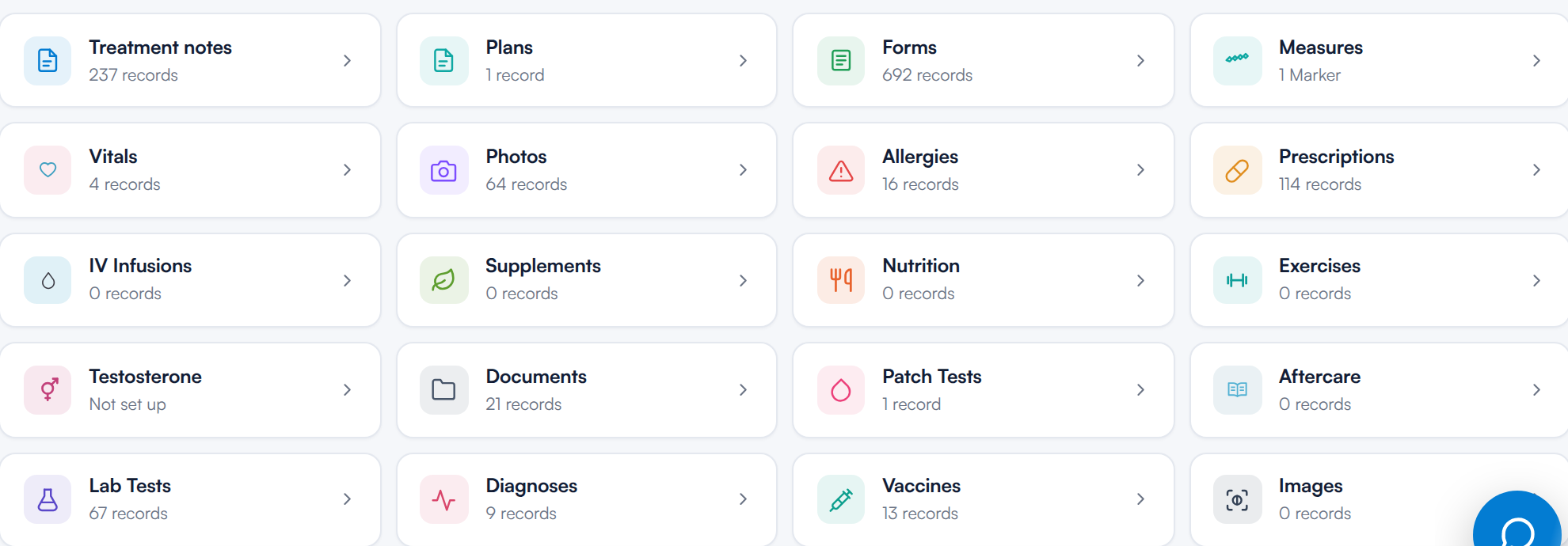
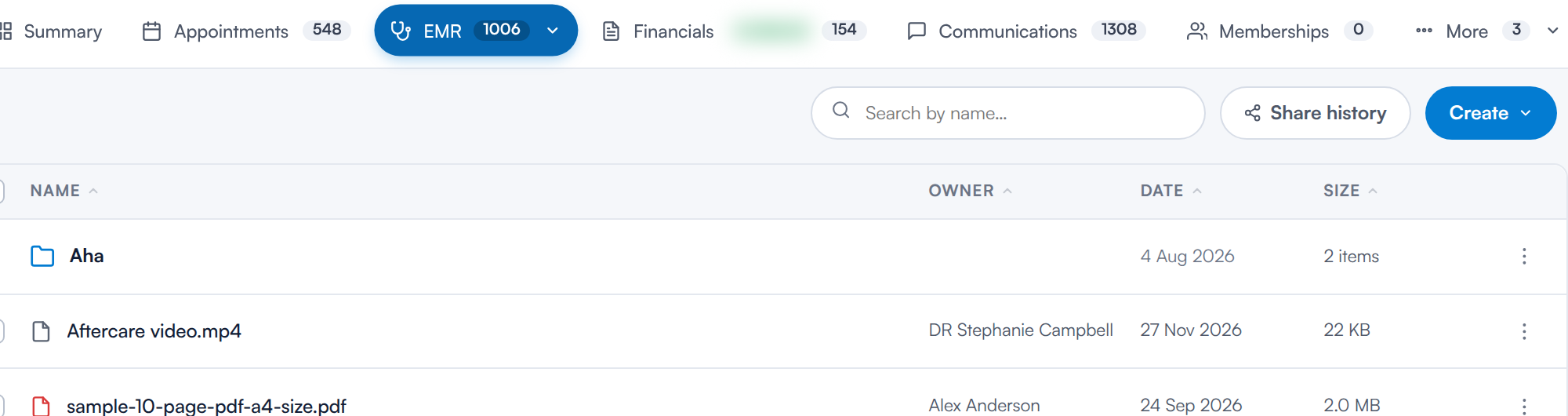
In the client card, click the EMR tab, then open Documents.
Step 3: Upload File
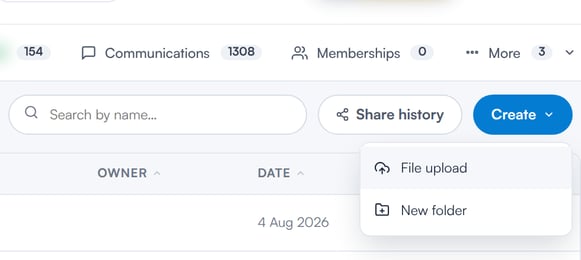
Navigate to the top right corner of the screen and click Create, then File upload.
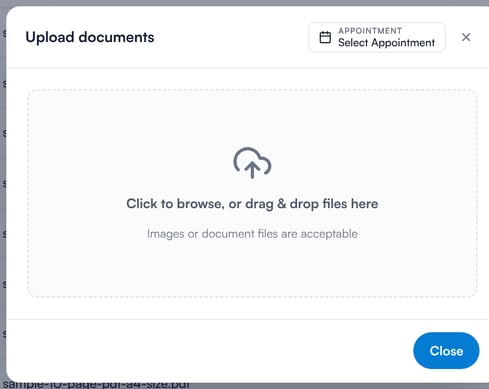
In the Upload documents window, click to browse or drag and drop your video file. When it has uploaded, click Close.
The video then appears in the client's Documents list.
By following these steps, you can easily upload a video to a client card.
Was this guide helpful? Let us know by voting below - your feedback helps us write clearer articles.
For more guides, browse the related articles below or use the search bar at the top of the page. You can also watch our video learning series, the Pabau Academy, or visit the Support page for additional help.