
Instead of cancelling a membership and selling a new one, you can move a client straight to a higher-priced plan (upgrade) or a lower-priced plan (downgrade) from their client card. When you make the change immediately, Pabau applies a pro-rata credit for the unused portion of the current plan toward the cost of the new one.
Step 1: Navigate to the Memberships Tab
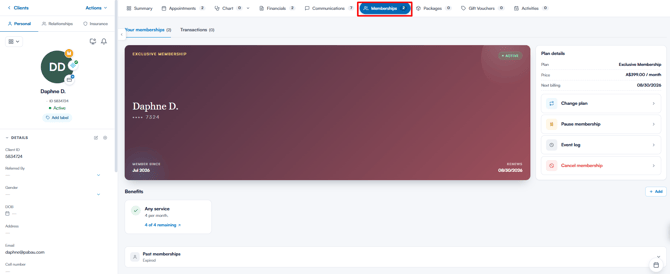
Start by logging in to your Pabau account. Use the search bar at the top of the page to find the client, then click on their name to open their client card. In the top bar, click on the "Memberships" tab (the crown icon).
Step 2: Open the Change Plan Option
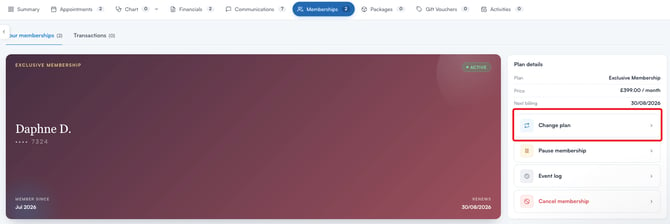
Under the "Your memberships" tab, select the membership you want to change to view its details. In the Plan details panel on the right side of the screen, click "Change plan".
Step 3: Select the New Plan
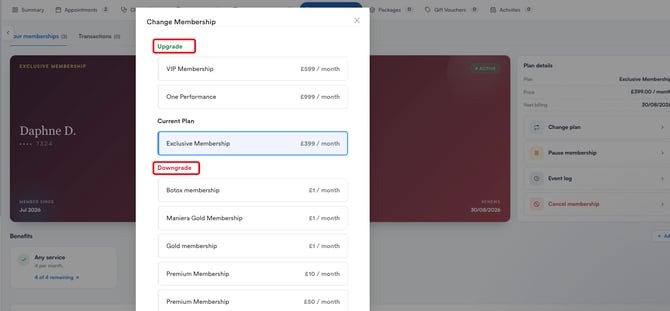
The "Change Membership" window opens, displaying the client's current plan at the top. Below it, the available plans are split into two groups: "Upgrade" for plans that cost more than the current one, and "Downgrade" for plans that cost less. Select the plan you want to move the client to.
Step 4: Review the Payment Summary and Confirm
After selecting a plan, a "Payment summary" appears, showing the "Pro-rata credit" for the unused portion of the current plan and the "First payment" due for the new plan. The old payment is credited against the new one, so the client only pays the difference for the current period.
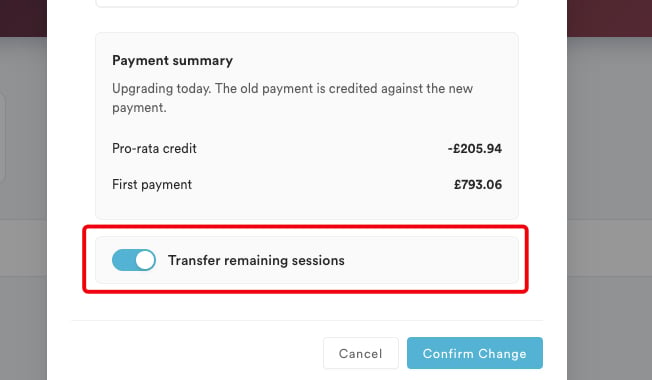
Below the summary, use the "Transfer remaining sessions" toggle to decide whether any unused sessions from the current plan carry over to the new one. Leave it on to move the remaining sessions across, or turn it off to start fresh with the new plan's benefits. When you are ready, click "Confirm Change".
Once confirmed, the new plan and its price appear in the Plan details panel, and the client's benefits update to match their new membership.
By upgrading or downgrading memberships directly, you can adjust a client's plan to fit their needs at any point in the billing cycle without interrupting their membership or overcharging them.
NOTE: To learn how to pause, resume, or cancel a membership, refer to this article: How to Manage Memberships.
For more guides, refer to related articles below, select additional guides, or use the search bar at the top of the page. These guides will help you get the most out of your Pabau account. Additionally, to help you fully utilize and understand your Pabau account, we recommend exploring additional guides and resources offered at the Pabau Academy. It offers in-depth video tutorials and lessons, offering a holistic learning experience that can equip you with the essential skills for achieving success with Pabau.