
The Referrals page lists every referral your clinic has made to other providers. Use it to see which referrals are still waiting, record what happened to each one by changing its status, and open a referral to check it, update the instructions or remove it.
NOTE: This guide covers clinical referrals to GPs, specialists and other providers, which are available when Letters is switched on for your clinic (see How to Enable Letters). For the refer-a-friend programme, see Referrals: Overview and How It Works.
Step 1: Open the Referrals Page
- In the left sidebar, click More (the grid icon near the bottom).
- Click Referrals.
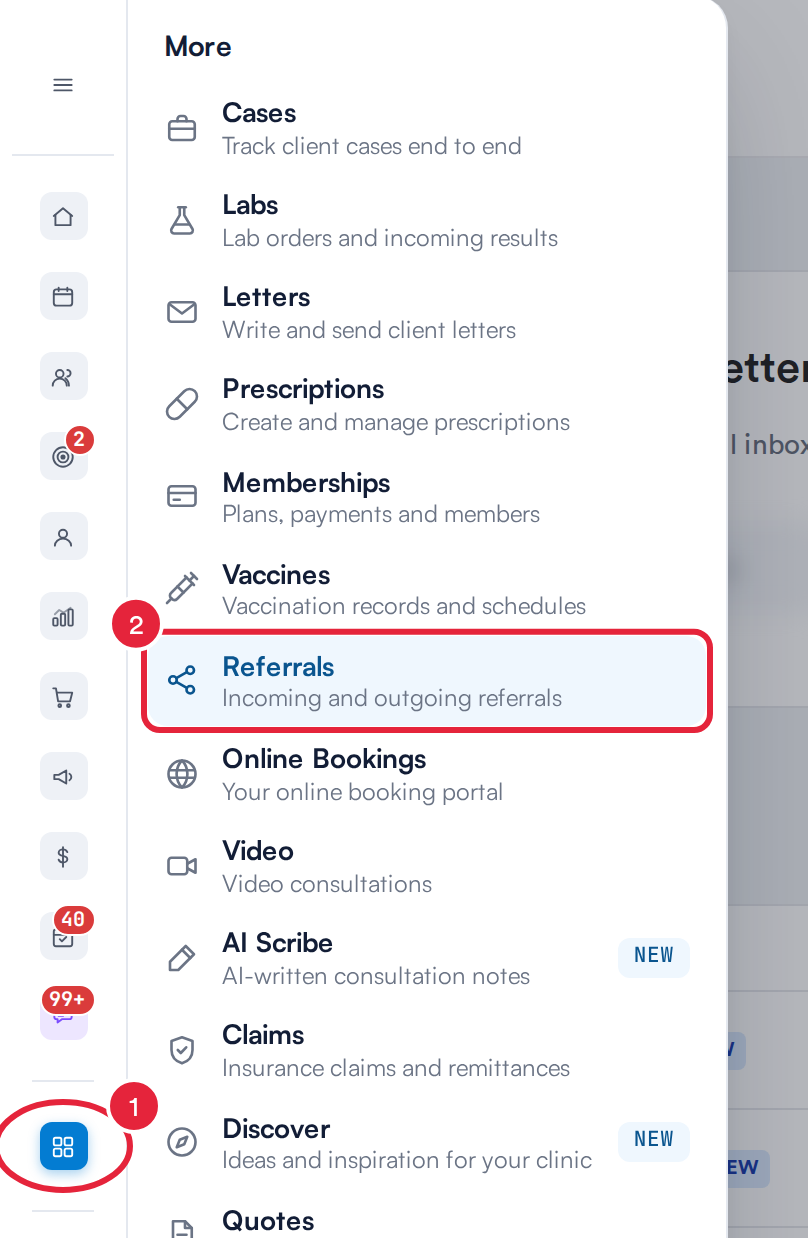
Referrals sits in the More menu of the left sidebar
Step 2: Find and Open a Referral
The Client Referrals list shows the newest referrals first. Each row has the referral's number in ID, the Client, the Type (Outbound for referrals you send), the date it was Requested, its Last update and its Status. Referrals created in the last 24 hours carry a NEW tag.
- To find a referral by its number, type it in Search, for example 0003.
- Click View to open the referral. To go to the client's card instead, click their name.
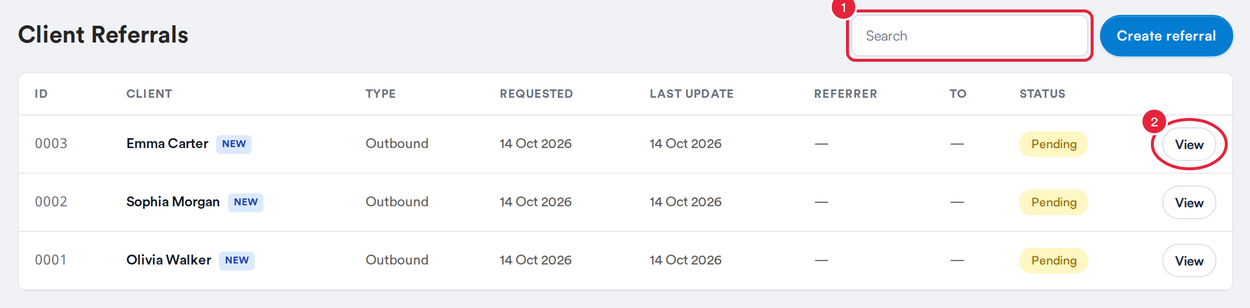
Search by referral number, or open a referral with View
Step 3: Update the Referral's Status
Keep each referral's status up to date so everyone can see where it stands.
- Click the coloured status on the referral's row.
- Choose the new status: Pending, Accepted, Refer out, Rejected or Discharged.
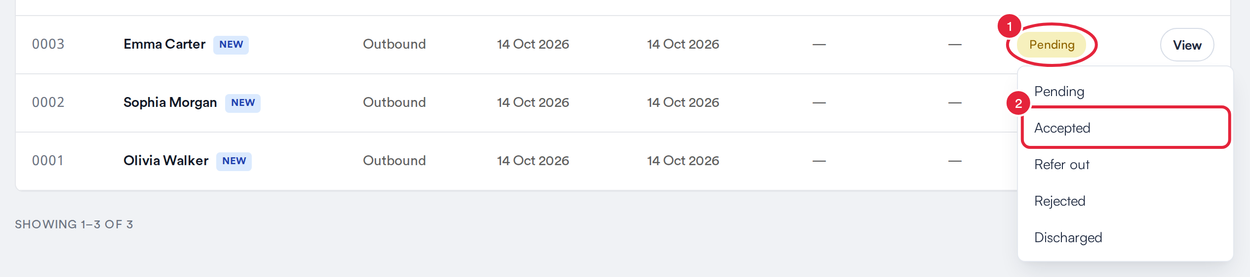
Click the status to change it
The new status saves straight away. A new referral starts as Pending, and Pabau sets Sent by itself when you email a referral, so you won't find Sent in this list.
Step 4: Update the Instructions
When you open a referral, you see its number and the date it was created, the Instructions for the recipient and, under Document, the referral itself.
- Click in Instructions and change the text.
- Save and Cancel appear as soon as you change something. Click Save to keep your changes; you see Instructions saved.
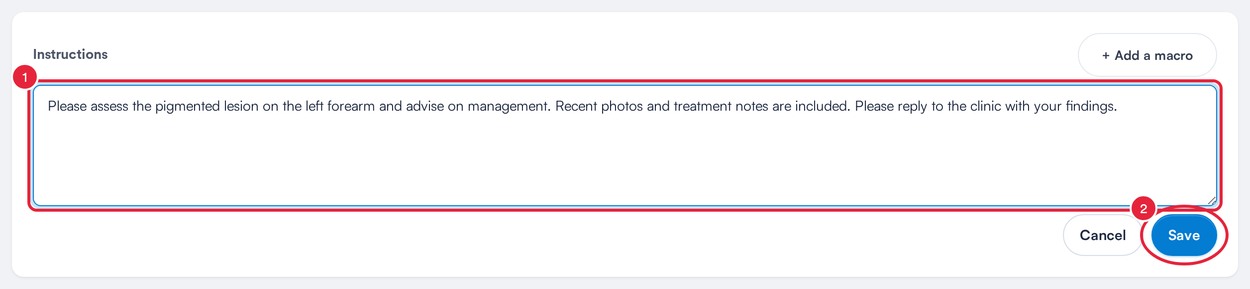
Edit the instructions, then save
Step 5: Open the Client or Delete the Referral
The buttons at the top of the referral take you where you need to go. Back returns to the list.
- Click View patient to open the client's card.
- Click Delete to remove a referral that was made by mistake.

Open the client's card, or delete the referral
Pabau asks you to confirm in the Delete referral? window. Click Delete to remove it, or Cancel to keep it.
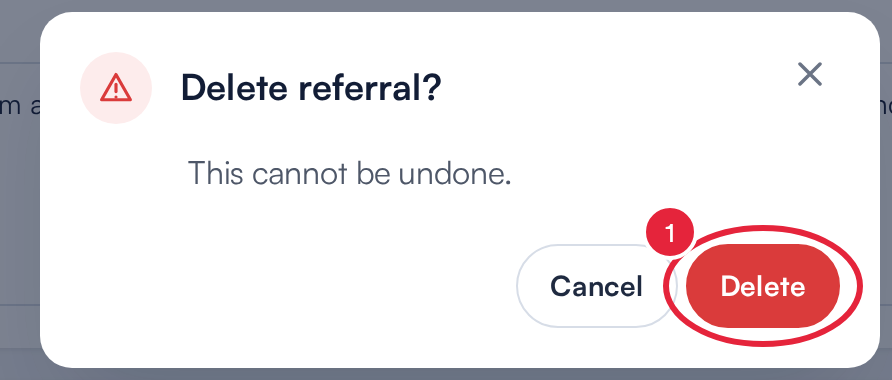
Confirm before a referral is deleted
IMPORTANT: Deleting a referral can't be undone. If a referral simply didn't go ahead, consider setting its status to Rejected or Discharged instead, so you keep the record.
What's next?
Was this guide helpful? Let us know by voting below - your feedback helps us write clearer articles.
For more guides, browse the related articles below or use the search bar at the top of the page. You can also watch our video learning series, the Pabau Academy, or visit the Support page for additional help.