
NOTE: The Activity Log is available to admin users only. Other staff see "You do not have permission to access this page." The log keeps the last 30 days of activity.
Step 1: Open the Activity Log
The Activity Log has no tile on the Settings page. To open it, add /setup/activity-logs to the end of your Pabau web address (for example, after pabau.com) and press Enter. In the UK and US, the Did You Know? card on the Home page can also show an Activity logs button that opens it. The page lists every change made across your clinic, newest first, with who made it and when. While LIVE TAIL · AUTO-REFRESH shows at the top right, new events appear on their own.
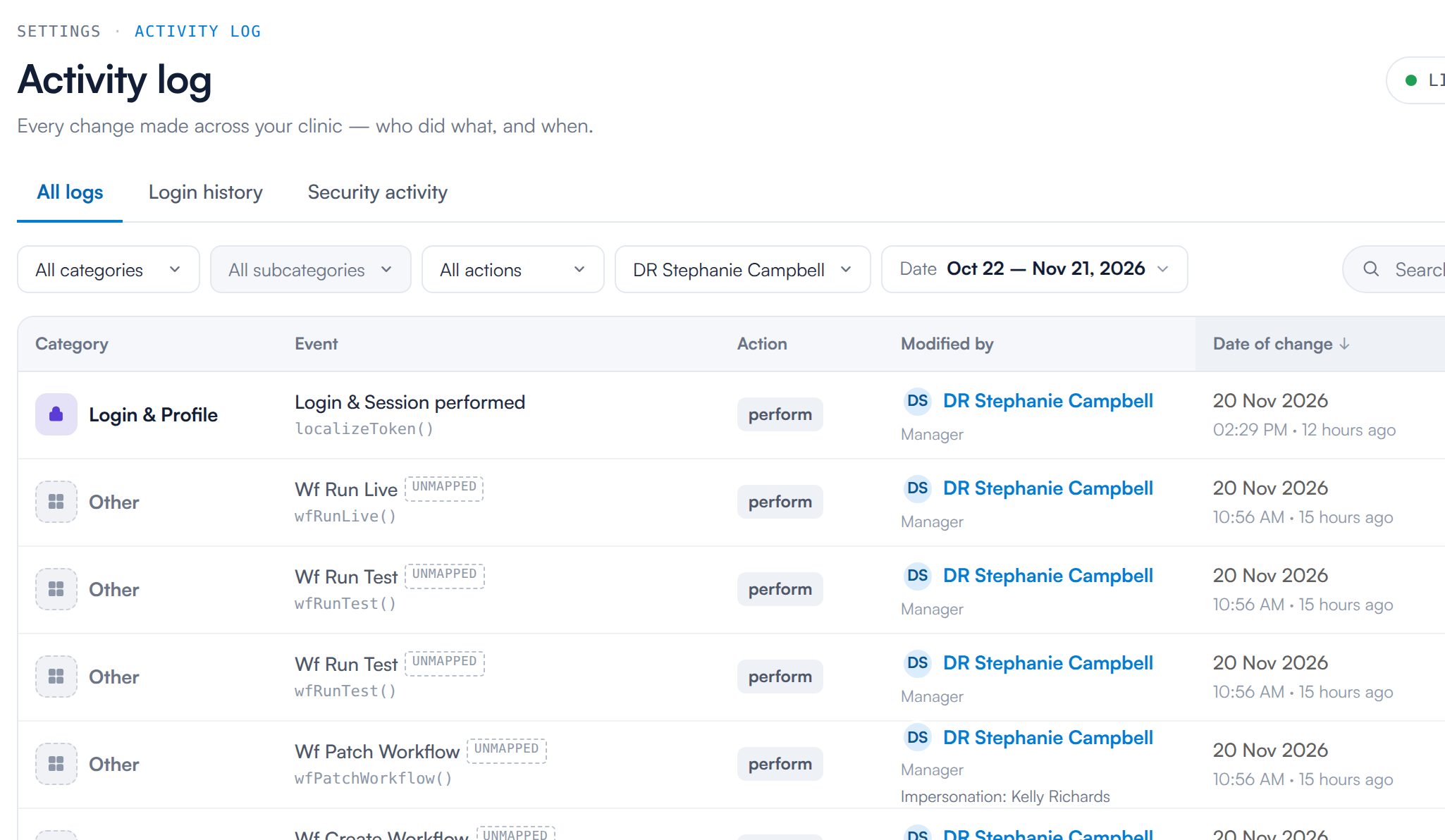
The Activity Log filtered to one staff member. The last row was made during a Log in as session.
Step 2: Narrow down the log
Use the tabs and filters above the table to find the change you are looking for:
- All logs, Login history or Security activity – switch between every event, sign-ins only, or security events only.
- All categories and All subcategories – limit the log to one area of Pabau.
- All actions – show only Create, Update, Delete, Send, Perform or View events.
- Anyone – pick a staff member to see only their changes.
- Date – choose Today, the last 7 or 30 days, or your own range within the last 30 days.
- The search box – type an event, or the name of a client, staff member or service.
Step 3: Open the details of a change
Click a row to open Additional details. It shows the Category, the Action, who it was Modified by, the Date of change in your company’s time zone and the Source, followed by the details of what changed. When the change was made during a Log in as session, an Impersonation field appears under Modified by.
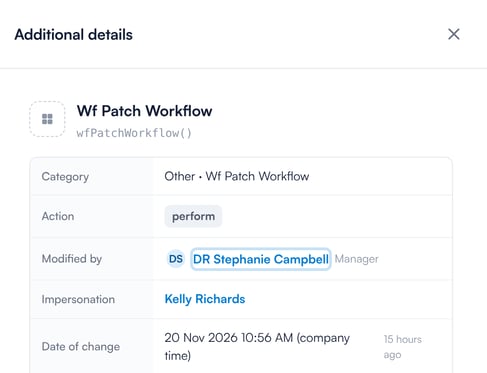
Modified by names the staff member; Impersonation names the admin who was logged in as them.
What does the Impersonation field mean?
Admins can open Pabau as one of their colleagues: on the colleague’s profile in Team, click the three-dot menu and choose Log in as <name>. Everything done in that session is recorded in the Activity Log like this:
- Modified by – the colleague whose account was used.
- Impersonation – the admin who logged in as them. In the table it shows as a line under the colleague’s name, for example Impersonation: Kelly Richards; in Additional details it has its own field, and clicking the name opens that admin’s profile.
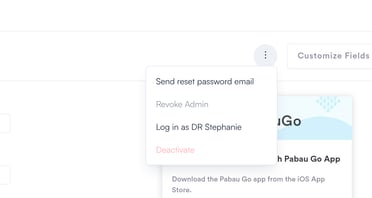
Log in as on a staff member’s profile in Team
So you can always tell a change a colleague made themselves from one an admin made on their behalf.
NOTE: There is no Impersonation field on changes a staff member made in their own session, on changes made when Pabau Support accesses your account, or on changes made before this field was introduced. If the admin is no longer on your team list, the field shows their user ID (for example #12345) instead of a name.
Who can use Log in as?
Only admins see Log in as, and only on the profile of an active colleague – not on their own profile, not on a deactivated staff member, and not while they are already logged in as someone else.
Related guides
Was this guide helpful? Let us know by voting below - your feedback helps us write clearer articles.
For more guides, browse the related articles below or use the search bar at the top of the page. You can also watch our video learning series, the Pabau Academy, or visit the Support page for additional help.