
Setting up vaccines by hand takes time: each vaccine needs its diseases, schedule and doses, and each travel destination needs the diseases a traveller should be protected against. Pabau can do most of this for you. Sync standard vaccines adds a ready-made list of commonly used vaccines with their schedules, and Sync from NaTHNaC links each country to the diseases recommended for travellers on TravelHealthPro, the website of the UK's National Travel Health Network and Centre (NaTHNaC).
NOTE: Both syncs use UK sources: the standard vaccines follow the UKHSA Green Book and each product's summary of product characteristics, and the travel advice comes from TravelHealthPro. Both only ever add to your setup. They never change or remove vaccines, diseases or risk levels you already have.
Step 1: Open Vaccine Management
Go to Setup, click the Clinical filter and click Vaccines. The Configure the vaccine management feature page opens.
- Click Vaccine to open your vaccine catalogue (Step 2).
- Click Countries to link travel advice to countries (Step 3).
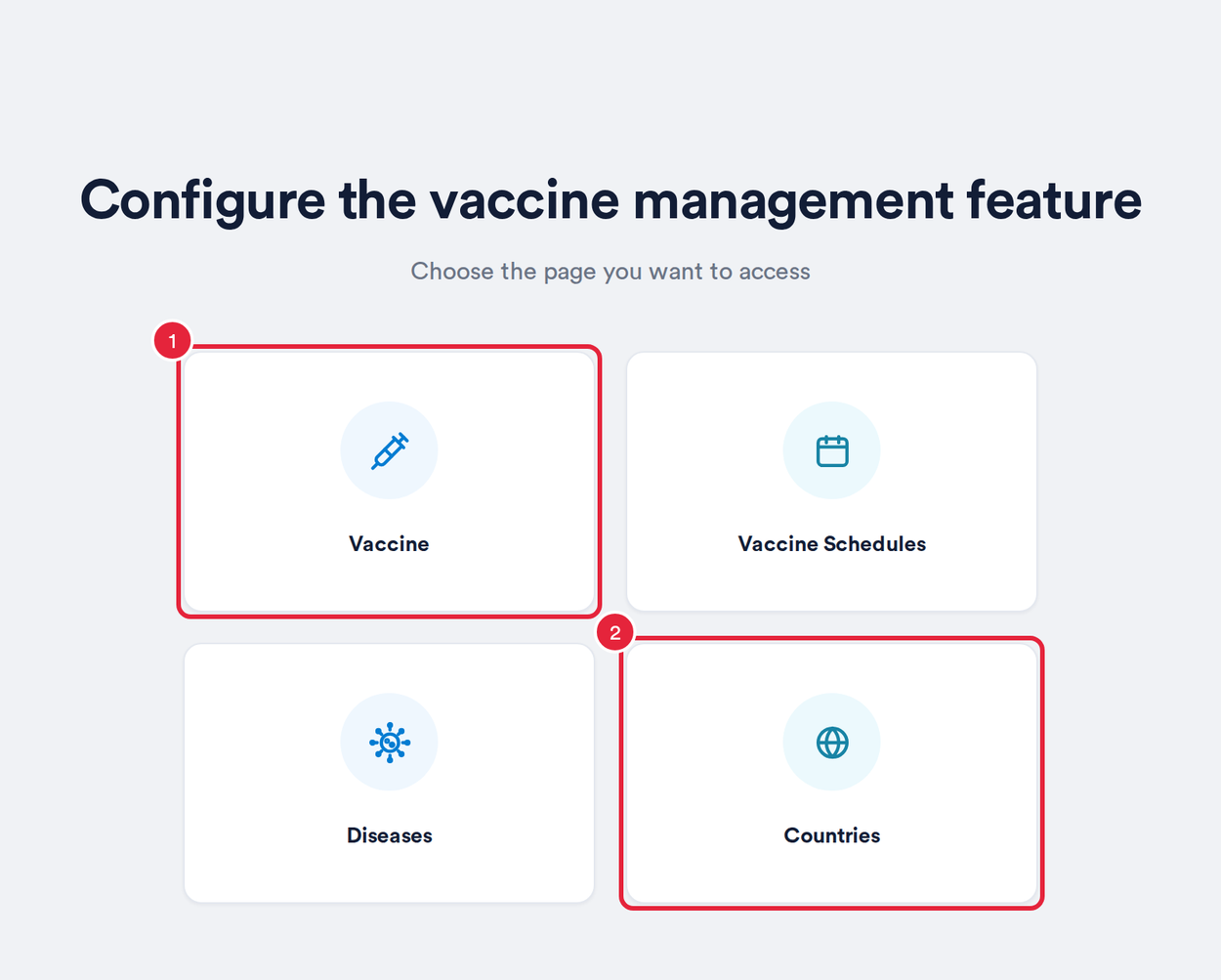
The vaccine management page
Step 2: Add the Standard Vaccines
- On the vaccine catalogue, click Sync standard vaccines.
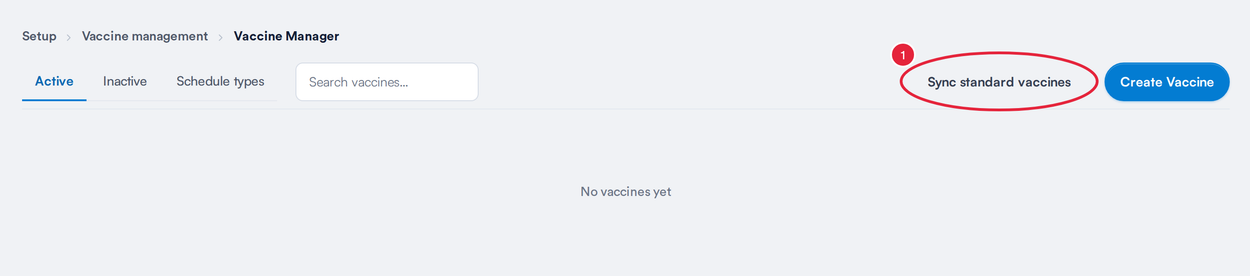
Sync standard vaccines, beside Create Vaccine
Pabau adds 34 standard vaccines, from Havrix Monodose (Hepatitis A) and Stamaril (Yellow fever) to Shingrix (Shingles) and Abrysvo (RSV). Each one comes with its dosage, route, age range, the diseases it protects against and its dose schedule. Pabau also creates the schedule types they use (Primary course, Booster, Single dose and Annual) and any diseases you don't have yet.
When it finishes, a message tells you how many were added, for example 34 standard vaccines added with schedules (0 already in your catalogue). A vaccine whose name is already in your catalogue is skipped. If you already have them all, the message reads Your catalogue already has every standard vaccine.
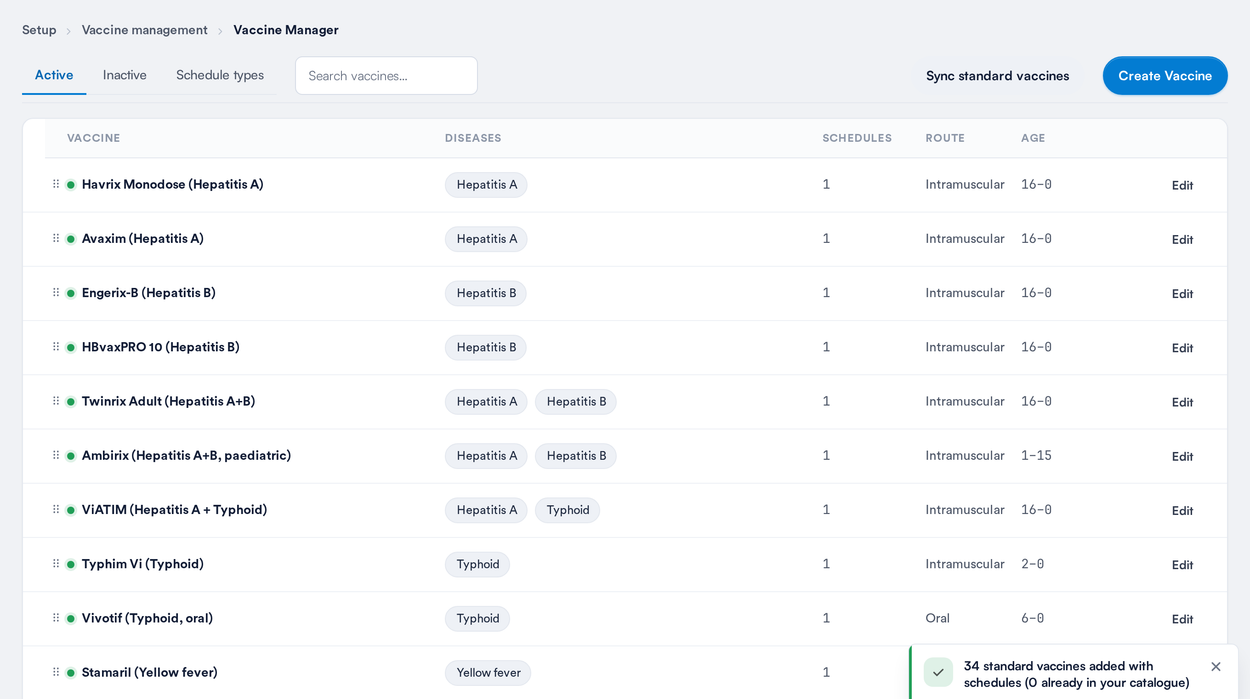
The standard vaccines added to the catalogue
IMPORTANT: The added vaccines are ordinary catalogue entries. Before you use them with clients, open each one with Edit and check its schedule and details match your clinic's protocols, and link the stock product you use so doses come off your stock. See How to Create Vaccines and How to Create Vaccines as Products.
Step 3: Sync Travel Advice for Every Country
- On Choose a Country, click Sync all from NaTHNaC.
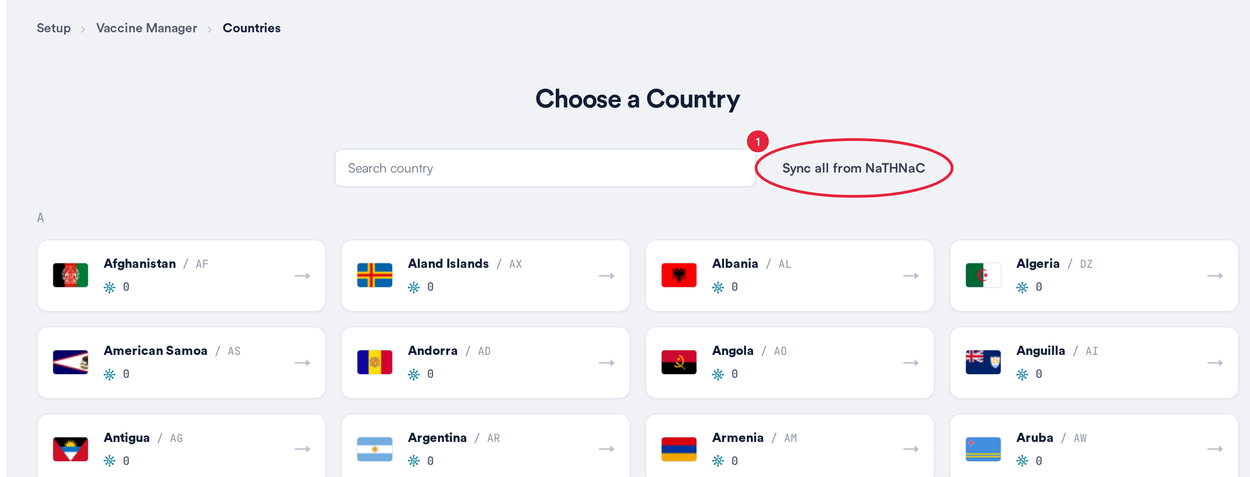
Sync all from NaTHNaC on the Countries page
Pabau works through the countries one at a time, reading each country's vaccine recommendations on TravelHealthPro:
- A progress line shows how far it has got, for example Syncing 34/223 — Bahrain.
- While it runs, the button changes to Stop syncing. Click it to stop after the current country; the message tells you how many countries were processed.
NOTE: Keep the page open until the sync finishes. It runs in your browser, so closing or refreshing the page stops it part-way. Countries already synced stay synced, and you can run it again to finish the rest.
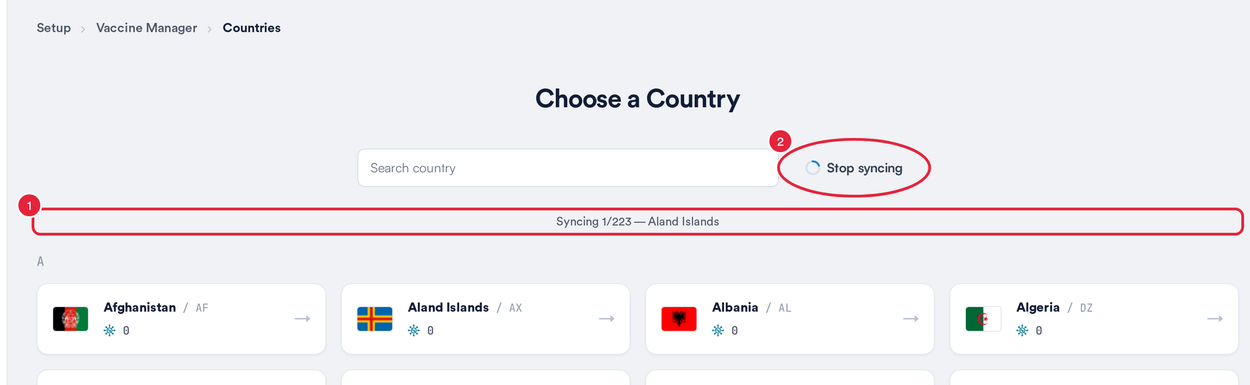
The sync in progress
When every country is done, the message reads NaTHNaC sync complete with the number of diseases linked and countries covered. Countries that aren't on TravelHealthPro are counted as "not on TravelHealthPro" and left as they are. If TravelHealthPro stops responding, the sync stops by itself and tells you, so you can try again later.
What the sync links for each country:
- Diseases TravelHealthPro recommends vaccination for most travellers get the risk level High.
- Diseases recommended for some travellers get the risk level Moderate.
- A disease that isn't in your setup yet is created. A disease record with no information link gets its TravelHealthPro page added.
TIP: Diseases already linked to a country are left exactly as they are, so any risk level you have changed by hand is kept. You can run the sync again whenever you want to pick up new advice.
Step 4: Sync a Single Country
To update one destination, for example before a client's trip:
- On Choose a Country, search for the country and click it. Under Country Disease Association, click Sync from NaTHNaC.
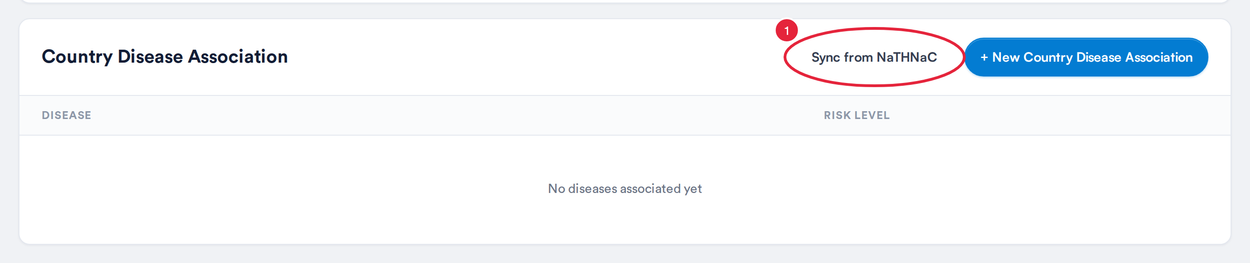
Sync from NaTHNaC on a country
The diseases appear in the list with their risk levels, and a message tells you how many were linked, for example 12 diseases linked from NaTHNaC. If nothing has changed since the last sync, it reads Already up to date with NaTHNaC.
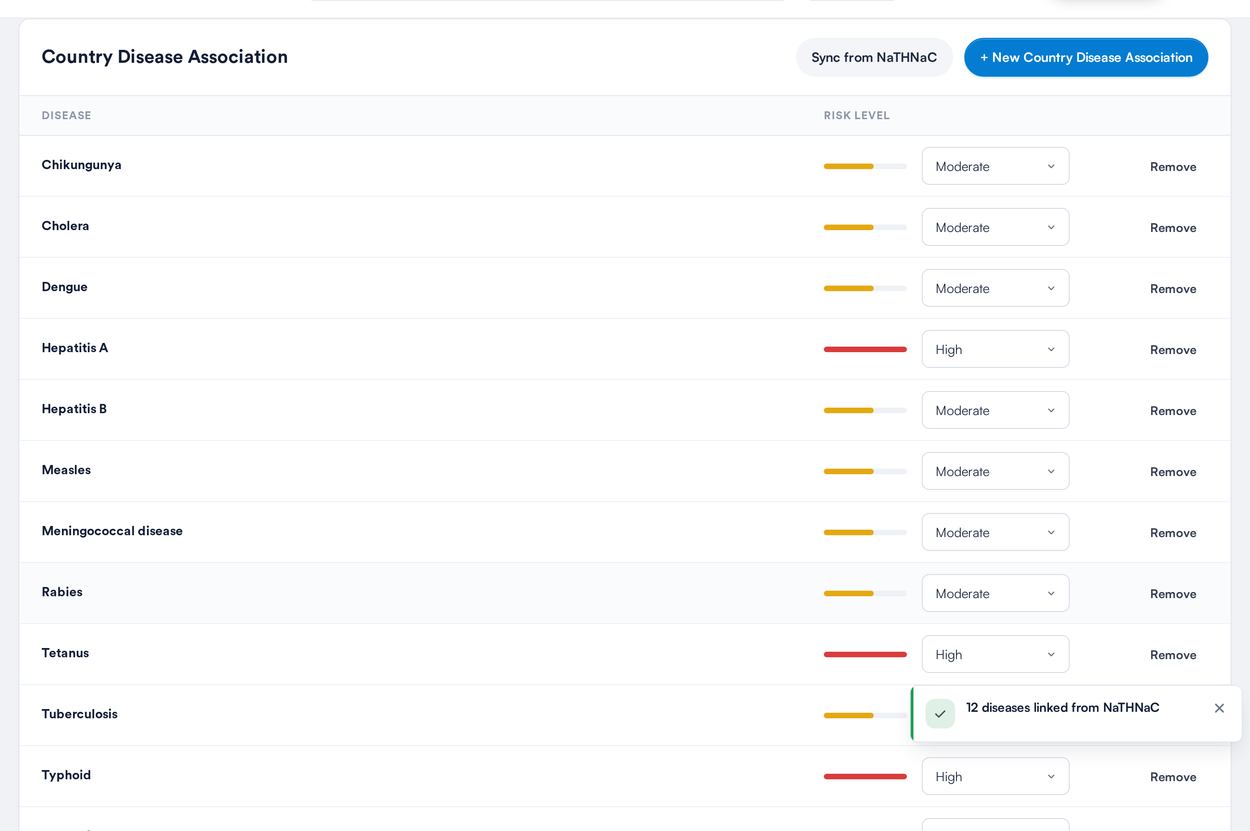
The country's diseases linked from NaTHNaC
You can still change a risk level with the drop-down, click Remove to unlink a disease, or click + New Country Disease Association to add one by hand.
What's next?
- How to Create Vaccines
- How to Manage Disease Records
- How to Create and Manage Schedule Types in Vaccine Management
- How to Schedule a Vaccine for a Client (New Client Card)
Was this guide helpful? Let us know by voting below - your feedback helps us write clearer articles.
For more guides, browse the related articles below or use the search bar at the top of the page. You can also watch our video learning series, the Pabau Academy, or visit the Support page for additional help.