
When a client opens a blood test on your booking page, they can scroll through an example of the results report they will receive, so they know exactly what they are paying for. The example is clearly marked SAMPLE and uses made-up figures. In this article, you will learn which services show it, how to switch it on or off, and what clients see.
NOTE: This guide covers the new Online Bookings and Client Portal, which are being rolled out to clinics in phases. If your screens look different, your account may still be on the classic version — message us via the in-app chat and we will help.
Step 1: Open the Services List Settings
- Go to Setup → Online presence → Online Bookings and click Customise page.
- Click Services in the Booking pages strip.
- Make sure Edit is selected at the top right.
- Hover over your list of services and click the blue Services label. The Services list panel opens on the right.
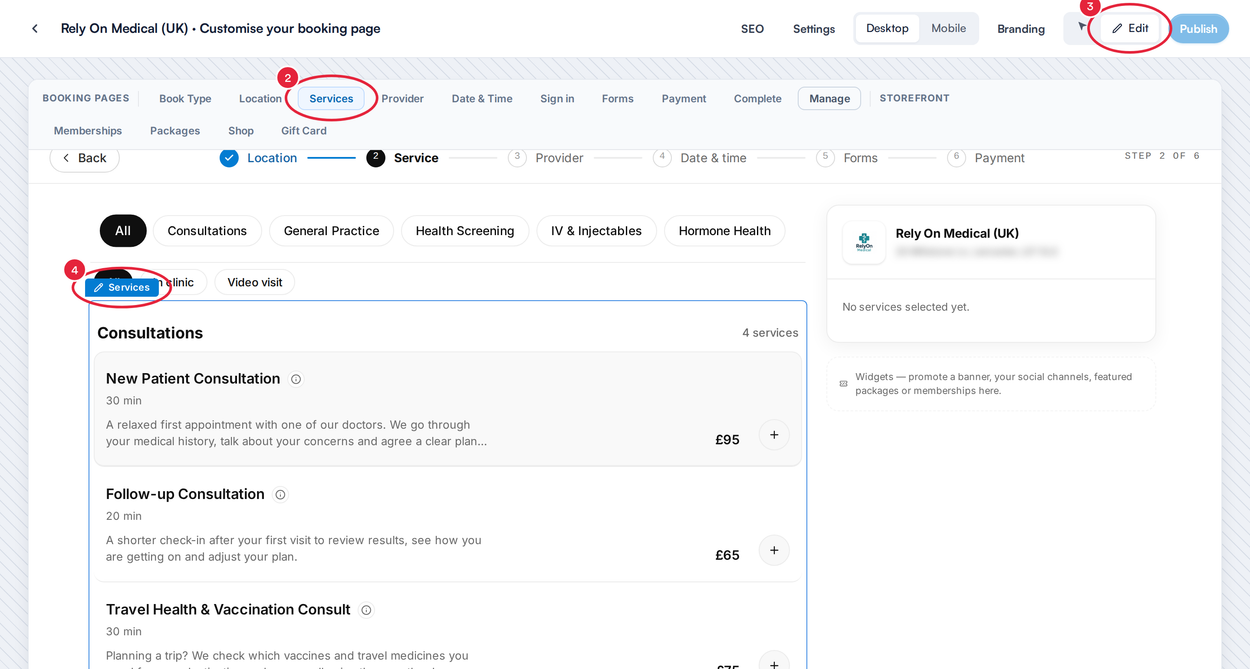
Open Services (2), select Edit (3), then click the Services label (4)
Step 2: Switch the Sample Report On or Off
- Click the Description tab.
- Scroll down to Blood tests and use the Show a sample lab report switch. It is on unless you switch it off.
- If you changed the switch, click Publish at the top right. Clients don’t see the change until you publish.
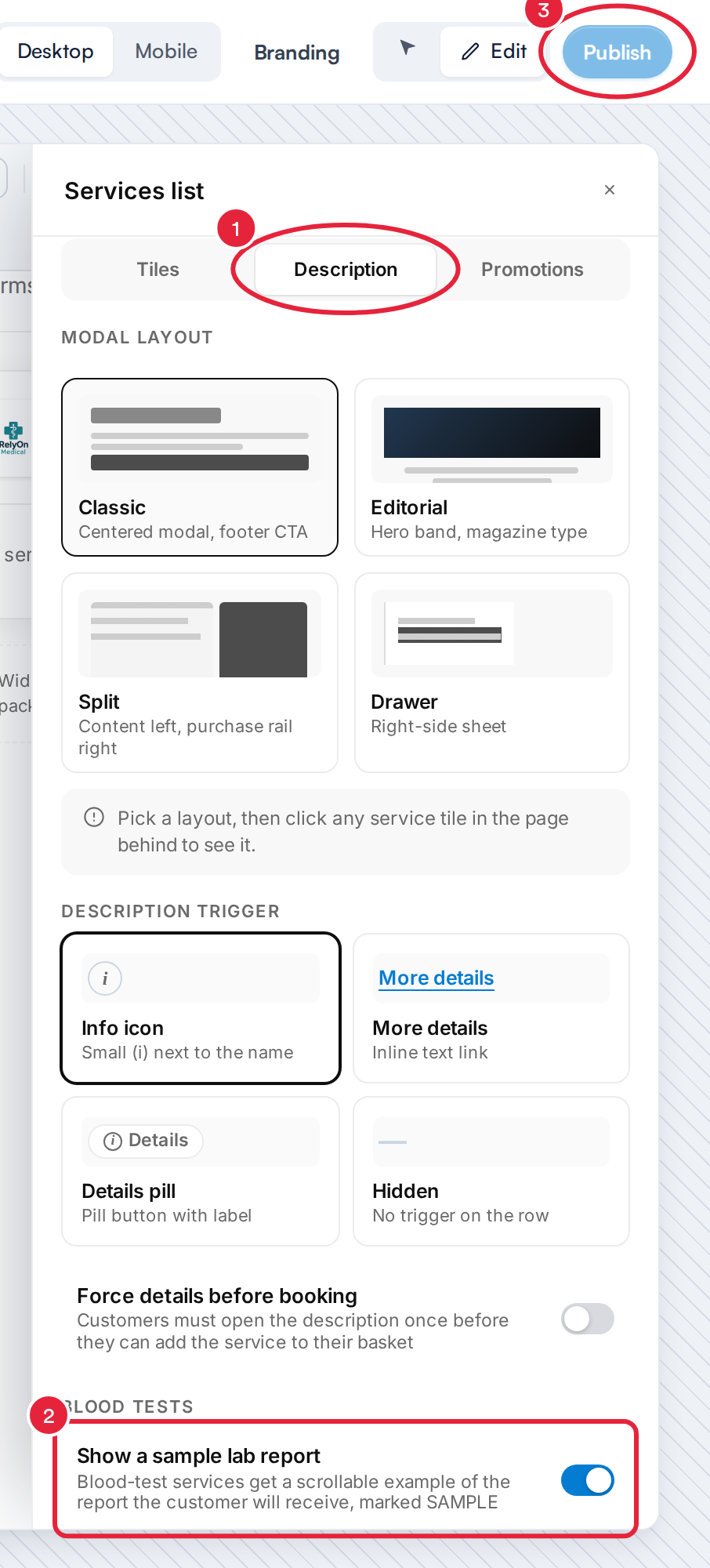
The Description tab (1), the Show a sample lab report switch (2) and Publish (3)
Which Services Show the Sample Report
There is nothing to tick on each service. Pabau reads the service’s name and the name of its category, and shows the sample on any service where they include a blood-test word, such as Blood, Phlebotomy, Biomarker, FBC, HbA1c, Lab test, Lab panel, Health check, Health screening, Well man, Well woman, Lipid profile or Thyroid panel.
- Services whose name or category mentions a treatment such as Facial, PRP, Vampire, Microneedling, Mesotherapy, Dermal, Filler or Skin never show it, even if they also mention blood. A PRP facial with a blood draw is not a blood test.
- Because the category name counts too, every service in a category such as Health Screening shows the sample, including any that are not blood tests (an ECG, for example). If that doesn’t suit you, move those services to another category or switch the setting off.
- Only English words are recognised.
TIP: To check a service, click the arrow next to Edit to switch Studio to Interact mode, then open the details of a blood-test service (by default, the i next to its name). Nothing is booked.
What Clients See
On a computer, the service’s details window opens with Your report, previewed beside it. Clients scroll through the example pages: a cover with the service’s name, your clinic’s name, logo and contact details, then example results grouped by area of health. The cover says Prepared for you, or the client’s own name when they are signed in. At the bottom, a line reminds them: Sample figures — your own results will differ.
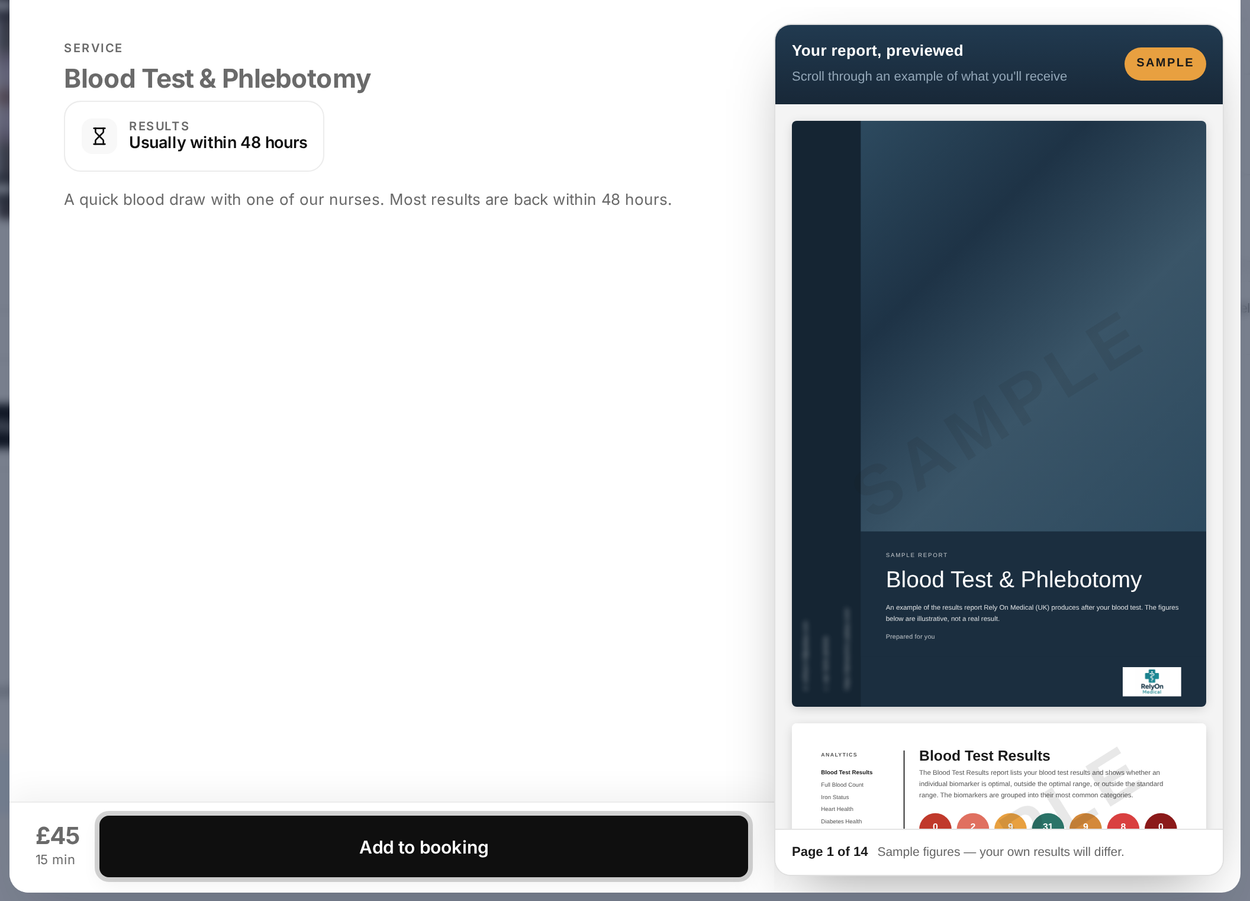
The sample report beside a blood test’s details
On a phone, the sample report sits inside the details window, below the description.
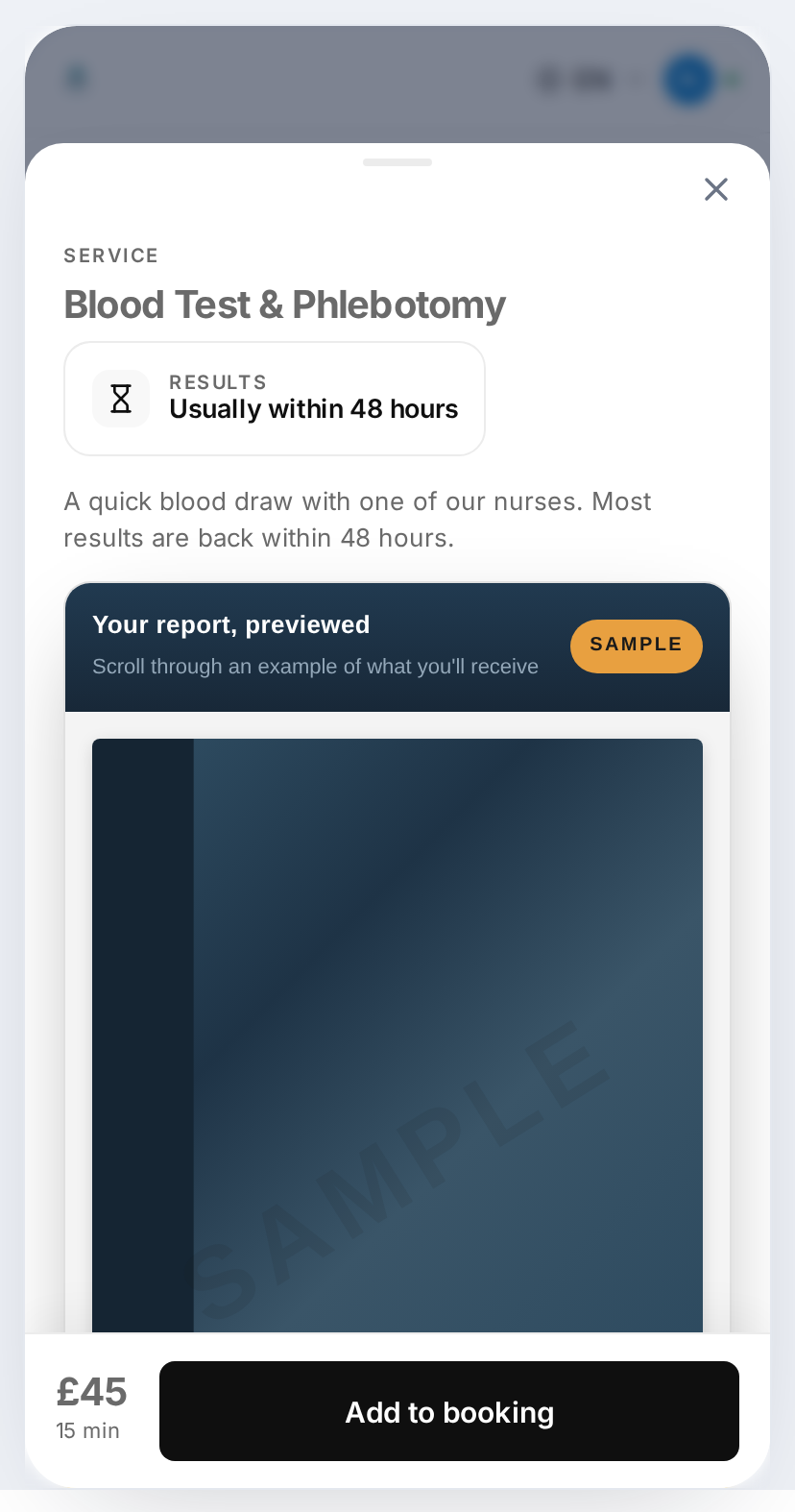
The sample report on a phone
NOTE: The sample is the same example for every clinic, with your clinic’s details on the cover. It is not built from any client’s real results, and it is not the report your lab sends.
What's next?
- How to Add Highlights, an Extended Description and a Notice to a Service
- New Online Bookings Part 2: Customise and Publish Your Booking Page in Pabau Studio
- How to Set Up Blood Tests
Questions? Reach us any time via the in-app chat — we’re happy to help.
Was this guide helpful? Let us know by voting below - your feedback helps us write clearer articles.
For more guides, browse the related articles below or use the search bar at the top of the page. You can also watch our video learning series, the Pabau Academy, or visit the Support page for additional help.