
Staff notifications keep you and your team informed about key client and clinic activity.
You can be notified about new bookings and cancellations to payments, reviews, and lead enquiries, without needing to check back manually. Each staff member can customize their own preferences, choosing exactly which events they want to be notified about and how.
Step 1: Navigate to Notification Settings
Log in to your Pabau account, click on your Client Profile/Avatar in the top right corner of the screen, and select "Account Settings" from the dropdown menu.

Step 2: Open the Notifications Tab
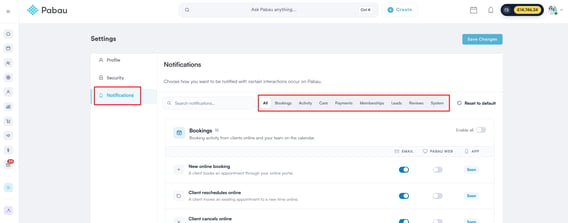
In Account Settings, click on the "Notifications" tab in the left sidebar menu. Here, you'll see notifications grouped into categories, covering bookings, appointment activity, care, payments, memberships, leads and enquiries, reviews, and system alerts.
Step 3: Choose Your Delivery Channels
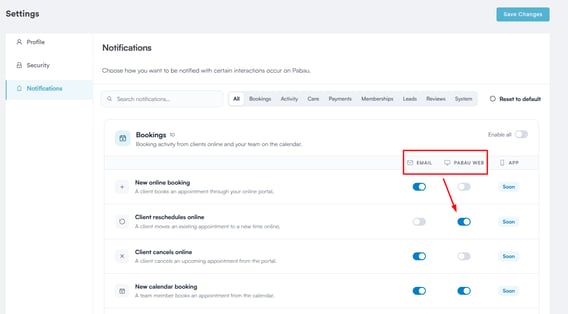
Each notification can be delivered through one or both of the following channels:
- Email: You'll receive an email with the details of the action taken. This email is hard-coded, which means that the content of it can't be changed.
- Pabau (web version): You'll receive a notification inside the web app, visible in the "View Notifications" bell icon next to your avatar in the top right corner. Alongside that live pop-up alerts appear briefly on screen giving you an instant, real-time alert alongside the notification stored in your bell icon.
The toggles for each channel are independent, so you can enable one without the other, depending on how you'd like to be notified for each type of activity.
Step 4: Set Up Notifications by Category
Click on a category to expand it and view the available notifications. Toggle on the ones you want to receive, using the channel switches described above.
Bookings
Booking notifications cover all activities related to appointment bookings. You can receive notifications when a client takes an action, such as booking an appointment online, or when a team member performs an action, such as creating an appointment through the calendar.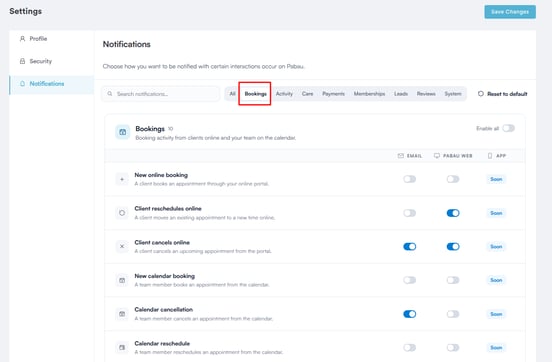
- New online booking - A client books through the online portal.
- Client reschedules online - A client moves a booking through the online portal.
- Client cancels online - A client cancels a booking through the online portal.
- New calendar booking - A team member books an appointment from the calendar.
- Calendar cancellation - A team member cancels an appointment from the calendar.
- Calendar reschedule - A team member reschedules an appointment from the calendar.
- Same-day cancellation - A booking is cancelled on the same day as the appointment.
- Client joins waitlist - A client adds themselves to a waitlist.
- Waitlist slot becomes available - A slot frees up for a waiting client.
- Practitioner appointment changed – A practitioner is added to or removed from an appointment.
NOTE: These notifications go to the assigned practitioner for the appointment. Waitlist notifications go to staff members with access to that location instead.
If you would like to receive notifications for all online bookings, regardless of who they are booked with, you can set up an email for company notifications in your online booking settings. For more details, refer to the following guide.
Appointment Activity
Live signals from the clinic floor, such as check-ins and no-shows.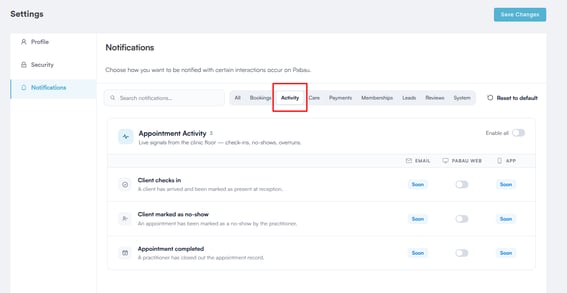
- Client checks in - A client is marked as arrived or checked in.
- Client marked as no-show - A client is marked as a no-show.
Care
Covers consent forms, medical history, and clinical documentation.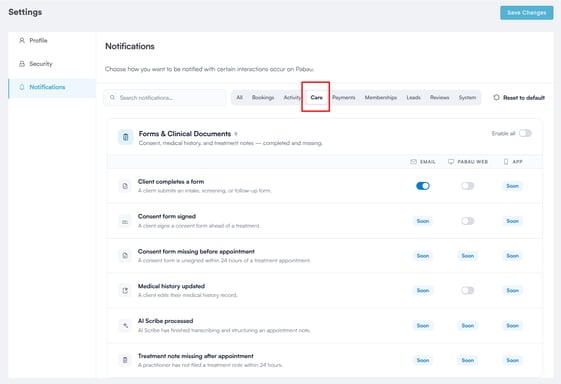
- Client completes a form - A client submits a form through the client portal.
- Consent form signed - A client e-signs a consent form.
- Medical history updated - A client updates their medical history.
Payments
Covers inbound payments, deposits, refunds, and product or package sales.
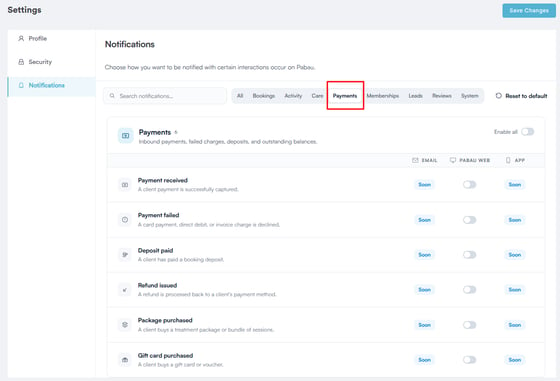
- Payment received - A client payment succeeds.
- Payment failed - A charge fails, for example a declined card.
- Deposit paid - A client pays a deposit.
- Refund issued - A refund is processed.
- Package purchased - A client buys a package.
- Gift card purchased - A gift card is sold.
NOTE: These notifications go to the client's owner and the appointment owner. If neither is available, they go to the admins instead. "Package purchased" and "Gift card purchased" notifications go to staff at the relevant location instead.
Memberships
Covers recurring membership lifecycle events.
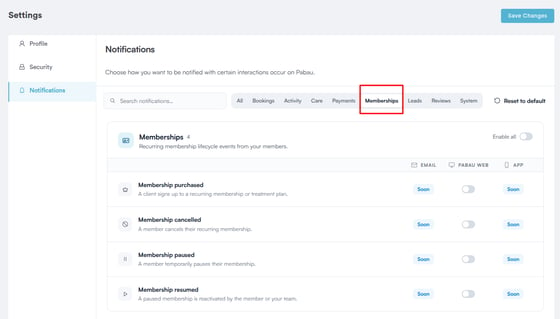
- Membership purchased - A membership is bought or activated.
- Membership cancelled - A member cancels their membership.
- Membership paused - A member pauses their membership.
- Membership resumed - A member resumes their membership.
NOTE: These notifications go to staff at the relevant location, or to admins if no location applies.
Leads & Enquiries
Covers new leads, website enquiries, and quote activity.
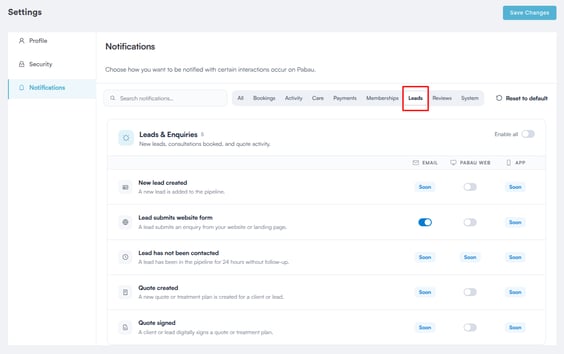
- New lead created - A staff member manually creates a lead.
- Lead submits website form - A website visitor submits an enquiry form.
- Quote created - A quote is created.
- Quote signed - A client or prospect signs a quote.
Reviews
Covers public reviews and private feedback for the clinic and individual practitioners.
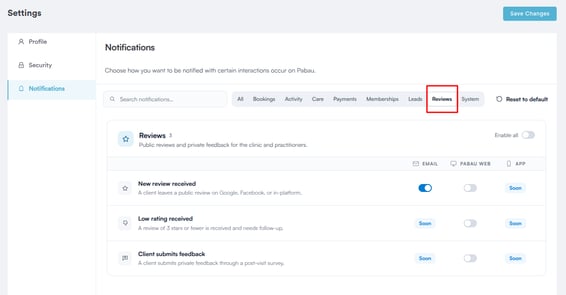
- New review received - A 4-5 star review is left.
- Low rating received - A 1-3 star review is left.
- Client submits feedback - A client leaves written feedback.
System
Account, security, and platform alerts, primarily intended for admins.
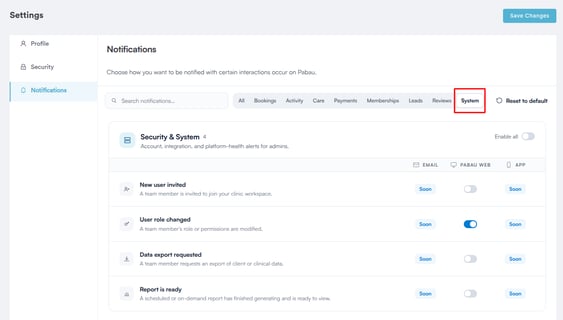
- New user invited - A team member is invited to the account.
- User role changed - A team member's permissions are changed.
- Data export requested - Someone requests a data export.
- Report is ready - A requested export is completed.
NOTE: Most of these notifications go to admins and the account owner at that location. "User role changed" only goes to the team member whose role was changed.
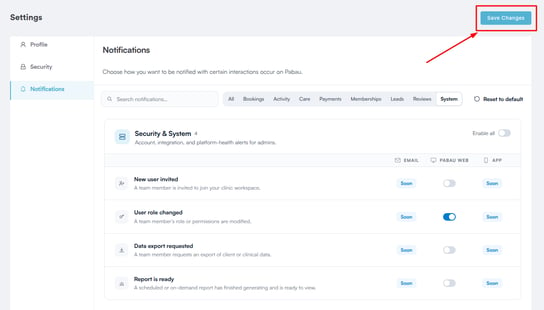
Step 5: Save Your Changes
Once you've selected your preferences, click "Save Changes" in the top right corner of the Account Settings page.
With your notification preferences set up, you'll stay on top of the client and clinic activity that matters most to you, whether it's through email, the notification bell, or pop-up alerts inside the web app.
For more guides, refer to related articles below, select additional guides, or use the search bar at the top of the page. These guides will help you get the most out of your Pabau account.
Additionally, to help you fully utilize and understand your Pabau account, we recommend exploring additional guides and resources offered at the Pabau Academy. It offers in-depth video tutorials and lessons, offering a holistic learning experience that can equip you with the essential skills for achieving success with Pabau.