
Rebooking reminders are one of the most effective ways to retain clients and maintain a consistent appointment schedule. Instead of manually following up with clients who haven't rebooked, you can use Pabau's Automations feature to send up to four monthly reminder emails automatically — triggered by the date of their last completed appointment.
NOTE: You will need to create one automation per reminder. Since each automation targets clients at a different point after their last appointment (1 month, 2 months, 3 months, and 4 months), you will repeat the steps below four times, adjusting the timing and messaging for each one.
Setting Up Your First Reminder (1 Month After Last Appointment)
Step 1: Navigate to Automations
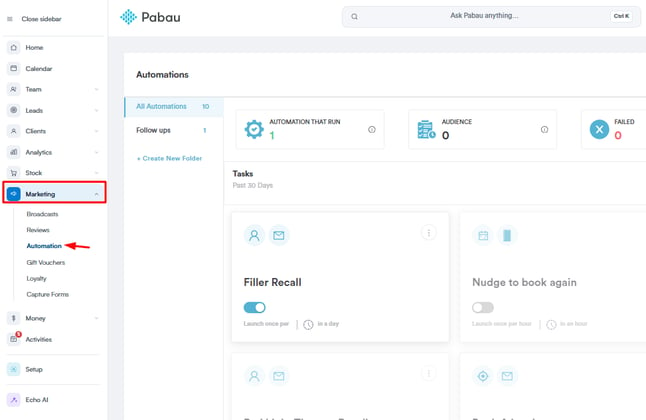
Log into your Pabau account and click on Marketing in the left sidebar menu. Then select Automation.
Step 2: Create a New Automation
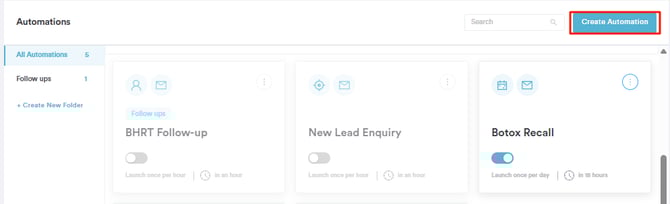
Click the Create Automation button in the top right corner of the page. Select Start from scratch.
Step 3: Choose the Automation Filter
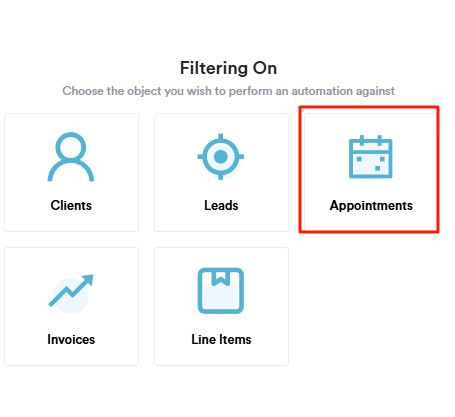
When prompted to select the primary object, choose Appointment. This allows the automation to target clients based on their appointment history.
Step 4: Select the Automation Type
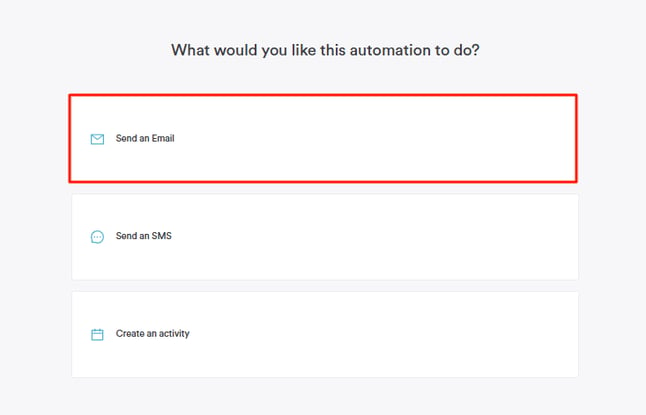
On the next screen, select Send an Email as the automation type.
Step 5: Fill in the Settings
Under the Settings tab, complete the following:
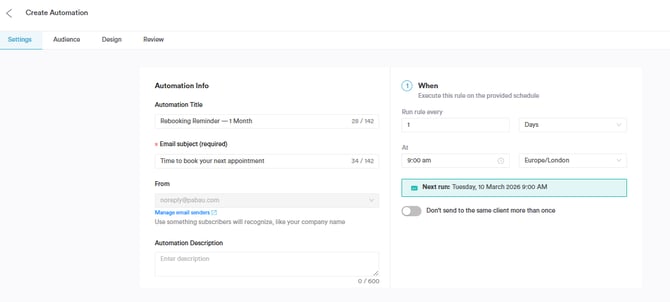
- Automation title — give it a clear internal name, for example: Rebooking Reminder — 1 Month
- Email subject — something like: "We'd love to see you again!" or "Time to book your next appointment"
- Sender name and email address — select your preferred sender details
- Frequency — set this to run Every 1 Day so the system checks daily for clients who match the criteria
- Don't send to the same client more than once — leave this off, as you want the automation to continue checking and sending where applicable
Step 6: Define the Audience
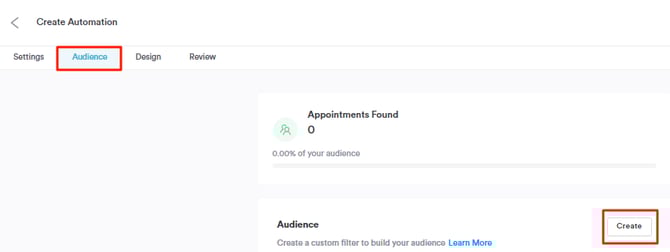
Click the Audience tab and create a new audience with the following conditions:
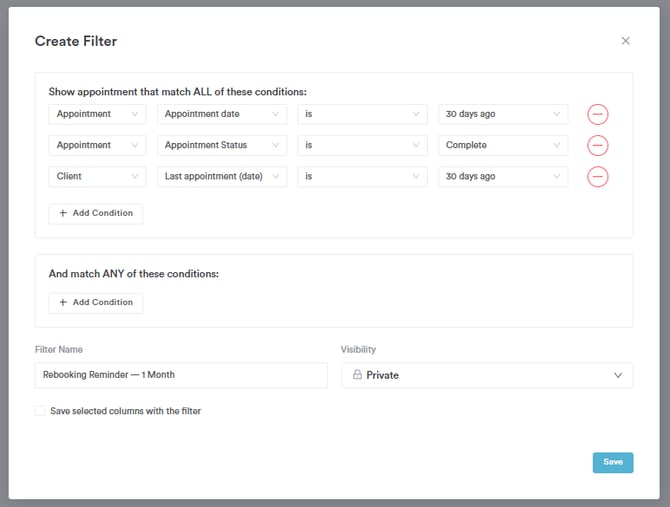
- Appointment date was 30 days ago
- Appointment status is Complete
- Contact where last appointment date is 30 days ago (so reminders are only sent to clients who haven't already rebooked)
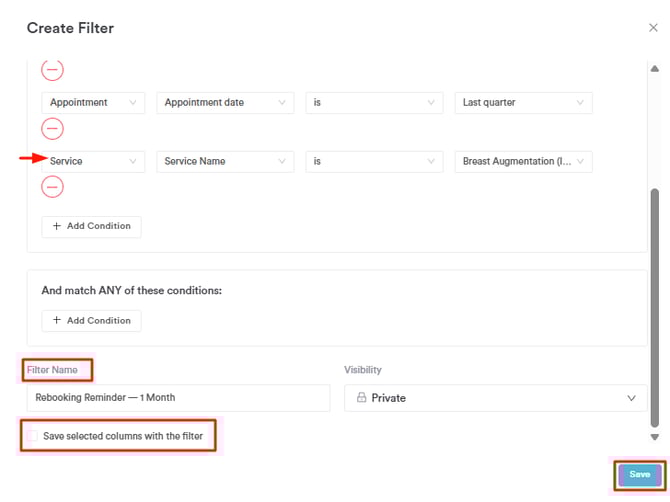
If you want to target a specific service — for example, clients who had a particular treatment — add an additional condition for the appointment service. Give the audience a name and click Save.
Step 7: Design the Email
Click the Design tab and build your email using the drag-and-drop editor or an existing template.
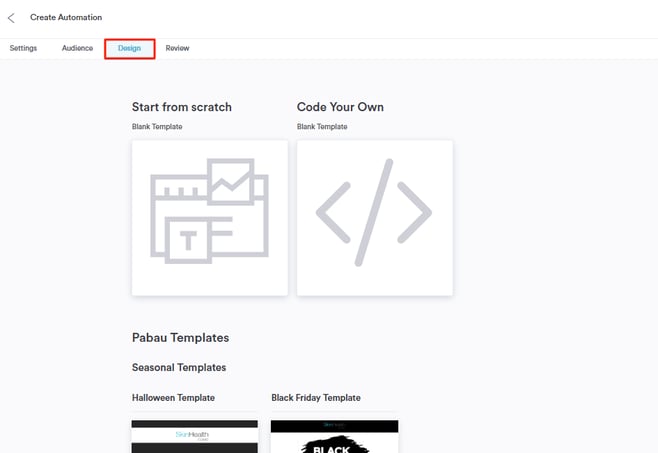
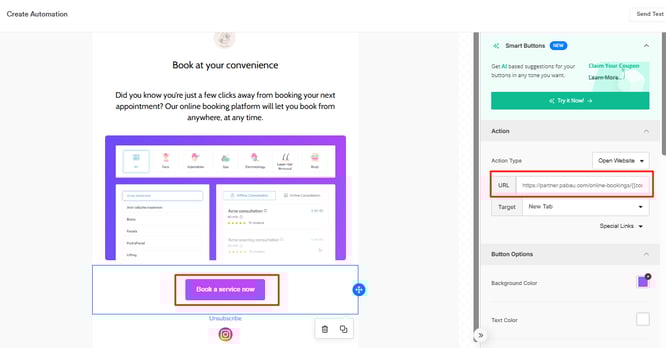
Keep the message friendly and personal — remind the client of the service they had and include a clear call to action. Consider adding a button that links directly to your Online Bookings page to make it easy for clients to rebook in one click.
Step 8: Review and Activate
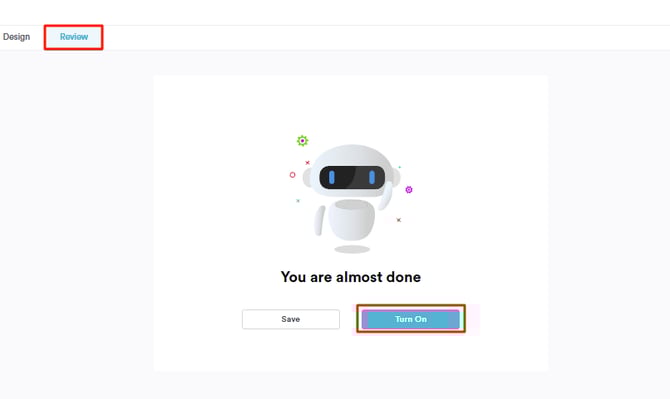
Click the Review tab to check that all fields are completed correctly. Once you are happy, click Turn On to activate the automation. It will now appear on your Automations page with the toggle enabled.
Setting Up the Remaining Three Reminders
Once your first automation is live, you will need to repeat the process three more times — one automation for each additional monthly reminder. The steps are identical, with the following adjustments for each:
Second Reminder — 2 Months After Last Appointment
- Automation title: Rebooking Reminder — 2 Months
- Audience condition: Appointment date was 60 days ago
- Email messaging: A slightly more direct follow-up, acknowledging it has been a couple of months
Third Reminder — 3 Months After Last Appointment
- Automation title: Rebooking Reminder — 3 Months
- Audience condition: Appointment date was 90 days ago
- Email messaging: A warmer, more personalized message — consider offering a small incentive such as a discount or priority booking
Fourth Reminder — 4 Months After Last Appointment
- Automation title: Rebooking Reminder — 4 Months
- Audience condition: Appointment date was 120 days ago
- Email messaging: A final nudge — keep the tone light and welcoming, making it easy for lapsed clients to return
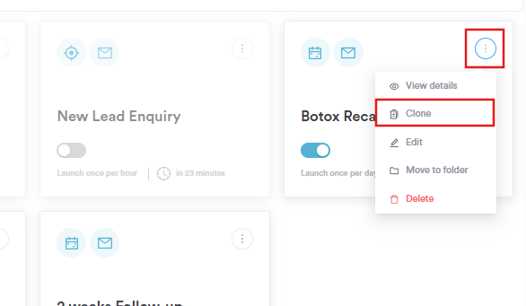
NOTE: Once you have set up the first automation, use the Clone feature to duplicate it for the remaining three. Simply hover over the three dots on the automation card, click Clone, then update the title, audience timing, and email content before turning it on. This saves significant time compared to building each one from scratch.
For more guides, refer to related articles below, select additional guides, or use the search bar at the top of the page. These guides will help you get the most out of your Pabau account.
Additionally, to help you fully utilize and understand your Pabau account, we recommend exploring additional guides and resources offered at the Pabau Academy. It offers in-depth video tutorials and lessons, offering a holistic learning experience that can equip you with the essential skills for achieving success with Pabau.