
In Pabau, you can add extra time to a service, before or after the treatment itself. Extra time comes in two forms:
- Processing time: the staff member can see another client during this time, for example while a numbing cream or a colour takes effect.
- Blocked time: keeps the staff member unavailable, for example to clean and reset the room. Nobody can be booked with them during it.
You can configure extra time on a per-service basis by following the steps below.
Step 1: Accessing Service Settings
To begin, log into your Pabau account using your credentials. Once logged in, navigate to Setup in the left sidebar menu. In Setup, click Services under Catalogue.
Step 2: Set the Service's Duration
Find the service you want to add extra time to and click it. The Edit Service window opens. Go to the Pricing tab.
- Under Pricing & Duration, check the Duration: this is the time for the treatment itself.
- Click Add extra time.
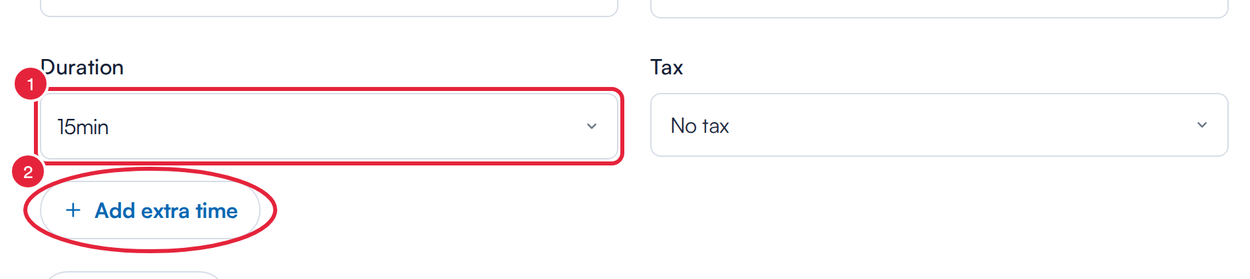
Duration and Add extra time on the Pricing tab
NOTE: Extra time is available for services measured in hours or minutes. If the duration is set in days, Add extra time is greyed out, and a service that already has extra time can't be switched to days until you remove it.
Step 3: Build the Appointment Timeline
An Appointment timeline appears. It lists each part of the appointment in the order it happens, from top to bottom: step 1 is the Service itself, and each extra time you add becomes another step. For each extra time step:
- Choose its Time type: Processing time or Blocked time.
- Choose its Length.
- Optionally give it a Name (optional), such as "Numbing cream" or "Room reset". The name is shown on the calendar; leave it blank to show the time type instead.
- Use Move earlier and Move later to put the extra time before or after the service.
- Click Remove to delete a step you don't need.
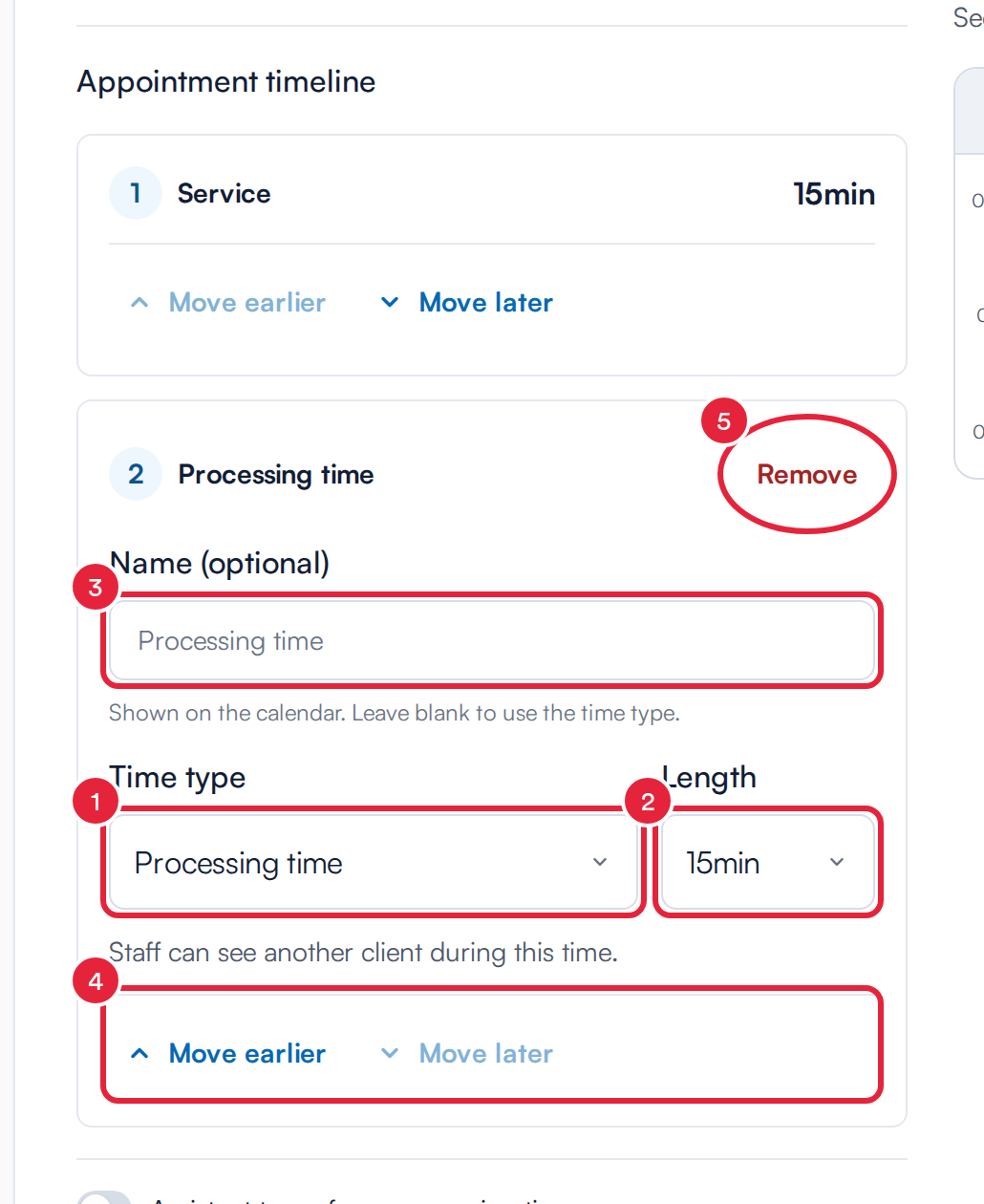
The Appointment timeline with an extra time step
TIP: Click Add extra time again to add more steps. For example, add processing time before the service for a numbing cream and blocked time after it to reset the room.
Step 4: Give Extra Time to an Assistant (Optional)
When a service has processing or blocked time, switches appear below the timeline:
- Switch on Assistant to perform processing time (or Assistant to perform blocked time) to give that time to the assistant on the appointment. The primary staff member is then free during it.
- Check the Calendar preview beside the timeline. It shows how the appointment fits into the calendar ("See how this appointment fits into the calendar."). With an assistant switch on, it adds an Assistant column: the selected extra time moves to the assistant, and the staff member shows as Available during it.
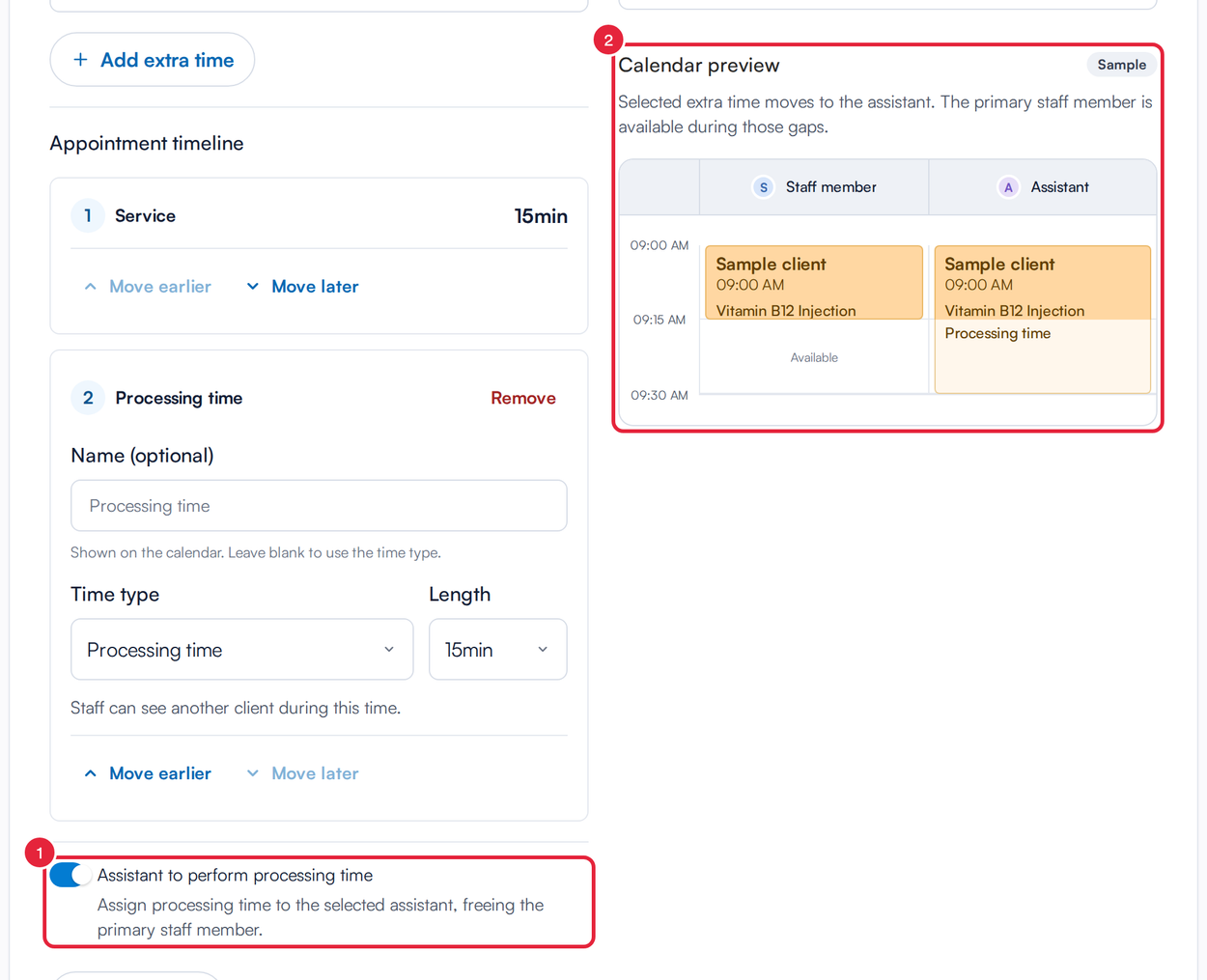
Processing time given to the assistant, shown in the Calendar preview
Step 5: Save the Service
Click Save at the top right of the Edit Service window. Appointments you book for the service from then on include the extra time you set up.
What's next?
Was this guide helpful? Let us know by voting below - your feedback helps us write clearer articles.
For more guides, browse the related articles below or use the search bar at the top of the page. You can also watch our video learning series, the Pabau Academy, or visit the Support page for additional help.