
Table of Contents:
Sending aftercare through the care pathway ensures clients receive the right post-treatment instructions automatically at the end of their appointment. Meanwhile, as a practitioner, have a complete record of what was sent, when it was sent and which member of staff sent it.
How to Set Up Aftercare in the Care Pathway
Step 1: Launch the Pabau GO iOS App
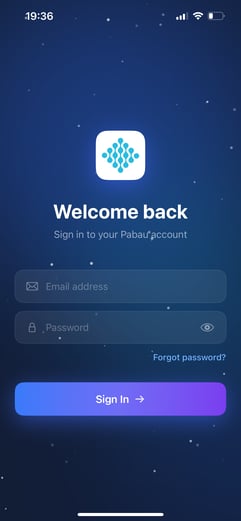
Start by launching the Pabau GO app on your iOS device and logging into your Pabau account using your credentials.
Step 2: Access the Care Pathway
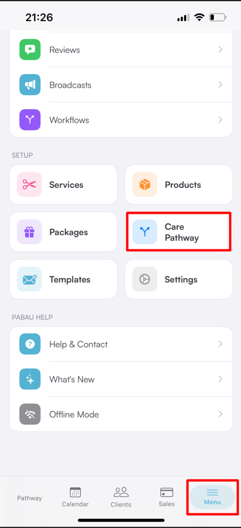
Tap "Menu" at the bottom right of the screen, then tap "Care Pathway" under the Setup section.
Step 2: Select a Care Pathway
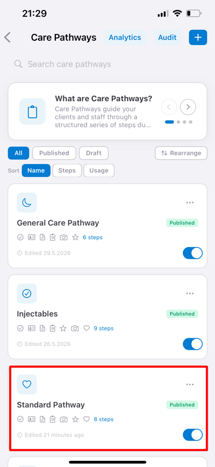
You will see a list of all your care pathways. Tap on the pathway you want to add aftercare to.
Step 3: Open the Employee View
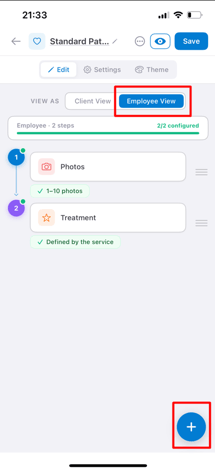
Once inside the pathway, make sure "Employee View" is selected at the top of the screen. This shows the steps that staff complete during the appointment. Tap the "+" button in the bottom right corner to add a new step.
Step 4: Add the Aftercare Step
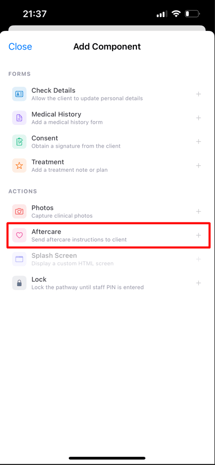
This will open the "Add Component" panel. Under Actions, tap "Aftercare" to add it to your pathway.
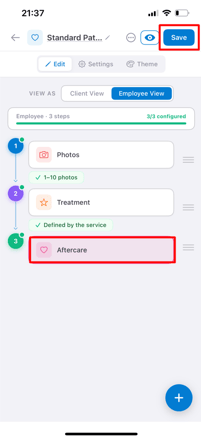
The aftercare step will now appear in your pathway. Tap "Save" to save your changes.
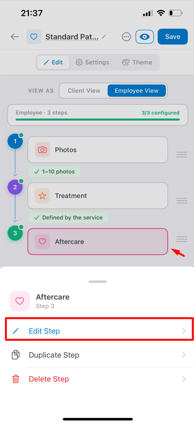
If needed, you can pre-select specific aftercare resources for this step by tapping the Aftercare step and selecting "Edit Step".
Browse and select resources from the Education or Email Templates tabs, then tap "Done" when finished.
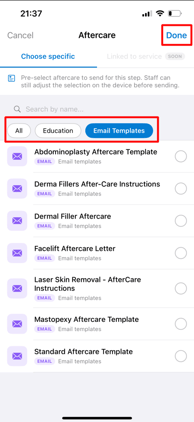
NOTE: Any pre-selected resources are just a default — staff can still change the selection during the appointment before sending, ensuring the right aftercare is always sent to the right client.
By following these steps, you have successfully set up aftercare in your care pathway and are ready to send aftercare to clients during appointments.
How to Send Aftercare to Clients via the Care Pathway
Step 1: Navigate to the Pathway
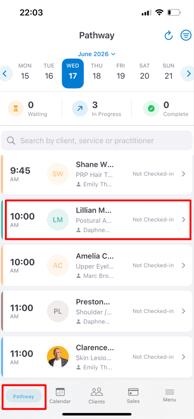
Tap "Pathway" from the navigation menu at the bottom of the screen. You will see all appointments scheduled for the day. Tap on the relevant appointment to open it.
Step 2: Select a Pathway
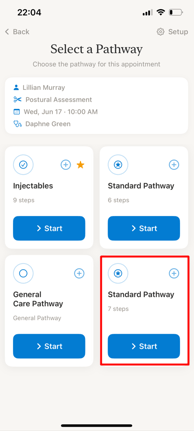
You will be prompted to select the pathway you want to run for this appointment. Tap "Start" on the relevant pathway.
Step 3: Complete the Employee Steps
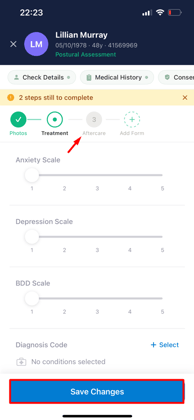
Once the client has completed their steps and handed the device back to you, work through the employee steps until you reach the Aftercare step.
Step 4: Send Aftercare
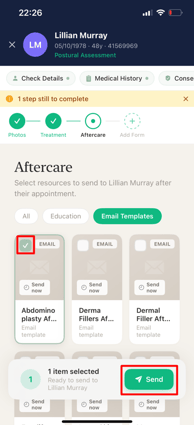
On the Aftercare step, browse by All, Education, or Email Templates and tap the appropriate aftercare to select it. Once ready, tap "Send" to send the aftercare to the client.
Step 5: Complete the Pathway
Once all steps are done, the pathway will be marked as complete.
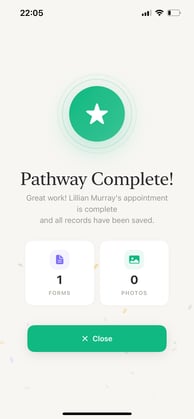
Step 6: View the Pathway Summary
Tap on the completed appointment in the Pathway screen to view a full summary, including the aftercare that was sent and the staff member who completed the step.
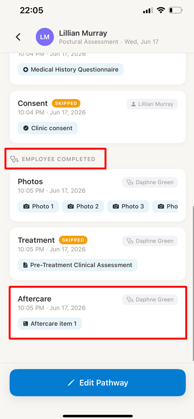
By following these steps, you can successfully send aftercare to your clients through the care pathway.
📱Please note: The latest version of Pabau GO requires iOS 17 / iPadOS 17 or later. Devices that can't update to iOS 17 / iPadOS 17 won't be able to run it.
Download Pabau GO on your iPhone or iPad from the App Store.
For more guides, refer to related articles below, select additional guides, or use the search bar at the top of the page. These guides will help you get the most out of your Pabau account.
Additionally, to help you fully utilize and understand your Pabau account, we recommend exploring additional guides and resources offered at the Pabau Academy. It offers in-depth video tutorials and lessons, offering a holistic learning experience that can equip you with the essential skills for achieving success with Pabau.