
Workflow 1: No-Show Follow-Up
Step 1: Navigate to Workflows
Log into your Pabau account at app.pabau.com. In the left sidebar, go to Marketing, then click Workflow. In the top right corner, click Create Workflow.
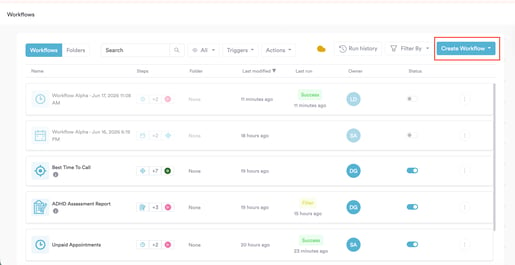
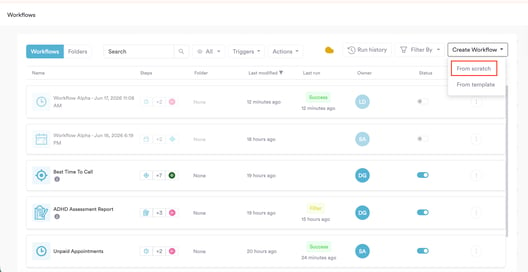
When prompted, select Start from Scratch.
Step 2: Select the Appointments: Updated Trigger
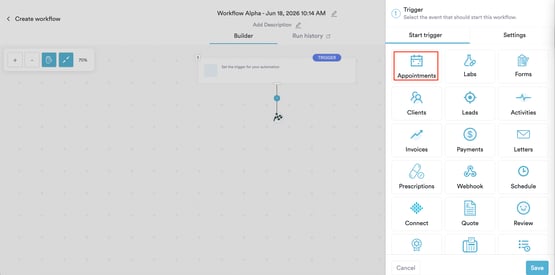
The right sidebar will open, prompting you to choose a trigger. Select Appointments.
A list of appointment activity options will appear below the grid. Select Updated - this fires the workflow the moment an appointment is updated via the calendar, including when the status is changed to Complete.
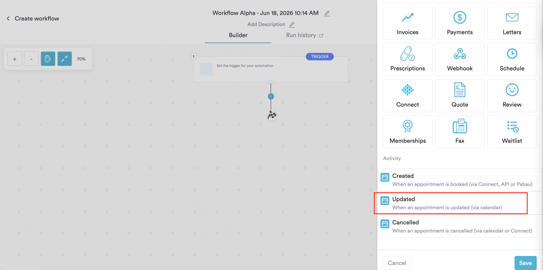
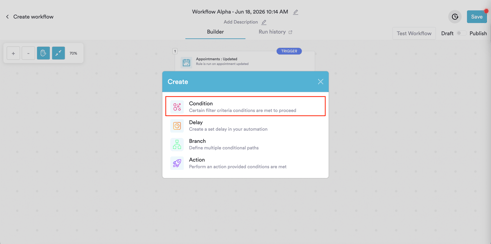
Click on the Save button and the Create panel will open. Select Condition.
Step 3: Add Conditions
The Condition screen opens with a default row. Click Appointment Date and change it to Appointment Status. Click the value and select No Show.
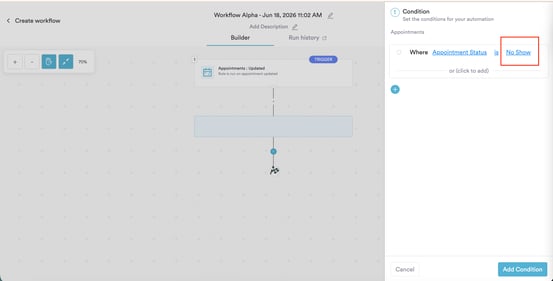
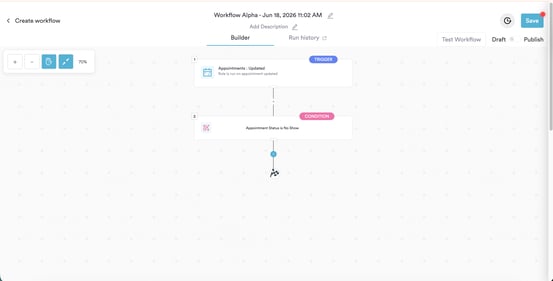
Click Add Condition to save.
Step 4: Add a Send Email Action
Click the + button below the Condition block. Select Action → Actions in Pabau → Communication → Send Email and click Continue twice.
Fill in the four required fields:
To - select Client email (trigger)
From - select your clinic's sender address from the Other section
Subject - for example: [Client first name] - We missed you today
Message - write your re-engagement message. Use Insert to add merge tags. A simple example:
Hi [Client first name],
We noticed you weren't able to make your appointment today - we hope everything is okay.
We'd love to help you rebook at a time that works for you. Click below to find a new slot.
[Booking URL]
[User full name]
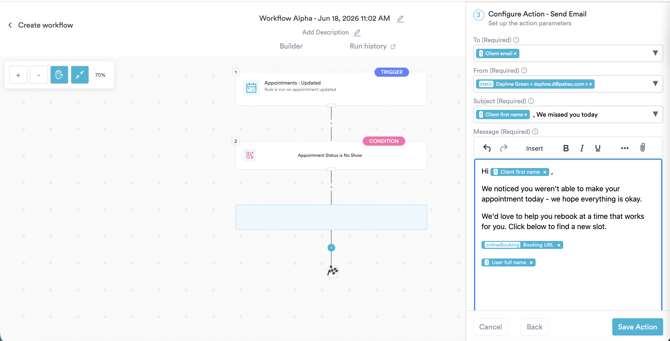
Click Save Action.
Step 5: Test and Activate
Click Test Workflow, review the Run History to confirm everything ran correctly, then switch from Draft to Publish and click Save.
Workflow 2: Cancellation Follow-Up
This workflow follows the same structure as the no-show workflow above. The only difference is the condition value - set Appointment Status to Cancelled instead of No Show.
Step 1: Create a New Workflow
From the Workflows page, click Create Workflow and select Start from Scratch.
Step 2: Select the Appointments: Updated Trigger
Select Appointments → Updated. The trigger saves automatically.
Step 3: Add a Condition
Set the condition to Where Appointment Status is Cancelled.
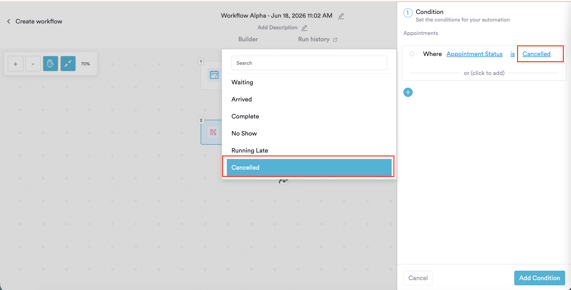
Click Add Condition to save.
Step 4: Add a Send Email Action
Follow the same steps as Workflow 1. For the cancellation email, adjust the subject and message to suit the context. For example:
Subject: [Client first name] - Sorry we couldn't see you
Message:
Hi [Client first name],
We're sorry you had to cancel your recent appointment. We completely understand that things come up.
Whenever you're ready, we'd love to welcome you back. You can rebook at a time that suits you here.
[Booking URL]
[User full name]
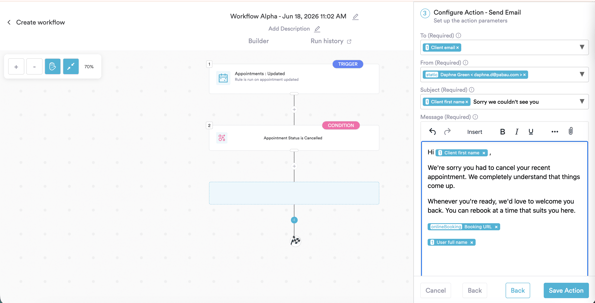
Click Save Action, then switch from Draft to Publish and click Save.
NOTE: The full appointment status list available for conditions includes: Waiting, Arrived, Complete, No Show, Running Late, and Cancelled. You can use any of these to build targeted follow-up workflows for different scenarios.
For more guides, refer to related articles below, select additional guides, or use the search bar at the top of the page. These guides will help you get the most out of your Pabau account.
Additionally, to help you fully utilize and understand your Pabau account, we recommend exploring additional guides and resources offered at the Pabau Academy. It offers in-depth video tutorials and lessons, offering a holistic learning experience that can equip you with the essential skills for achieving success with Pabau.