
Treatment notes in Pabau can be restricted by the note’s author, allowing you to limit visibility to just yourself, a specific user group, or everyone in the clinic. This is useful when a note contains sensitive clinical information that only certain staff members should be able to access.
Step 1: Navigate to Treatment Notes
Log in to your Pabau account and open the relevant client’s card by searching for the client or clicking their name anywhere in Pabau. Once on the client card, click the "EMR" tab in the tab menu at the top (labelled "Chart" for businesses in the United States), then click the "Treatment notes" card.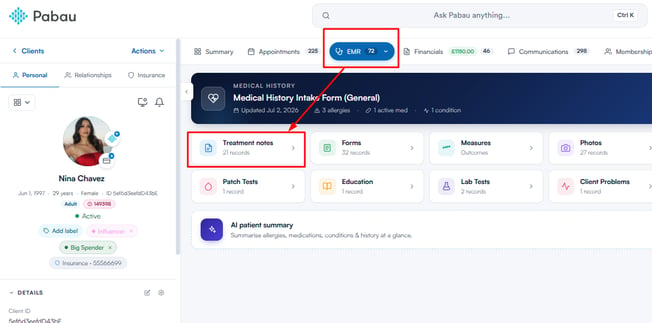
Step 2: Locate the Treatment Note
Find the treatment note you want to set privacy on. If you have a large number of notes, use the search bar or scroll to locate the correct one.
Step 3: Open the Privacy Settings
Hover over the treatment note and an action toolbar will appear on its right, with View, Edit, Privacy, Duplicate and More actions buttons. Click the lock icon (Privacy) to open the privacy options.
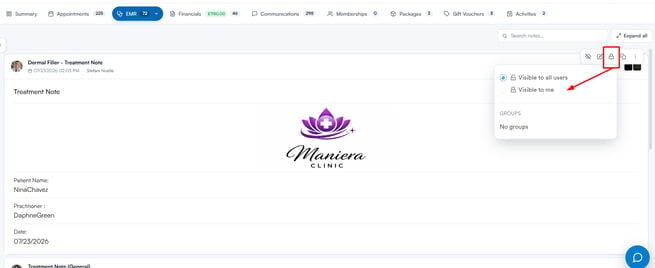
NOTE: Only the author of a treatment note can set or change its privacy. If you did not create the note, the privacy option will not be available to you.
Step 4: Set the Privacy Level
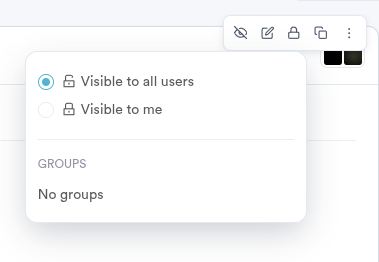
The dropdown will show the following visibility options:
- Visible to all users: The note is visible to all staff members who have access to this client’s record. This is the default setting.
- Visible to me: The note is only visible to you — the note’s author. No other staff member can view it.
- Groups: If your clinic has user groups configured, they will appear under the "Groups" heading. Selecting a group restricts visibility to members of that group only.
Click the option that matches the level of restriction you need. Your selection saves automatically, and a small lock icon appears next to the note’s title while it is restricted.
NOTE: If you restrict a note to "Visible to me" or a specific user group, other staff members will not be able to see it when viewing the client’s treatment notes, even if they have general access to the client’s record.
With privacy set on your treatment note, you can be confident that sensitive clinical information is only visible to the right people on your team.
Was this guide helpful? Let us know by voting below - your feedback helps us write clearer articles.
For more guides, browse the related articles below or use the search bar at the top of the page. You can also watch our video learning series, the Pabau Academy, or visit the Support page for additional help.