
Step 1: Navigate to Team
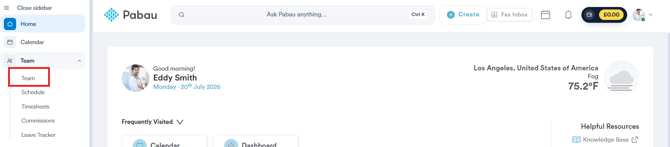
Start by logging into your Pabau account using your login credentials. Then, navigate to the "Team" tab located on the left sidebar menu. Click to expand it and click the "Team" sub-tab.
Step 2: Access Staff Member Profile
On this page, you will see all your active staff members listed under the "People" tab. To access a staff member's profile, click on their name or profile picture.

Step 3: Open Permissions
On the staff member's profile, click on "Permissions" in the left-hand menu. This opens a view showing exactly what that individual staff member is allowed to do in Pabau, along with a summary of how many permissions are currently allowed and how many are marked as "sensitive."
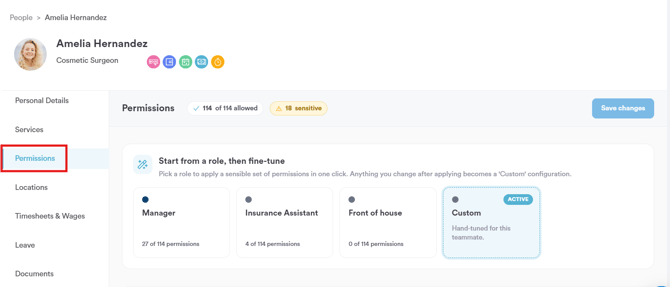
Sensitive permissions are ones flagged as having a bigger potential impact if misused or toggled on carelessly
Step 4: Locate the Inventory Category
On the left side of the Permissions page, click on "Inventory" to jump straight to that category. It shows how many of its permissions are currently on (e.g. "8/8").
Step 5: Enable or Disable Inventory Permissions
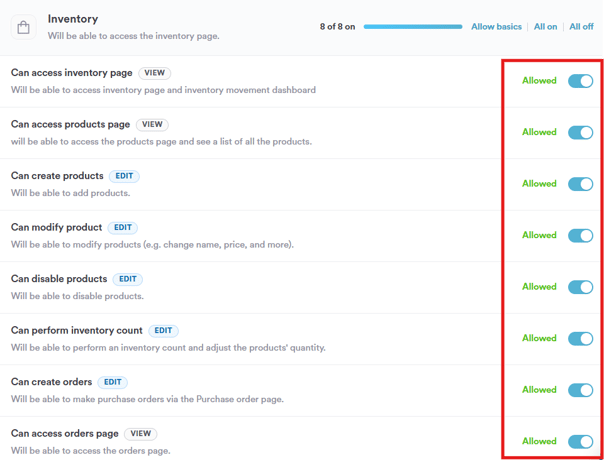
The Inventory category includes the following individual permissions:
- Can access inventory page – Will be able to access the Inventory page and Inventory Movement dashboard.
- Can access products page – Will be able to access the Products page and see a list of all products.
- Can create products – Will be able to add products.
- Can modify product – Will be able to modify products (e.g. change name, price, and more).
- Can disable products – Will be able to disable products.
- Can perform inventory count – Will be able to perform an inventory count and adjust products' quantity.
- Can create orders – Will be able to make purchase orders via the Purchase Order page.
- Can access orders page – Will be able to access the Orders page.
Each permission has its own "Allowed" toggle, which you can switch on or off independently. Alternatively, use the quick actions next to the category header to apply a change to every permission in this category at once:
- Allow basics – Applies a recommended baseline set of permissions for this category.
- All on – Enables every permission in this category.
- All off – Disables every permission in this category.
A few things to be aware of:
- These permissions apply only to this individual staff member, not their role — changing them here won't affect anyone else, even if they share the same role.
- If you'd rather apply a consistent set of permissions across multiple staff members at once, it's easier to set them at the role level instead.
Step 6: Save Your Changes
Once you're happy with your changes, click "Save changes" in the top right corner of the screen.
By following these steps, you can control exactly what inventory-level access an individual staff member has in Pabau.
Was this guide helpful? Let us know by voting below - your feedback helps us write clearer articles.
For more guides, browse the related articles below or use the search bar at the top of the page. You can also watch our video learning series, the Pabau Academy, or visit the Support page for additional help.