
Step 1: Navigate to Setup
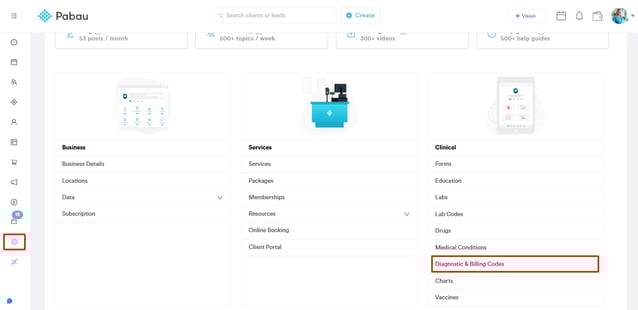
Start by logging into your Pabau account using your login credentials. Then, navigate to Setup, under the Clinical section, find the Diagnostic & Billing Codes tab.
Step 2: View Available Code Sets
When you open Diagnostic & Billing Codes, you’ll see a list of static code sets:
-
ICD11
-
ICD10
-
ICD9
-
CCSD
-
ISC
-
SNOMED CT (view-only)
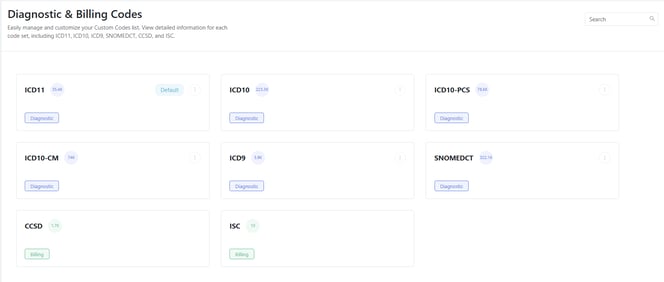
These code sets cannot be edited or deleted. Click any code set to open its detail page.
Step 3: Set a Default Code Set
Your clinic can set a default diagnostic system, but only for:
-
ICD11
-
CCSD
Pabau saves this setting in your company preferences. To set a default code, click on the three dots next to the code; this will reveal the "Set as Default" option.
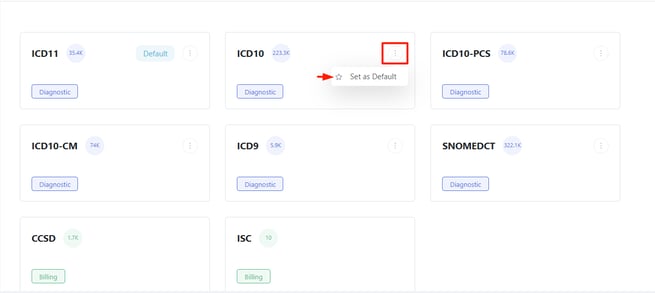
NOTE: The default code set is used when searching for diagnosis codes (e.g., when adding client problems). If no default is set, Pabau will search ICD11 only.
For more guides, refer to related articles below, select additional guides, or use the search bar at the top of the page. These guides will help you get the most out of your Pabau account.
Additionally, to help you fully utilize and understand your Pabau account, we recommend exploring additional guides and resources offered at the Pabau Academy. It offers in-depth video tutorials and lessons, offering a holistic learning experience that can equip you with the essential skills for achieving success with Pabau.