
NOTE: To connect Microsoft Teams you need a Microsoft 365 work or school account that uses Teams. Personal Microsoft accounts can't be connected. Only staff who can open Setup can connect or disconnect Microsoft Teams.
Step 1: Open Microsoft Teams in the App Marketplace
Go to Setup → App Marketplace, type Teams in Search for an app, and click the Microsoft Teams tile.
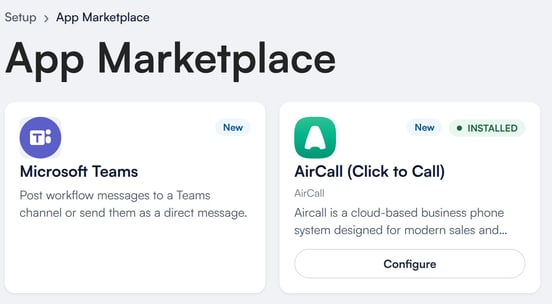
Search the App Marketplace for Teams to find the Microsoft Teams tile
Step 2: Connect Your Clinic's Microsoft 365
Click Connect Microsoft Teams. A Microsoft sign-in window opens. Sign in with your Microsoft 365 work account and accept the permissions Pabau Workflows asks for. When you have finished, the page shows Connected to your organisation and who messages are sent as.
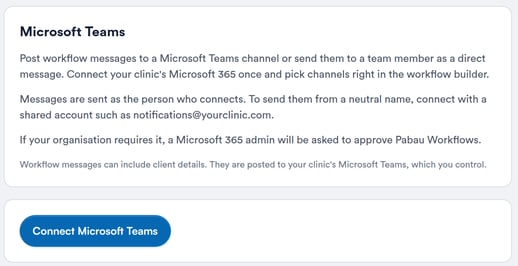
The Microsoft Teams page before it is connected
TIP: Messages are sent as the person who connects. To send them from a neutral name, connect with a shared account such as notifications@yourclinic.com.
If nothing opens, your browser has blocked the Microsoft window. Allow pop-ups for Pabau and click Connect Microsoft Teams again.
Step 3: If Microsoft Says "Need admin approval"
Some organisations only let staff connect apps that a Microsoft 365 admin has approved. If yours does, Microsoft shows Need admin approval instead of the permissions screen, and nothing is connected.
- Ask a Microsoft 365 admin in your organisation to approve Pabau Workflows.
- Once it is approved, go back to Setup → App Marketplace → Microsoft Teams and click Connect Microsoft Teams again.
NOTE: The approval is needed only once for your organisation. After that, Pabau Workflows stays approved until an admin removes it in Microsoft Entra.
Step 4: Add a Teams Step to a Workflow
Open the workflow in the builder, add an Action, and search for Teams. Under Integrations you will find two actions:
- Post to Teams Channel – posts a message to a channel in your clinic's Microsoft Teams.
- Send Teams Direct Message – messages a staff member in Microsoft Teams.
Until Microsoft Teams is connected, both show Connect Microsoft Teams to use this action with a link to the App Marketplace.
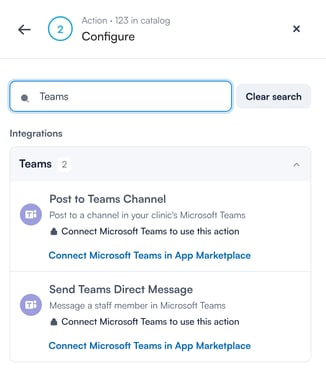
The Teams actions in the builder, before Microsoft Teams is connected
Step 5: Set Up Post to Teams Channel
- Teams Channel (required) – type a team or channel name to search, then pick the channel. Private channels are marked private. To choose the channel from a field instead, click Use a merge tag instead and paste the channel's link from Teams (in Teams, open the channel's … menu and choose Get link to channel), or insert a merge tag that holds one.
- Message (required) – the message to post. Use Insert merge tag to add details such as the client's name or the appointment time.
- Open in Pabau – choose Yes to add a button that opens the client, appointment or lead the workflow ran for.
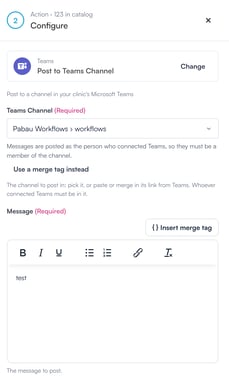
Pick the channel, then write the message
IMPORTANT: Messages are posted as the person who connected Teams, so they must be a member of the channel. If they are not, the step fails.
Step 6: Set Up Send Teams Direct Message
- Staff Member (required) – the staff member to message, or an email address typed in or from a merge tag. The person is found in Teams by their email address, so it must be the email they use in Microsoft 365.
- Message (required) and Open in Pabau – the same as in Step 5.
NOTE: Teams can't send someone a message from themselves, so you can't direct message the person who connected Teams. Connect with a shared account if that person also needs the messages.
Step 7: Test, Save and Publish
Click Save action, then use Test Workflow to check the workflow. In test mode no Teams message is sent; the run log notes that one would have been. When you are happy, save the workflow and switch it from Draft to Publish.
Where Does the Message Come From?
- Sender ← the Microsoft 365 account that clicked Connect Microsoft Teams, shown on the Setup → App Marketplace → Microsoft Teams page.
- Channels you can pick ← the teams and channels that account belongs to in Microsoft Teams.
- Direct message recipient ← the email address on the staff member's profile in Pabau, matched to a user in your Microsoft 365 organisation.
IMPORTANT: Anyone at your clinic who can build workflows can post, as the connected person, to any channel that person belongs to, private channels included. Workflow messages can include client details, and they are posted to your clinic's Microsoft Teams, which you control.
What Happens if Teams Stops Working?
If Microsoft Teams is disconnected, or Microsoft stops accepting Pabau's access, the Workflows page and the builder show Microsoft Teams has stopped working on every live workflow with a Teams step, and those steps fail until you reconnect. Click Connect Microsoft Teams on the warning, or Reconnect Microsoft Teams in the App Marketplace.

A workflow with a Teams step while Microsoft Teams is not connected
If you reconnect to a different Microsoft 365 organisation, pick the channel again in each Post to Teams Channel step.
How Do I Disconnect Microsoft Teams?
Go to Setup → App Marketplace → Microsoft Teams and click Disconnect. This removes Microsoft Teams from Pabau, and Teams steps stop sending. To remove Pabau Workflows from your Microsoft 365 organisation too, an admin can delete it under Enterprise applications in Microsoft Entra.
What's Next?
To learn more about building workflows, see Workflows: Introductory guide.
Was this guide helpful? Let us know by voting below - your feedback helps us write clearer articles.
For more guides, browse the related articles below or use the search bar at the top of the page. You can also watch our video learning series, the Pabau Academy, or visit the Support page for additional help.