
Educational materials in Pabau can be shared with clients via email directly from their client card. Sent items are tracked automatically, including a view count so you can see whether the client has opened them. Materials must already be set up in your Education library before they can be sent.
This feature is part of the new client card version and is currently available to select users only, starting August 2026. A wider rollout to all accounts is coming soon.
NOTE: To learn how to create and manage your Education library content, read our How to Create Educational Content article. The client must also have an email address on file before you can send them educational materials.
Step 1: Navigate to the Client Card
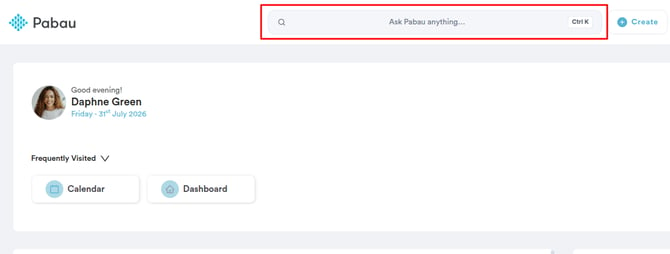
Log in to your Pabau account and use the search bar at the top of the screen to find the client. Click on their name to open their client card.
Step 2: Open the Education Library
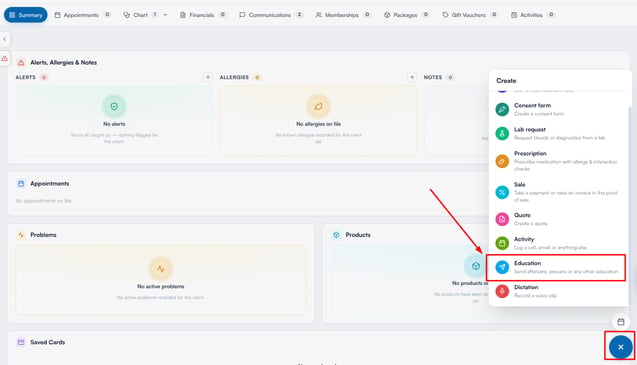
Click the "+" button in the bottom right corner of the client card. From the Create menu that appears, select "Education".
Step 3: Browse and Select Materials
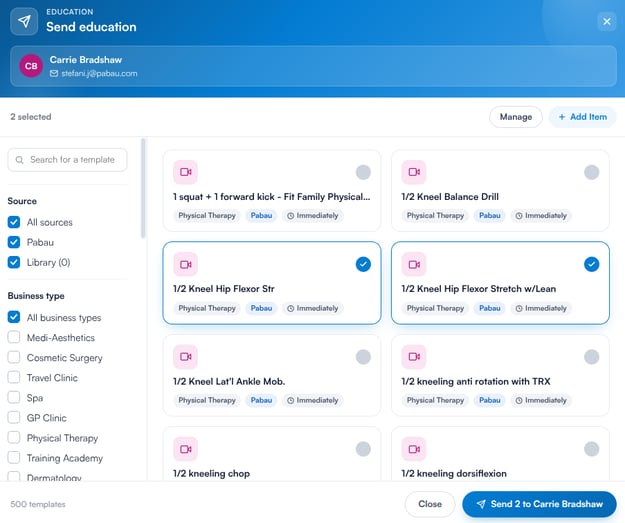
The "Send education" window will open, with a banner at the top confirming who the materials will be emailed to. Each card in the library shows the material’s content type (email, article, video, or PDF), its source, and when it is designed to be sent. Use the panel on the left to search by name, or filter by Source (content provided by Pabau, your clinic’s own Library, or both), Business type, and Send Timing (immediately, before, or after an appointment).
Click on one or more materials to select them. Selected items are highlighted, and the counter above the library shows how many you have picked. You can also add new materials or edit existing ones from here using the "Add Item" and "Manage" buttons.
Step 4: Send to the Client
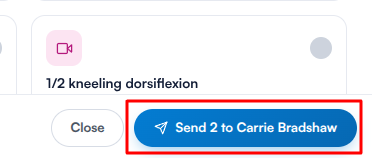
Once you have selected the materials you want to share, click on the "Send" button in the bottom right corner - it shows how many items you are sending and to whom, for example "Send 2 to Emma Thompson". The client will receive an email with a link redirecting them to the Client Portal, where they can view the content.
Step 5: Track Shared Materials
Once sent, the materials will appear on the "Education" page of the client card, found under the "EMR" tab (shown as "Chart" on US accounts).
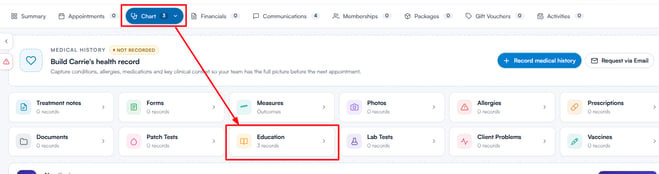
Each item shows when it was sent and a view count, so you can see how many times the client has opened it - its status changes from "Sent" to "Viewed" once they do.
Step 6: Unshare a Material
If you need to remove a client’s access to a shared material, open the "Education" page, click on the three-dot menu on the item you want to remove, and select "Unshare". Confirm your choice in the dialogue that appears, and the client will no longer be able to access the material through the Client Portal.

With your education materials sent, clients will have access to the right information at the right time, helping support their care between appointments.
Was this guide helpful? Let us know by voting below - your feedback helps us write clearer articles.
For more guides, browse the related articles below or use the search bar at the top of the page. You can also watch our video learning series, the Pabau Academy, or visit the Support page for additional help.