
This feature is part of the new client card version and is currently available to select users only, starting August 2026. A wider rollout to all accounts is coming soon.
Sending an SMS from the client card allows you to text a client without leaving their record - whether you are confirming a detail before an appointment, following up after a treatment, or answering a quick question. The full conversation is displayed as a thread, so you always have the context of previous messages while you type.
Step 1: Open the Create Menu
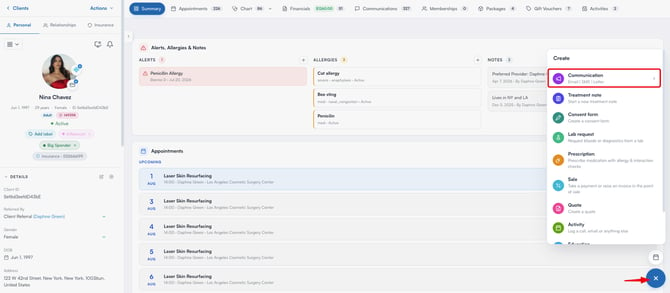
Log in to your Pabau account and open the client card of the client you want to message. Click on the "+" (Create) button in the bottom right corner of the screen. This opens the Create menu, listing everything you can start for this client, such as communications, treatment notes, consent forms, and prescriptions.
Step 2: Select SMS
In the Create menu, click on "Communication", then select "SMS" from the sub-menu. This opens the "Send SMS" window - a text-message thread with the client, showing past messages at the top and a compose box at the bottom.
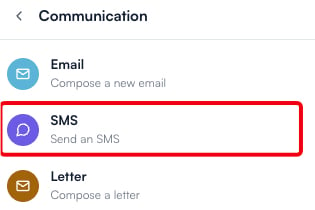
NOTE: To send an SMS, the client must have both a mobile number and an email address saved on their record. If either is missing, the SMS option will be greyed out in the Create menu.
Step 3: Compose Your Message
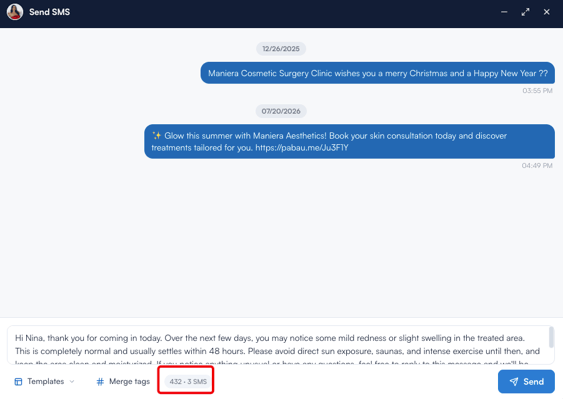
Type your message in the compose box at the bottom of the thread. As you type, a live counter below the box shows how many characters you have used and how many text messages your message will count as when sent.
Step 4: Use an SMS Template
Instead of typing a message from scratch, click on "Templates" below the compose box to choose from your clinic’s SMS templates, such as appointment reminders, confirmations, or birthday wishes. Use the search bar or the category tabs to find a specific template, then click on a template to add it to the compose box, where you can still edit it before sending.

Step 5: Insert Merge Tags
To personalise your message, click on "Merge tags" below the compose box. Merge tags are placeholders that automatically fill in the client’s details, such as their first name, their appointment date, or your clinic’s name. Browse the categories on the left or use the search bar, then click on any tag to insert it at the cursor position - the tag is replaced with the client’s real details straight away, so you can check the message reads correctly before sending it.
Step 6: Send the SMS
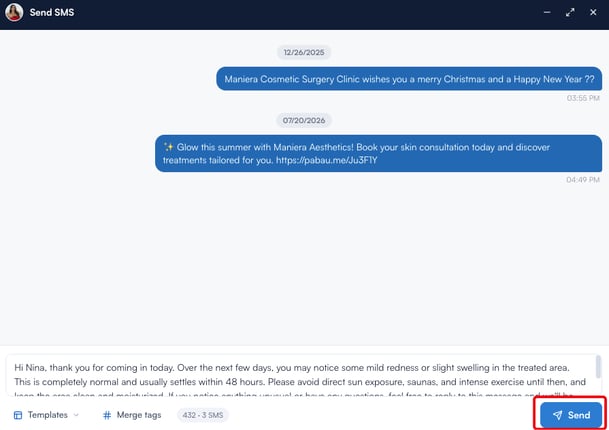
When your message is ready, click on the "Send" button. The message appears in the thread straight away, and all sent messages are also saved to the client’s Communications tab, so you can always find them later.
By sending SMS messages directly from the client card, you can handle all client communication in one place, with every message automatically recorded in the client’s history.
Was this guide helpful? Let us know by voting below - your feedback helps us write clearer articles.
For more guides, browse the related articles below or use the search bar at the top of the page. You can also watch our video learning series, the Pabau Academy, or visit the Support page for additional help.