
NOTE: WhatsApp broadcasts need Engage and a WhatsApp number that is connected in Engage and showing as online. If you haven't set this up yet, see How to Connect WhatsApp Business to Engage. WhatsApp broadcasts go to clients only, not leads.
Step 1: Make Sure Your Clients Have Opted In
A WhatsApp broadcast only goes to clients who have agreed to receive marketing on WhatsApp. This consent is separate from the SMS and email marketing settings, so a client who accepts marketing texts is not opted in to WhatsApp until you record it.
- Open the client's card and click the bell icon (Communication preferences) at the top of the client details panel.
- Under WhatsApp marketing, switch on Opted in to WhatsApp marketing.
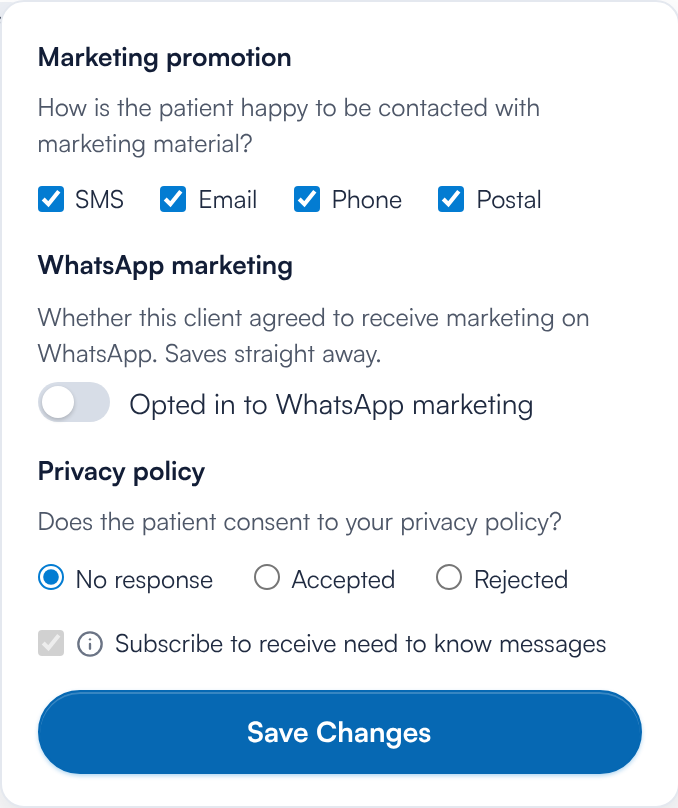
The WhatsApp marketing switch in the client's communication preferences
The switch saves straight away; you don't need to click Save Changes. You'll see Opted in to WhatsApp marketing or Opted out of WhatsApp marketing to confirm it. For the other settings in this panel, see How to Adjust Communication Preferences in the Client Card (New Client Card).
IMPORTANT: Only your staff can opt a client in. A client can't sign themselves up from their preferences page: once you've recorded their consent, they can see a WhatsApp option there and use it to opt out, or to opt back in later. Every WhatsApp broadcast carries their personal preferences link (see Step 5).
Step 2: Open Broadcasts and Start a WhatsApp Campaign
Go to Marketing → Broadcasts and open the WhatsApp tab. It lists your WhatsApp campaigns with their status (Sent, Ongoing, Failed and Drafts), plus your sent campaigns, reach, delivered rate and read rate over the last 90 days.
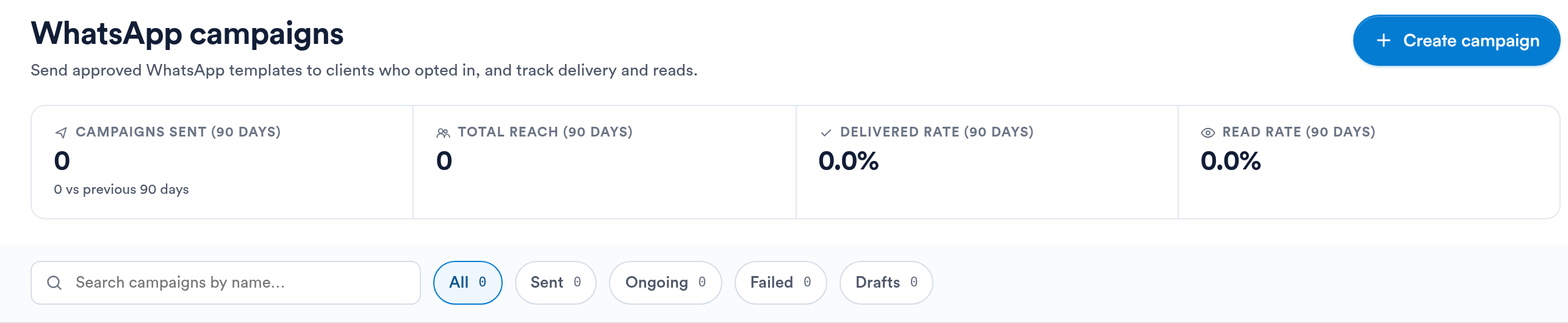
The WhatsApp tab in Broadcasts
Click Create campaign, then choose WhatsApp broadcast.
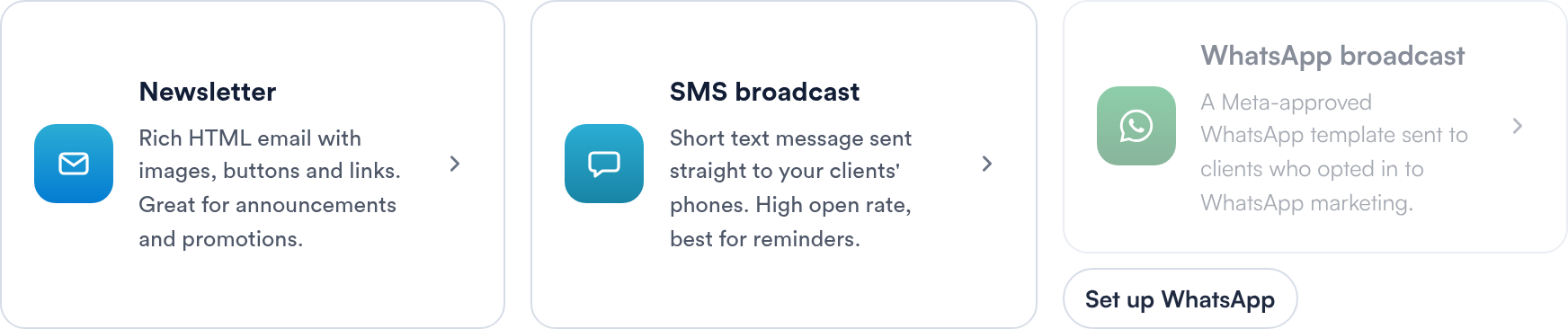
Choosing the WhatsApp broadcast channel
If WhatsApp broadcast is greyed out, hover over it to see why:
- WhatsApp broadcasts need Engage. Set up Engage and connect a WhatsApp number first.
- Connect a WhatsApp number in Engage and wait until it is online.
Click Set up WhatsApp to open Engage and finish the setup.
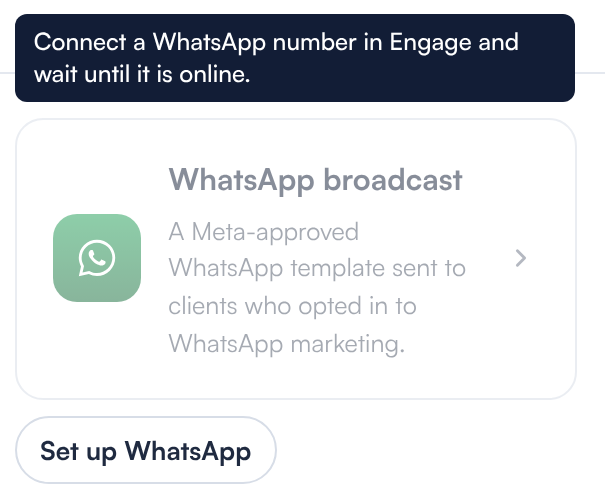
WhatsApp broadcast is unavailable until a WhatsApp number is online in Engage
The campaign opens in three steps: Message, Audience and Review & send. Give it a name at the top. Your changes are saved as a draft as you go, and you can find the draft later under Drafts.
Step 3: Choose the Sender
Under Sender, pick the WhatsApp number to send from. Only numbers that are online in Engage are listed. If none are online, you'll see No WhatsApp number is online. Connect one in Engage to send broadcasts.
Step 4: Choose or Create a Marketing Template
WhatsApp only delivers marketing messages that use a template Meta has approved, so you can't type a free-text message. Under Template, select one of your marketing templates. Approved templates show an Approved badge; pending and rejected templates are listed but can't be selected, and a rejected template shows the reason.
To write a new one, click New template. The form starts with an example message that already includes the preferences link. Click Submit for Meta approval; Meta usually reviews it within a day. Until it's approved, it shows as pending and can't be sent. For more on how templates are reviewed, see WhatsApp Templates and the 24-Hour Window.
NOTE: Only marketing templates appear here. The utility templates you use for appointment notifications can't be used in a broadcast.
Step 5: Fill In the Template Details
Once you pick a template, a Template details table lists each numbered placeholder in it, such as 1 and 2. For each one, choose what it's Filled with:
- First name, Last name, Full name or Salutation from the client's record
- Preferences link (opt-out): each client's own one-tap link to their preferences
- Custom text: type the text yourself (up to 1,000 characters), for example your clinic's name
A detail that can be empty for some clients needs a Fallback, because WhatsApp rejects empty details. Name fields start with the fallback "there", so a client with no first name on file reads "Hi there".
IMPORTANT: One placeholder in the message text must be filled with the Preferences link (opt-out), so every client can opt out. You can use it once only, and it can't go in a button. Until it's set, you'll see Fill one placeholder with the preferences link, so clients can opt out. and you can't continue.
The preview on the right shows how the message will look. Click Next when the message is complete.
Step 6: Choose Your Audience
Under Who receives this, choose:
- All Clients: everyone who opted in, optionally narrowed by Labels (leave the labels empty to include everyone), or
- A client group: a saved view of your clients. See How to Create Client Groups for Targeted Marketing Campaigns.
The Who will receive it panel then counts your audience:
- Matched: clients your audience matches
- Will receive: clients the message will actually go to
- No WhatsApp consent: clients who haven't opted in to WhatsApp marketing
- No valid mobile: clients without a valid mobile number
- US numbers skipped: Meta doesn't deliver marketing messages to US (+1) numbers, so these are left out
- Daily limit: how many people Meta lets your WhatsApp number start conversations with in a day
If two clients share a mobile number, the message is sent to that number once.
NOTE: If the audience is bigger than your number's daily limit, the campaign can't be sent. Choose a smaller audience, for example by adding a label or picking a client group.
Step 7: Review, Test and Send
On Review & send, check the summary: sender, template, audience and recipients. It also shows the credits the campaign needs and your balance; if you don't have enough, use Top up credits.
To see the message on a phone first, use Send a test. It sends the template to the mobile number on your own staff profile.
When you're ready, click Send now and confirm in Send this campaign now?. A sent campaign can't be undone. WhatsApp broadcasts are sent straight away; they can't be scheduled.
How do I track a WhatsApp campaign?
On the WhatsApp tab, click a sent campaign to open its report. It shows:
- Recipients: how many clients it was sent to
- Delivered: messages that reached the client's phone
- Read: delivered messages the client opened
- Failed: messages that couldn't be delivered, for example because the number isn't on WhatsApp
- Held by WhatsApp: messages Meta chose not to deliver. Meta limits how many marketing messages each person receives. Held messages aren't retried.
From the report you can also Duplicate the campaign to send it again. For reports on email and SMS campaigns, see How to View Broadcast Reports.
What happens when a client opts out?
When a client opts out from their preferences link, or you switch off Opted in to WhatsApp marketing on their card, they're left out of every WhatsApp broadcast from then on. Their SMS and email marketing choices aren't changed.
What's next?
More on WhatsApp and Broadcasts:
- Broadcasts
- How to Create a New SMS Campaign
- How to Connect WhatsApp Business to Engage
- How to Send Client Notifications by WhatsApp
- WhatsApp Troubleshooting in Engage
Was this guide helpful? Let us know by voting below - your feedback helps us write clearer articles.
For more guides, browse the related articles below or use the search bar at the top of the page. You can also watch our video learning series, the Pabau Academy, or visit the Support page for additional help.