
Step 1: Accessing the Client's Card
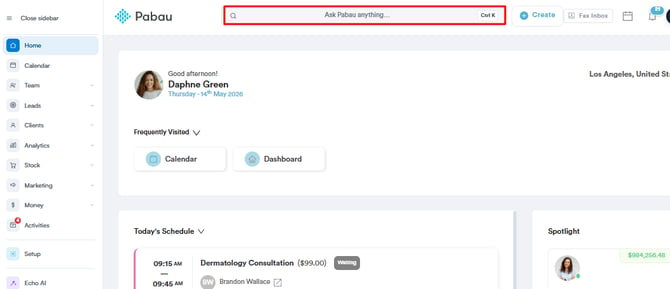
Begin by logging into your Pabau account. Using the search bar at the top of the screen, or by navigating through the calendar and selecting the client's name from within their appointment, open the client card of the patient for whom you created a prescription.
Step 2: Adding Pharmacy Relationship
If not already added, include the pharmacy you intend to send the prescription to as a relationship in the client's card. For detailed instructions on how to add a relationship, read this article.
Step 3: Creating the Prescription
NOTE: If your clinic has the DoseSpot e-prescribing integration set up, clicking Create > Prescription hands the client over to the DoseSpot flow instead of opening the prescription builder described below. You must be an approved DoseSpot prescriber, and the client’s name, date of birth, email, address and phone number must be complete on their card.
If you haven't already done so, create a prescription by clicking on the "+" button located in the bottom right corner of the client card.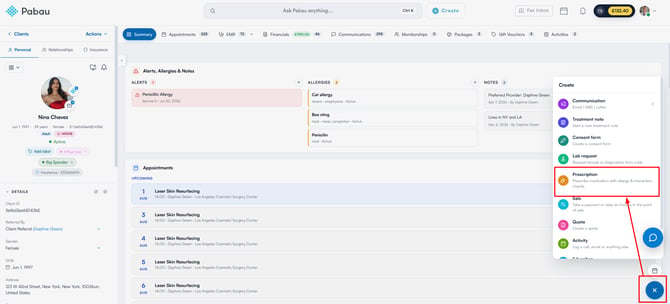
Select "Prescription" and choose your prescription form template. Select the prescriber in the top bar and add the medications to be prescribed.
Click "Issue & sign prescription" at the bottom right corner to sign it off.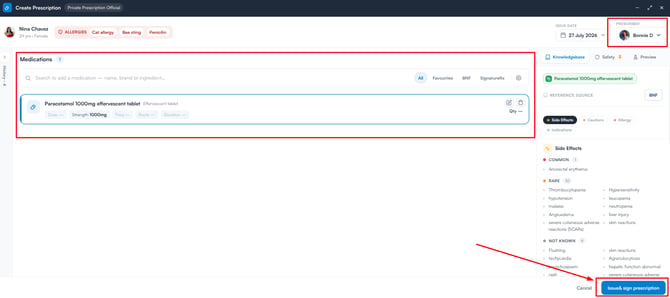
Finally, sign in the "Sign prescription" window — draw your signature or use Quick Sign — and click "Sign & continue" to complete the prescription.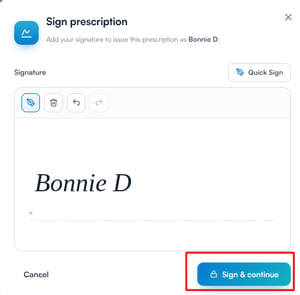
Step 4: Choose What to Do Next
Once the prescription has been created, a "Prescription created" window appears asking what you would like to do next. Each option runs as soon as you click it, and you can choose more than one:
- Print Prescription: Print a copy of the prescription.
- Download Prescription: Save the prescription as a PDF.
- Label: Print a label for the prescription.
- Email Prescription: Send the prescription to the client by email.
- Send To Pharmacy: Send the prescription directly to the client’s linked pharmacy.
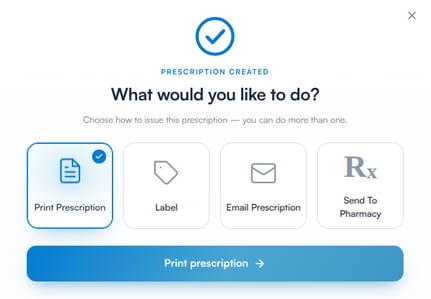
Click "Send To Pharmacy" to send it straight away, then click "Done" to close the window. This option requires a pharmacy relationship on the client’s card and is not available for prescriptions containing controlled drugs.
Step 5: Accessing the Prescription
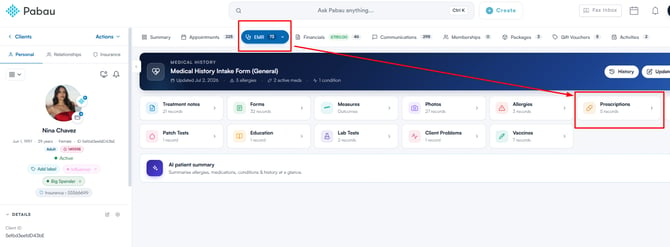
If you did not send to pharmacy directly from the popup, you can still do so from the client card. The prescription will be stored in the EMR section under the "Prescriptions" sub-tab. Hover over the prescription you wish to send to reveal its toolbar.
Step 6: Sending the Prescription
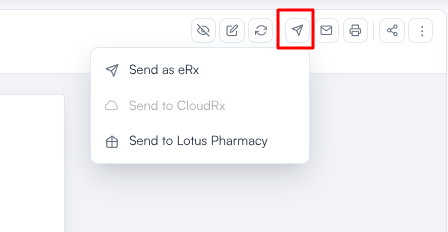
In the toolbar that appears in the top-right corner of the prescription, click the "Send" icon. A small dropdown will appear with the following options:
- Send as eRx: Send the prescription electronically to a pharmacy you’ll select on the next screen.
- Send to [Pharmacy Name]: If you have already added a pharmacy as a relationship on the client’s card, it will appear here as a direct option — this opens an email to that pharmacy with the prescription attached.
You may also see "Send to CloudRx" — a UK e-prescribing service — which stays unavailable unless a CloudRx account is connected. Once a prescription has been sent, a green "Sent" badge appears against the destination in this menu.
Select the relevant option to proceed.
If you selected "Send to [Pharmacy Name]": An email composer will open with the prescription attached as a PDF. Review the details, add any additional message if needed, and click "Send" to send it directly to the pharmacy.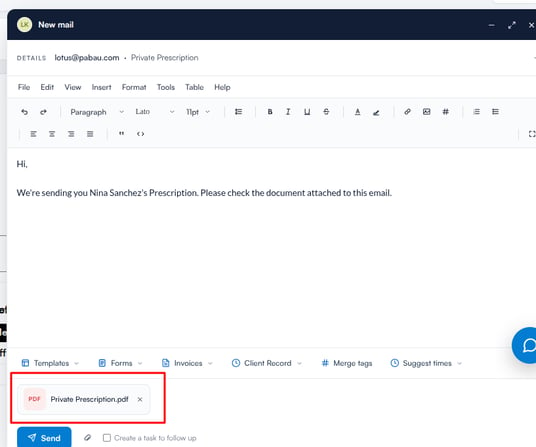
If you selected "Send as eRx": Continue with the steps below.
Step 7: Select a Pharmacy
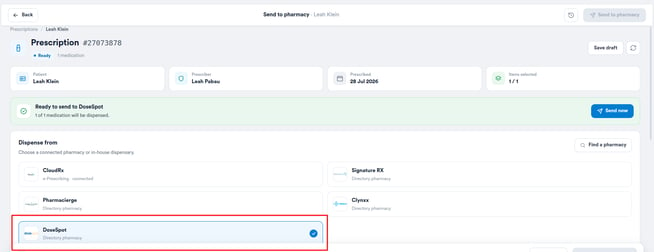
You will be taken to the "Send to pharmacy" page, which shows the prescription details at the top, including the patient name, prescriber, date prescribed, and the number of items selected. Under "Dispense from," choose the pharmacy you want to send the prescription to.
For US clinics, the available option is DoseSpot.
You can also click "Find a pharmacy" to search for a specific pharmacy by name or location.
Step 8: Review Medications and Add Notes
In the Medications section, review the medications included in the prescription. Untick any medications that should not be sent to the pharmacy in this instance. If you need to include a note for the pharmacist about a specific medication, click "+ Note" next to it.
Step 9: Choose Fulfilment Method
In the Fulfilment section, select how the client will receive their medication:
- Deliver to patient
- Collect from pharmacy

Step 10: Send the Prescription
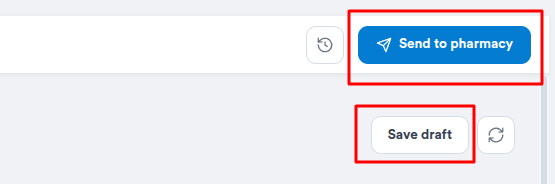
Once you have selected a pharmacy, reviewed the medications, and chosen the fulfilment method, click "Send to pharmacy" in the top right corner of the screen to send the prescription. If the prescription has not yet been approved, the button reads "Approve" first — approve it, then send.
With your prescription sent, the pharmacy will receive it securely and can begin processing the client's medication.
Was this guide helpful? Let us know by voting below - your feedback helps us write clearer articles.
For more guides, browse the related articles below or use the search bar at the top of the page. You can also watch our video learning series, the Pabau Academy, or visit the Support page for additional help.