
Selling gift cards in the Point of Sale is a seamless process that allows you to offer a convenient gifting option to your clients. Follow these steps to effortlessly execute gift card sales.
Step 1: Access the Point of Sale
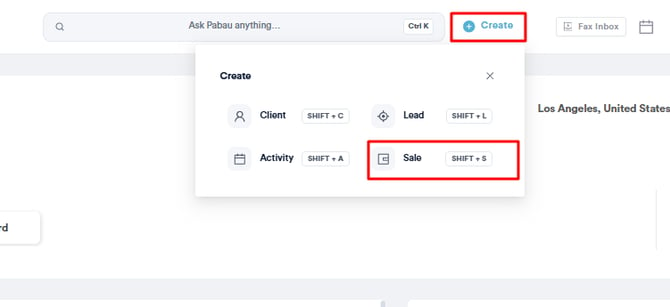
Start by logging in to your Pabau account using your login credentials. Click the Create button at the top of the page next to the search bar and select "Sale" to access the Point of Sale.
NOTE: For more details on the Point of Sale, please review this article.
Initially, you should select the client at the top right corner of the page for the features to become available for selection. Otherwise, they will remain greyed out until you select the client.
The Gift option appears in the left corner of the page.
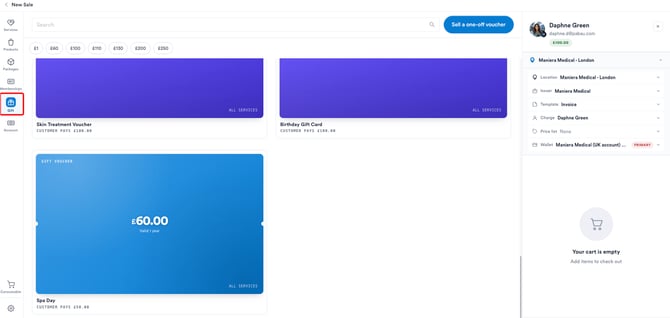
NOTE: If you have created vouchers in Pabau and the Gift Card option does not appear at the point of sale, check your POS Configuration to see if this option is disabled. Refer to this article on POS configuration for more information.
Step 2: Sell a Gift Card
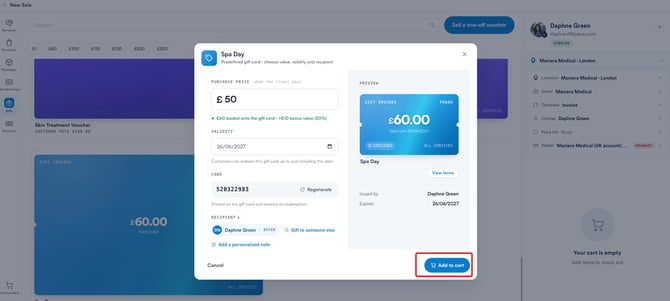
When you click Gift, the gift cards you've created in Pabau appear. Select a card to open its sale pop-up, where you can set the value, validity, and recipient before adding it to the cart.
The pop-up contains the following:
- Purchase Price - What the client pays. Enter the amount, and Pabau shows the value loaded onto the card below, including any bonus value where the loaded amount is higher than the price paid (e.g., pay £50, get £60 loaded and a 20% bonus).
- Adjust expiration - Override the card's default validity period for this sale if needed.
-
Code - you can generate unique 9-digit codes or can manually input a code, ensuring there are no duplicate voucher codes in the system.
- Recipient - Defaults to the buyer. Click Gift to someone else to assign the card to a different client instead.
- Add a personalized note - Optionally include a personal message for the recipient.
- Preview - Shows a live preview of the card on the right, including value, validity, code, and what it can be redeemed for. Click View terms to check the card's terms and conditions.
Once everything's set, click Add to cart to proceed with the sale.
If everything looks correct, click the "Continue" button to proceed to the payment page.
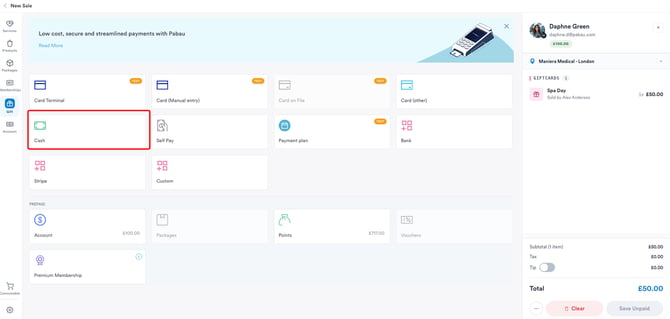
On the payment page, you can select the payment method that the client wants to use and click the "Confirm Payment" button to complete the transaction.
Once the payment is confirmed, you'll see the checkout completion screen. On the right, you can switch between two views using the Invoice and Giftcard toggle:
- Giftcard - Displays the purchased gift card with its value, validity, code, and what it can be redeemed for. From here you can Schedule Email to send the card to the recipient at a chosen time, or Print Voucher for a physical copy.
- Invoice - Shows the full invoice details, including the client it's billed to. Select the client's name to open their client card and view the voucher there.
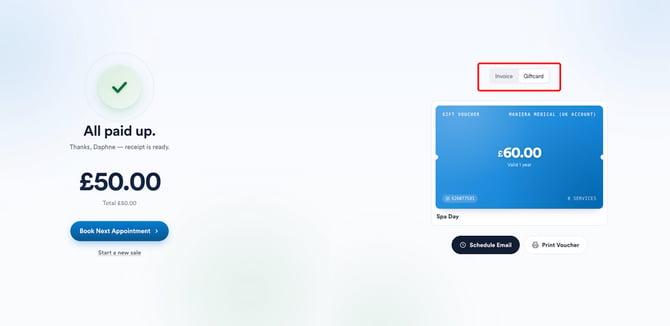
To start another transaction, click Start a new sale, or Book Next Appointment to schedule the client straight away.
NOTE: To review how you can use a gift voucher to pay for an appointment, please review this article.
By following these steps, you can sell a gift voucher to a client from the checkout.
For more guides, refer to related articles below, select additional guides, or use the search bar at the top of the page. These guides will help you get the most out of your Pabau account.
Additionally, to help you fully utilize and understand your Pabau account, we recommend exploring additional guides and resources offered at the Pabau Academy. It offers in-depth video tutorials and lessons, offering a holistic learning experience that can equip you with the essential skills for achieving success with Pabau.