
This feature is part of the new client card version and is currently available to select users only, starting August 2026. A wider rollout to all accounts is coming soon.
When two colleagues open the same client at the same time — say, a receptionist updating contact details while a practitioner writes up an appointment — it’s easy to tread on each other’s toes. The new client card helps you avoid this by showing you, right on the card, who else is viewing it.
Whenever a colleague has the same client card open, their avatar appears on your card in near-real-time and clears shortly after they leave. This guide shows you where the indicator appears and how it behaves.
1. Open the client card
- Go to Clients and search for the client — for example, Emma Thompson.
- Click the client to open their card.
2. Spot the viewing indicator
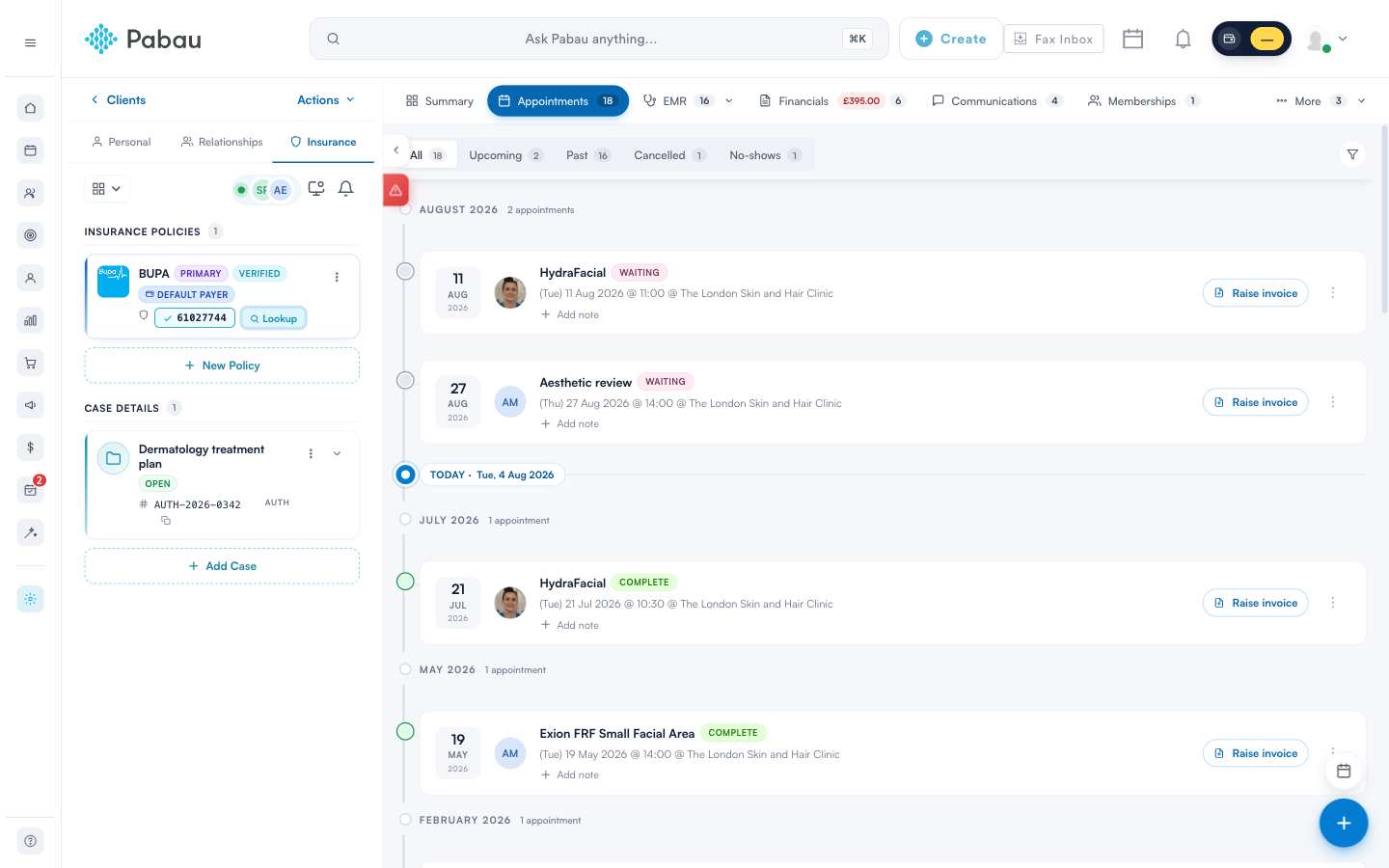
If a colleague has the same client card open, a small pill appears in the left-hand panel, in the row of icons just above the client’s photo:
- A pulsing green dot shows that the information is live.
- Next to the dot, you’ll see the avatar of each colleague currently viewing the card — up to three are shown, and any additional viewers are grouped into a + count.
The indicator only appears while someone else is on the card — if you’re the only person viewing, nothing is shown, and you’ll never see your own avatar in it.
3. See who’s viewing
- Hover over the avatars.
- A tooltip names everyone who has the card open — for example, “Sarah is also viewing this client”.
If a colleague’s name isn’t available, the tooltip shows a general message instead, such as “Someone else is also viewing this client”.
4. How the indicator updates
- Colleagues appear on the card within a few seconds of opening it — there’s no need to refresh the page.
- When a colleague closes the card or navigates elsewhere, their avatar disappears within about half a minute.
- Switching to another browser tab counts as stepping away — a colleague who does so fades from the card within about half a minute, then reappears moments after they return.
If you can see a colleague on the card, send them a quick message before editing the same section — it’s the easiest way to avoid overwriting each other’s changes.
That’s it — with the live viewing indicator on the new client card, you’ll always know when a colleague is working on the same client, so you can coordinate rather than collide.
Was this guide helpful? Let us know by voting below - your feedback helps us write clearer articles.
For more guides, browse the related articles below or use the search bar at the top of the page. You can also watch our video learning series, the Pabau Academy, or visit the Support page for additional help.