
If you run more than one clinic on Pabau and have connected your accounts as a Multi-Account organisation, the New Client Card shows you at a glance which of your sister clinics also hold a record for the same person. These appear as green company-name labels on the client’s profile, so your team can see straight away that a client is also registered at another of your locations.
This guide explains where the labels appear, how Pabau decides that two records belong to the same client, and which clinics can show up.
Step 1: Open the Client Card
- Navigate to Clients from the left-hand menu.
- Search for the client, for example Avery Clarke, and click their name to open the client card.
Step 2: Find the Synced Clinic Labels
In the client information panel on the left, make sure the Personal tab is selected. It’s the default tab when the card opens.
- Look just below the client’s name and their Active/Inactive status. Alongside the Add label button you’ll see any labels applied to the client and, in a multi-clinic organisation, a green label for each sister clinic that also holds this client.
Each green label shows the name of the other clinic. If the client is registered at several of your locations, you’ll see one label per clinic.
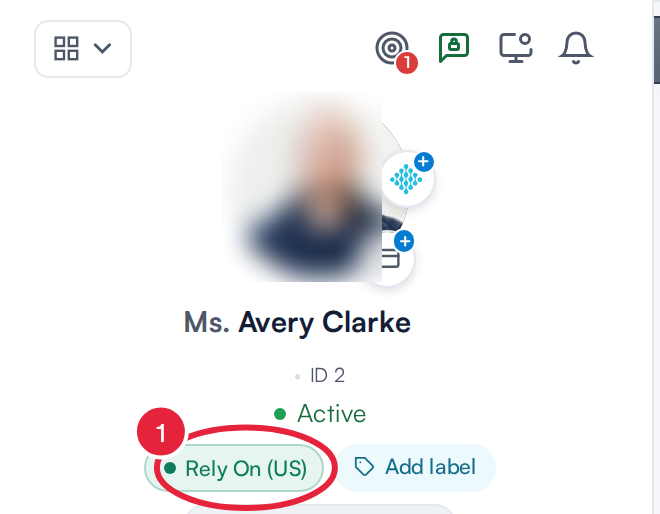
A green label for each of your other clinics that holds this client
NOTE: These labels are for information only. Clicking one doesn’t open anything, and they can’t be removed with an ‘×’ the way your own client labels can. They also use a fixed green colour, so they’re easy to tell apart from the labels you’ve created yourself. The labels refresh automatically each time the client card loads.
Step 3: Understand How Clients Are Matched
A clinic’s label appears when that clinic holds an active client record that matches the one you’re viewing:
- The email address must be the same at both clinics, and
- either the last name or the mobile number must also match.
Because the email address anchors the match, the client you’re viewing needs an email address and a last name saved on their record. Without those, Pabau doesn’t look for matches at your other clinics.
TIP: Expecting a label that isn’t showing? Check that the email address is identical at both clinics (a typo or an out-of-date address at one location will prevent the match) and that the record at the other clinic is active. Archived or deactivated records are never matched.
Step 4: Check Which Clinics Can Appear
Labels only come from clinics in your Multi-Account organisation that have data mirroring switched on:
- The organisation’s main account is always included.
- Every other connected account is included while its data mirroring is on.
- Mirroring works both ways: your own clinic must be mirrored too. If it isn’t, the client card won’t show labels for any of your other locations.
To check or change an account’s mirroring, sign in to the main account, go to Setup > Multi Account and click the connected account’s tab. While mirroring is on, the Data mirroring card shows:
- The switch turned on.
- The Data mirroring connection set to ⇄ Two-way. No connection means mirroring is off.
Click Save and finish after any change.
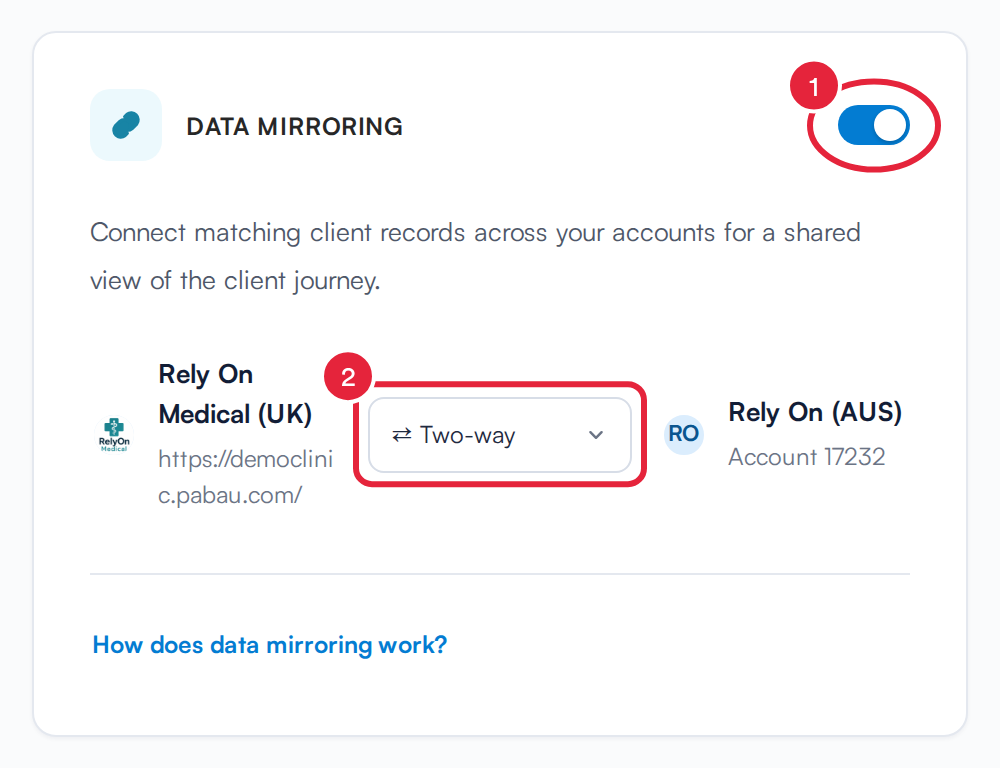
Data mirroring switched on for a connected account
For the full set-up, see How to Set Up Multi-Account and Connect Your Pabau Accounts.
NOTE: If a mirrored clinic can’t be reached at the moment the card loads, for example during maintenance, its label is simply left out rather than showing an error. It will appear again the next time the card loads once that clinic is reachable.
Step 5: View the Client’s Records at the Other Clinic
When a match exists, the client card’s Summary section also shows a card reading <first name> is a connected account. Click View account to see the client’s appointments, invoices and clinical records at the other clinic, read-only. See How to View a Client's Records From Your Other Clinics (New Client Card).
That’s it: with your accounts connected and data mirroring on, every client card gives your team instant visibility of where else in your group a client is registered, helping you keep records joined up across all of your locations.
What's next?
- How to Set Up Multi-Account and Connect Your Pabau Accounts
- How to View a Client's Records From Your Other Clinics (New Client Card)
- How to Merge Client Records (New Client Card)
Was this guide helpful? Let us know by voting below - your feedback helps us write clearer articles.
For more guides, browse the related articles below or use the search bar at the top of the page. You can also watch our video learning series, the Pabau Academy, or visit the Support page for additional help.