
Pabau includes the main diagnostic and billing code sets used around the world, from ICD-11 and SNOMED-CT to CCSD, OPCS-4, CPT / HCPCS and MBS. On the Diagnostic & Billing Codes page you can see which sets are available, browse them and search for a code.
Step 1: Open Diagnostic & Billing Codes
- Click Setup in the left sidebar and type diagnostic in Search by keyword.
- Click Diagnostic & Billing Codes. You’ll also find it under Clinical, in the Reference group.

Search the Setup page to jump straight to the code sets
NOTE: Diagnostic & Billing Codes is an advanced setting, so it’s hidden while Simple mode is on at the top of the Setup page. Turn Simple mode off if you can’t see it.
Step 2: View the Available Code Sets
Each code set is a tile showing its name, a short description, the countries it’s commonly used in and how many codes it holds. Some tiles also show the version Pabau has loaded.
- The page opens on the codes recommended for your country. Use the country tabs (All, UK, US, EU, Singapore, Australia) to see another country’s sets, or All to see every set.
- Use All, Diagnostic and Billing on the right to show only diagnosis codes or only billing and procedure codes.
- Click a tile to open that code set.
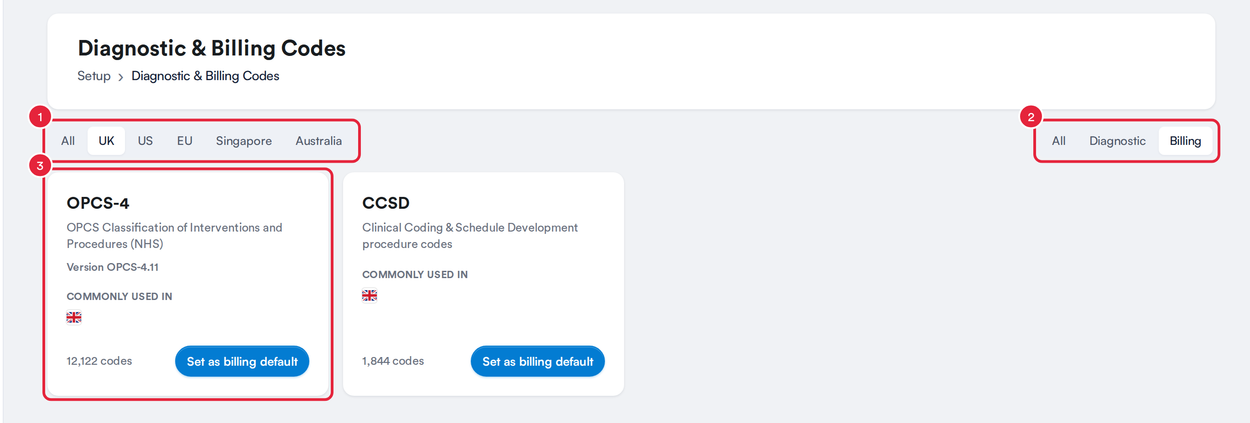
Filter the code sets by country and by kind
These are all the code sets Pabau offers:
| Code set | What it contains |
|---|---|
| ICD-11 | International Classification of Diseases, 11th revision (for mortality and morbidity statistics). |
| ICD-10 | International Classification of Diseases, 10th revision. |
| ICD-10-CM | The US clinical modification of ICD-10, used for diagnoses on US claims. |
| ICD-10-PCS | The ICD-10 procedure coding system. |
| ICD-9 | Legacy diagnosis codes. |
| ISC | Healthcode Industry Standard Codes (UK private medical insurance). |
| SNOMED-CT | Systematized Nomenclature of Medicine, Clinical Terms. |
| CCSD | Clinical Coding & Schedule Development procedure codes (UK private medical insurance). |
| OPCS-4 | OPCS Classification of Interventions and Procedures, the NHS procedure codes. |
| CPT / HCPCS | Current Procedural Terminology and HCPCS Level II, for US CMS-1500 billing. |
| Custom codes | Your practice’s own billing codes, for payer-specific codes the national sets don’t include. |
| MBS | Medicare Benefits Schedule item numbers (Australia). |
| ICD-10-GM | The German modification of ICD-10. |
| CIE-10-ES | The Spanish clinical modification of ICD-10. |
| SNOMED-CT (French) | The French national edition of SNOMED-CT. |
| SNOMED-CT (German) | The German national edition of SNOMED-CT. |
NOTE: You can’t change or delete the codes in these sets. In billing code sets, the Edit button next to a code sets the modifiers and allowed amounts that code carries on an insurance claim. Custom codes is different: it holds your own billing codes, which an administrator can add. See How to add your own billing codes, such as Medicaid local codes.
TIP: To choose which code set Pabau uses by default, click Set as diagnostic default or Set as billing default on its tile. The current defaults are marked Diagnostic default and Billing default. See How to Set a Default Code Set.
Step 3: Search for a Code
- In the code set you opened, type at least two characters of a code or its description in Search codes… at the top right. Matching codes appear as you type.
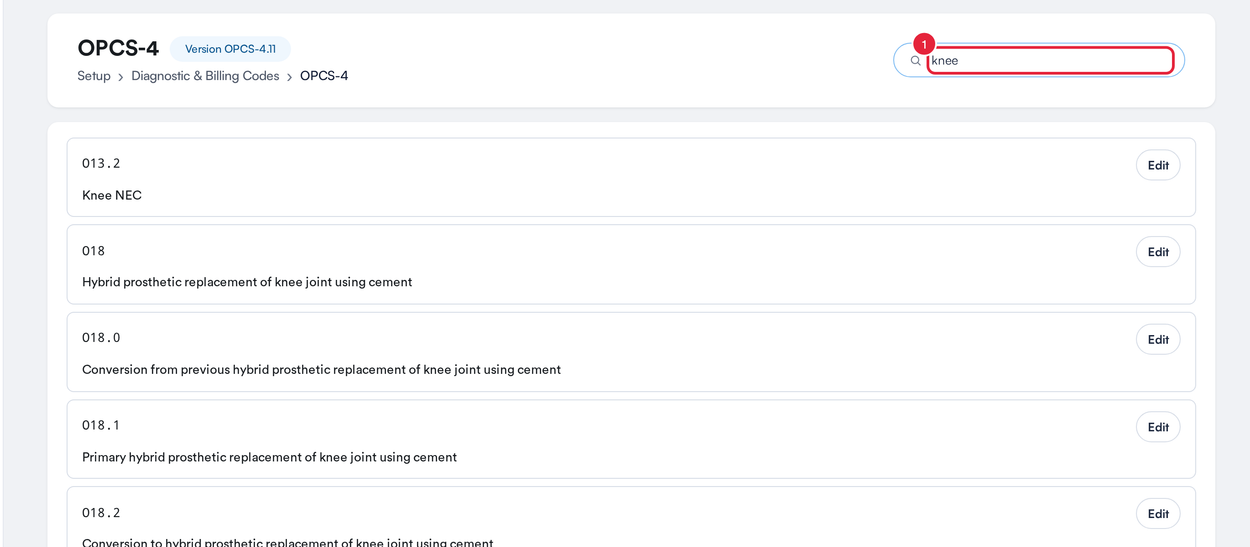
Search any code set by code or description
If nothing matches, you’ll see No codes match followed by what you typed.
Step 4: Browse by Category
ICD-11, ISC and SNOMED-CT are organised into categories, with the number of codes in each.
- Pick a category under Categories on the left.
- Pick a sub-category on the right to see its codes.
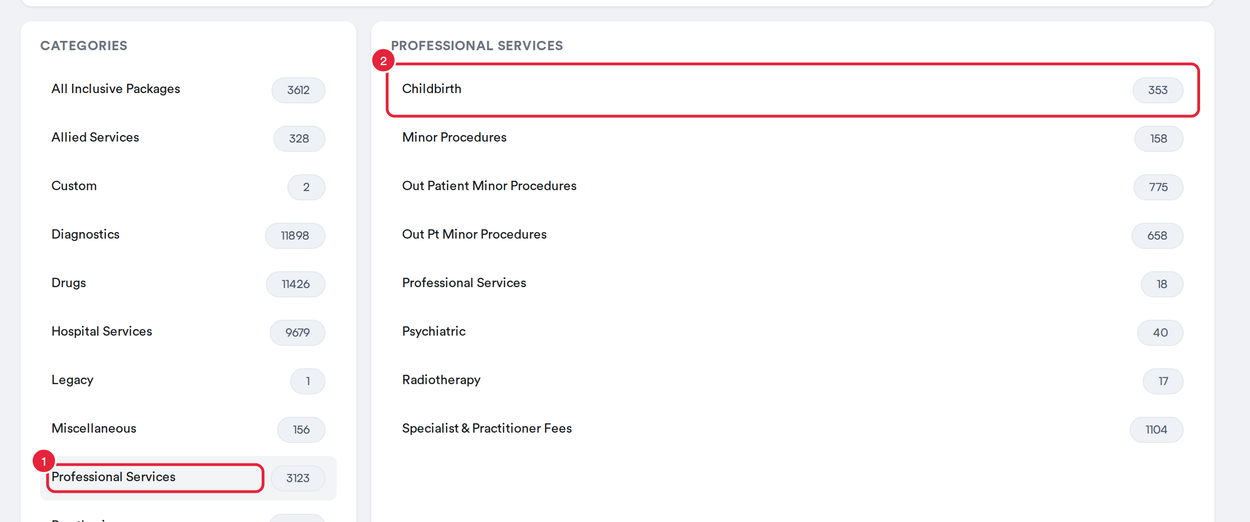
ICD-11, ISC and SNOMED-CT can be browsed by category
Every other code set shows one long list of codes, which you can scroll or search.
NOTE: You can add your own tags to codes in ICD-11, ICD-10, ICD-10-CM, ICD-10-PCS, ICD-9, ISC, SNOMED-CT and CCSD. The other code sets, including OPCS-4, can be searched in the same way, but their codes can’t be tagged. See How to Use Diagnostic Code Tagging.
What's next?
- How to Use Diagnostic Codes in Pabau
- How to Set a Default Code Set
- How to Use Diagnostic Code Tagging
- How to Use Diagnostic Codes in Treatment Forms
Questions? Reach us any time via the in-app chat. We're happy to help.
Was this guide helpful? Let us know by voting below - your feedback helps us write clearer articles.
For more guides, browse the related articles below or use the search bar at the top of the page. You can also watch our video learning series, the Pabau Academy, or visit the Support page for additional help.