
Step 1: Navigate to the Client Card
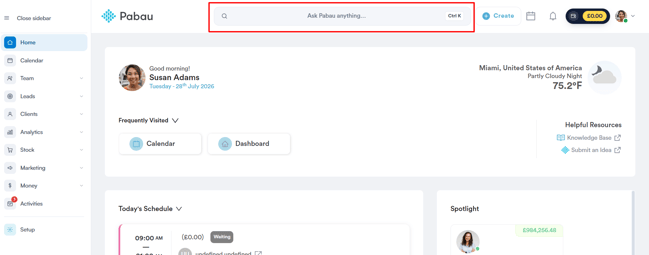
Start by logging in to your Pabau account. Then click the search bar at the top of the page and type at least three letters of the client’s name — Pabau filters the results as you type. Select the client to open their Client Card.
Step 2: Switch to the Appointments Tab
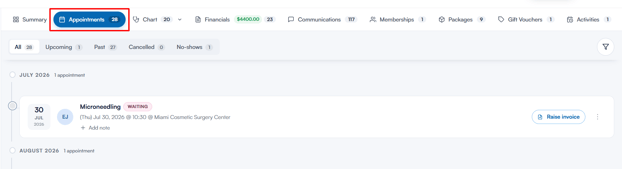
On the Client Card, select Appointments in the navigation. This tab lists every appointment scheduled for the client — use the All, Upcoming and Past tabs at the top to narrow the list.
Step 3: Locate the Appointment
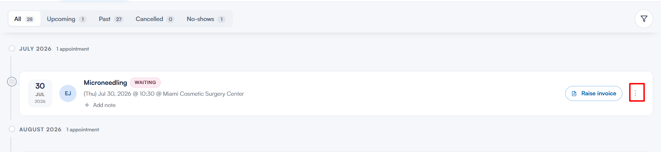
Find the appointment you’d like to send the confirmation for, then click the three dots on the far right of the appointment.
Step 4: Send the Confirmation
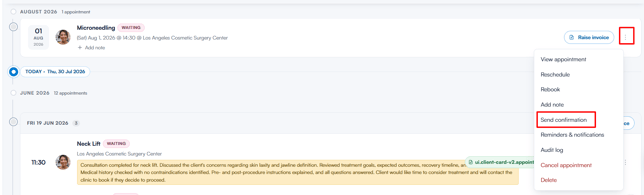
From the menu, select Send confirmation. Pabau sends the appointment confirmation email to the client straight away — you can use this whenever a client asks for their confirmation to be sent again.
NOTE: Confirmations can only be sent for upcoming appointments. Once an appointment’s start time has passed, the option is greyed out. The client must also have an email address saved on their profile for the confirmation to send.
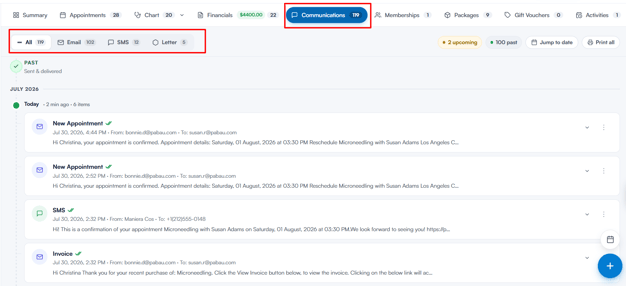
To check the email was delivered, open the Communications tab of the Client Card — the confirmation shows two check marks once it’s delivered. The appointment’s audit log (three dots > Audit log) also records each confirmation sent.
By following these steps, you can make sure clients receive their confirmation email.
Was this guide helpful? Let us know by voting below - your feedback helps us write clearer articles.
For more guides, browse the related articles below or use the search bar at the top of the page. You can also watch our video learning series, the Pabau Academy, or visit the Support page for additional help.