
Step 1: Navigate to the Client Card
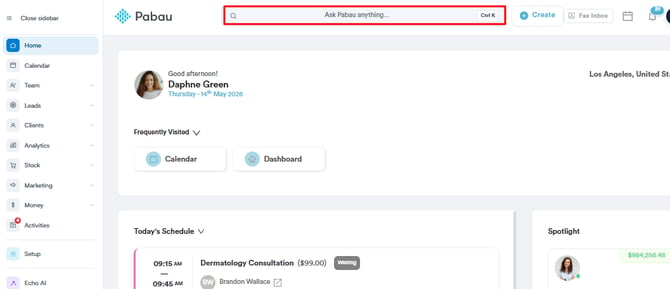
Start by logging into your Pabau account using your login credentials. Then, navigate to the search bar and type your client's name. Then click on their name from the search results to access their client card.
Step 2: Request Medical History Update
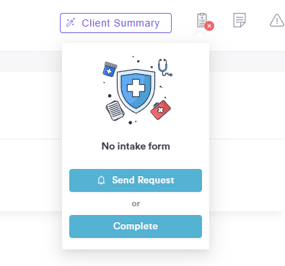
Navigate to the top right corner of the screen and click the forms icon.
-
If the client hasn’t completed their intake or medical history form yet, you’ll see the Send Request and Complete options available.
-
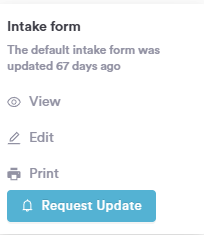
If the client has already completed the form, you’ll see the option to update their details. Click "Request Update" to send the form to the client via email for review and updates.
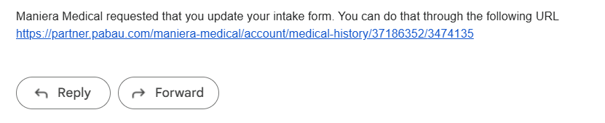
The client will receive an email notification prompting them to update their details. By clicking the link in the email, they’ll be taken directly to the client portal where they can access and update the form.
By following these steps, you can easily request an update to a client's medical history in Pabau.
Was this guide helpful? Let us know by voting below - your feedback helps us write clearer articles.
For more guides, browse the related articles below or use the search bar at the top of the page. You can also watch our video learning series, the Pabau Academy, or visit the Support page for additional help.