
Step 1: Navigate to the Client Card
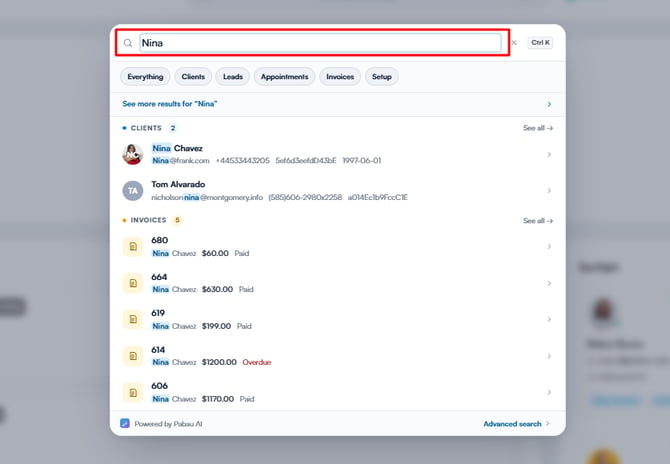
Start by logging into your Pabau account using your login credentials. Then, navigate to the top of the screen and search for a client using the search bar.
Step 2: Click Card Icon
On the client card, go to the top-left side of the screen and locate the card icon next to the client’s profile picture. A green checkmark indicates a saved card in the profile. Click the icon to view the saved details.

NOTE: To find out how you can add your client's card details to their client card, refer to this guide.
Step 3: Remove Card Details
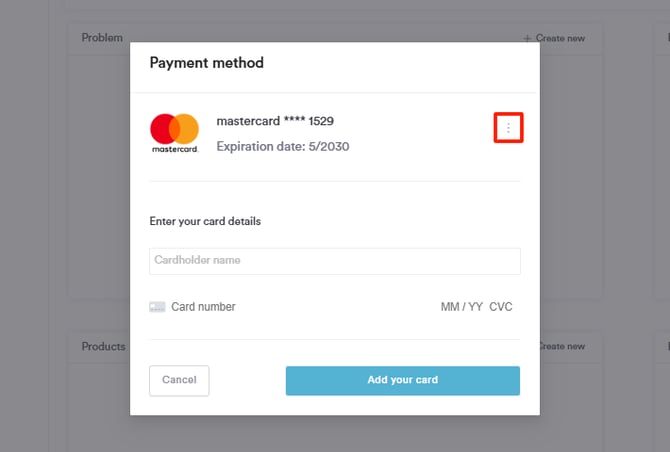
Clicking the card icon opens a pop-up window where you can view the client’s saved card or add a new one. Click the three dots located on the right side of the card details to reveal the available actions.
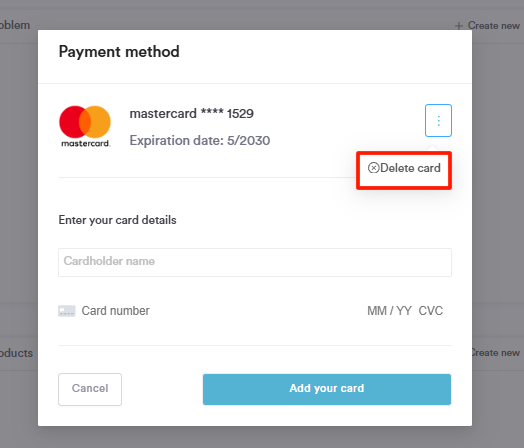
The action that will be listed here is to delete these saved card details from the client card. Click the "Delete card" button to finalize.
The card has now been successfully deleted from the client's profile.
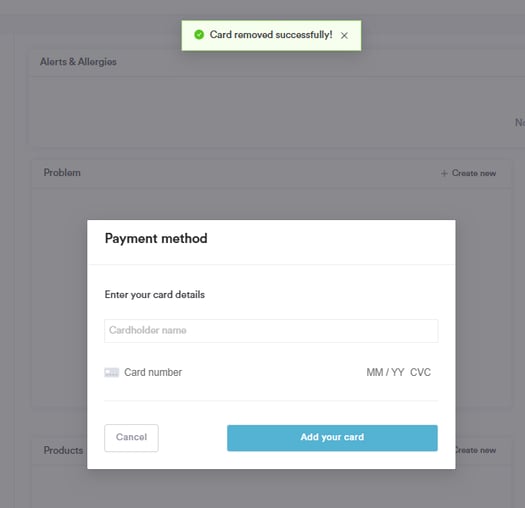
By following these steps, you can easily remove a client's saved card details directly from the client card in Pabau.
For more guides, refer to related articles below, select additional guides, or use the search bar at the top of the page. These guides will help you get the most out of your Pabau account.
Additionally, to help you fully utilize and understand your Pabau account, we recommend exploring additional guides and resources offered at the Pabau Academy. It offers in-depth video tutorials and lessons, offering a holistic learning experience that can equip you with the essential skills for achieving success with Pabau.