
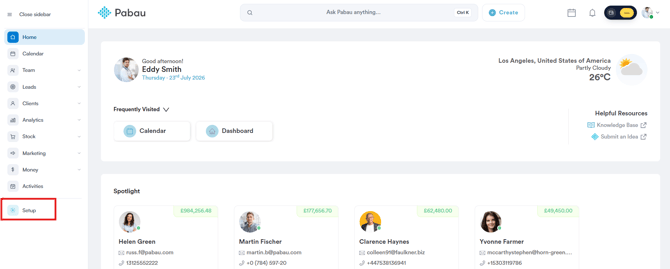
Step 1: Access your Pabau account
Log in to your Pabau account and navigate to ''Setup'' from the left-hand sidebar.
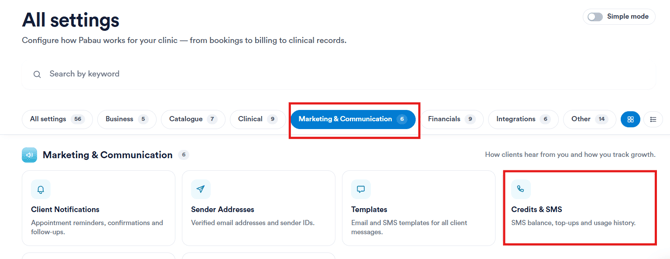
Step 2: Open Credits & SMS
From ''All settings'', select the ''Marketing & Communication'' tab, then click on ''Credits & SMS''. This is where you can view your SMS balance, top-up your credits, and check your usage history.
Step 3: Select a credit bundle
On the purchasing screen, you'll see your current ''Credits Remaining'' at the top. Choose the bundle size that best fits your clinic's usage — options range from 200 to 50,000 credits, with larger bundles offering a lower price per credit.
If you'd like your balance to top up automatically whenever it runs low, toggle on ''Auto Top Up''. Once you've made your selection, click ''Next Step''.
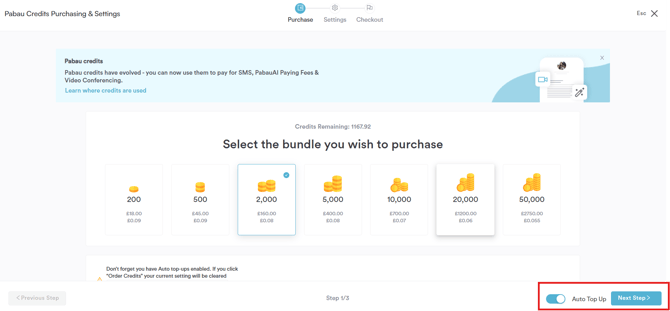
Note: If Auto Top Up is already enabled, ordering credits manually will clear your existing auto top-up setting, so you'll be prompted to reconfigure it in the next step.
Step 4: Configure your Auto Top-Up settings
On the ''Settings'' step, set your ''Low account level'' — this is the balance threshold that triggers an automatic purchase. Then choose what should happen ''When running low'', for example, automatically purchasing a bundle of 500 credits.
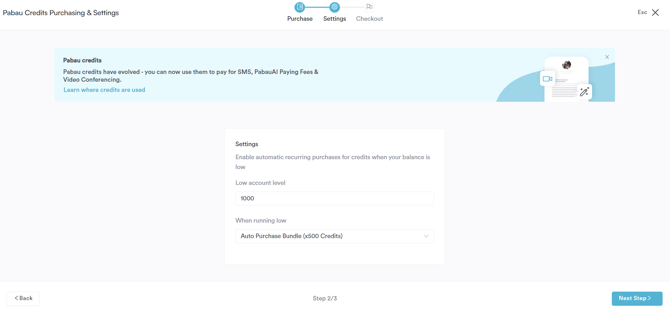
Once you're happy with your settings, click ''Next Step''.
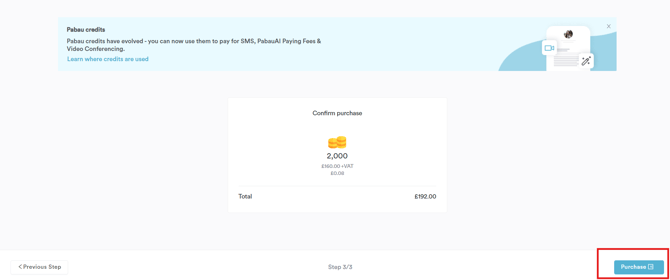
Step 5: Confirm and complete your purchase
On the ''Checkout'' step, review your order summary, including the number of credits, the price per credit, and the total cost (including VAT). When you're ready, click ''Purchase'' to complete the transaction.
By following these steps, you will have successfully purchased Pabau Credits and, if selected, set up automatic top-ups to keep your balance topped up going forward.
Was this guide helpful? Let us know by voting below - your feedback helps us write clearer articles.
For more guides, browse the related articles below or use the search bar at the top of the page. You can also watch our video learning series, the Pabau Academy, or visit the Support page for additional help.