
The Self-pay payment method generates an unpaid invoice as soon as it's selected, giving you the option to instantly email it to the client. This method offers a fast and efficient way to issue invoices while providing your clients the convenience of paying at their own preferred time.
Log into your Pabau account, then click on the "Create" button at the top of the screen, and select "Sale" from the dropdown menu to open the Point of Sale.
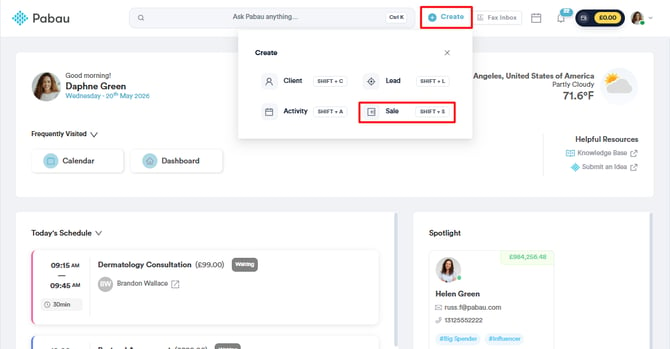
Alternatively, if the client’s profile is already open, you can click on the plus sign in the bottom right corner and choose "Sale" to open the Point of Sale with the client's name pre-populated.
/Screenshot%20(2).png?width=645&height=291&name=Screenshot%20(2).png)
Step 2: Select the Client
Once in the Point of Sale, use the search bar in the top right corner to find the client you’re processing the payment for. If you open the Point of Sale directly from the client card, you can skip this step as the client’s information will already be pre-populated.
/Screenshot%20(25).png?width=633&height=299&name=Screenshot%20(25).png)
Step 3: Add Services and Products to the Invoice
After selecting the client, choose the services and/or products and packages that should be added to the invoice. If you are creating the invoice for an appointment through the calendar, any prepopulated services or products can be modified as needed.
Once you’ve added all the items to the invoice, click "Continue" in the bottom right corner to proceed.
/Screenshot%20(26).png?width=647&height=304&name=Screenshot%20(26).png)
NOTE: Pabau requires integration with Stripe for payment processing.
Reconnecting will ensure that all Pabau Pay terminal features function smoothly and will also unlock 12 additional payment processing options.
Step 4: Choose the Self-Pay Method
From the available payment methods, click on "Self-pay." This action will automatically mark the invoice as unpaid and redirect you to the checkout completed screen, where a pop-up labeled "Email Paylink" will appear.
/Screenshot%20(27).png?width=638&height=303&name=Screenshot%20(27).png)
After selecting Self Pay, a confirmation pop-up appears. It confirms the invoice will be saved as Unpaid against the client for the outstanding amount, and that you'll then be offered the option to send a paylink. Click Save invoice & send paylink to continue.
/Screenshot%20(29).png?width=636&height=285&name=Screenshot%20(29).png)
In the next pop-up, you'll see the client's email address and phone number. Choose whether to send the payment link via Send Email, Send SMS, or both, then click Send Invoice.
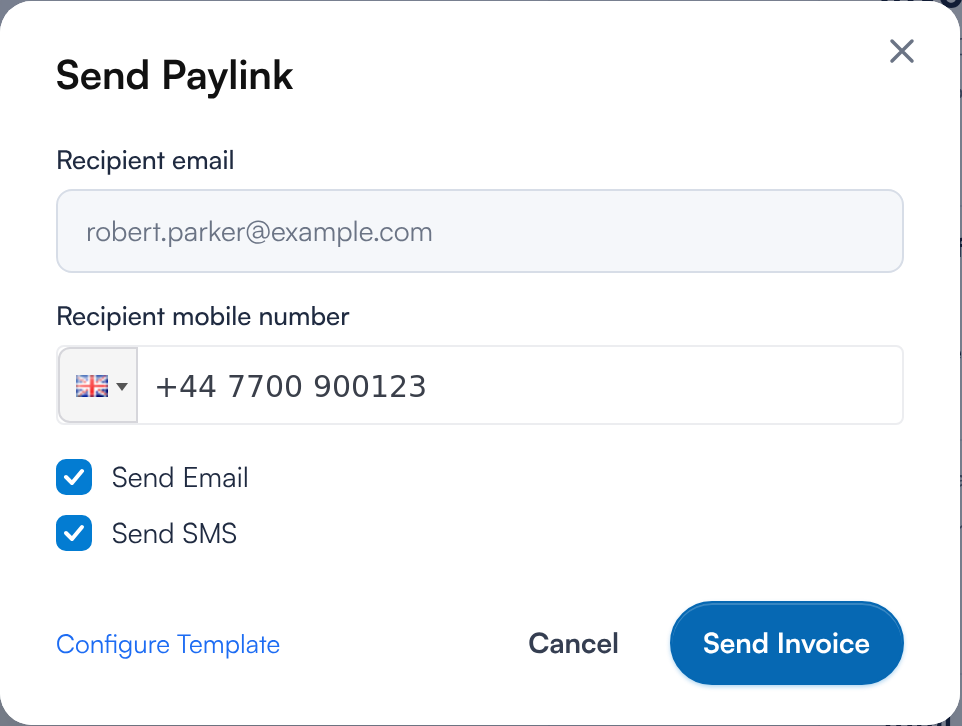
NOTE: The invoice appears in the Invoices list as soon as it's saved. If you cancel the paylink pop-up afterwards, the invoice is not removed — you'll need to void it manually.
If you would like to configure the email template that clients receive, you can click on the "Configure Template" option, which will take you to the client notification settings.
Step 5: Client Payment Process
The client receives an email with a link that opens a secure page where they can pay the invoice. They do not need to sign in.
/Screenshot%20(31).png?width=369&height=350&name=Screenshot%20(31).png)
The page shows the amount due and the invoice details. If your deposit policy allows part payments of invoices, the client chooses Full balance or Another amount under How much would you like to pay?. They then enter their card details, or choose a card they have saved, and click the Pay button, which shows the amount they are paying. Clients can also pay from the Payments page of their client portal — see How to Use Your Client Portal (New Client Portal).
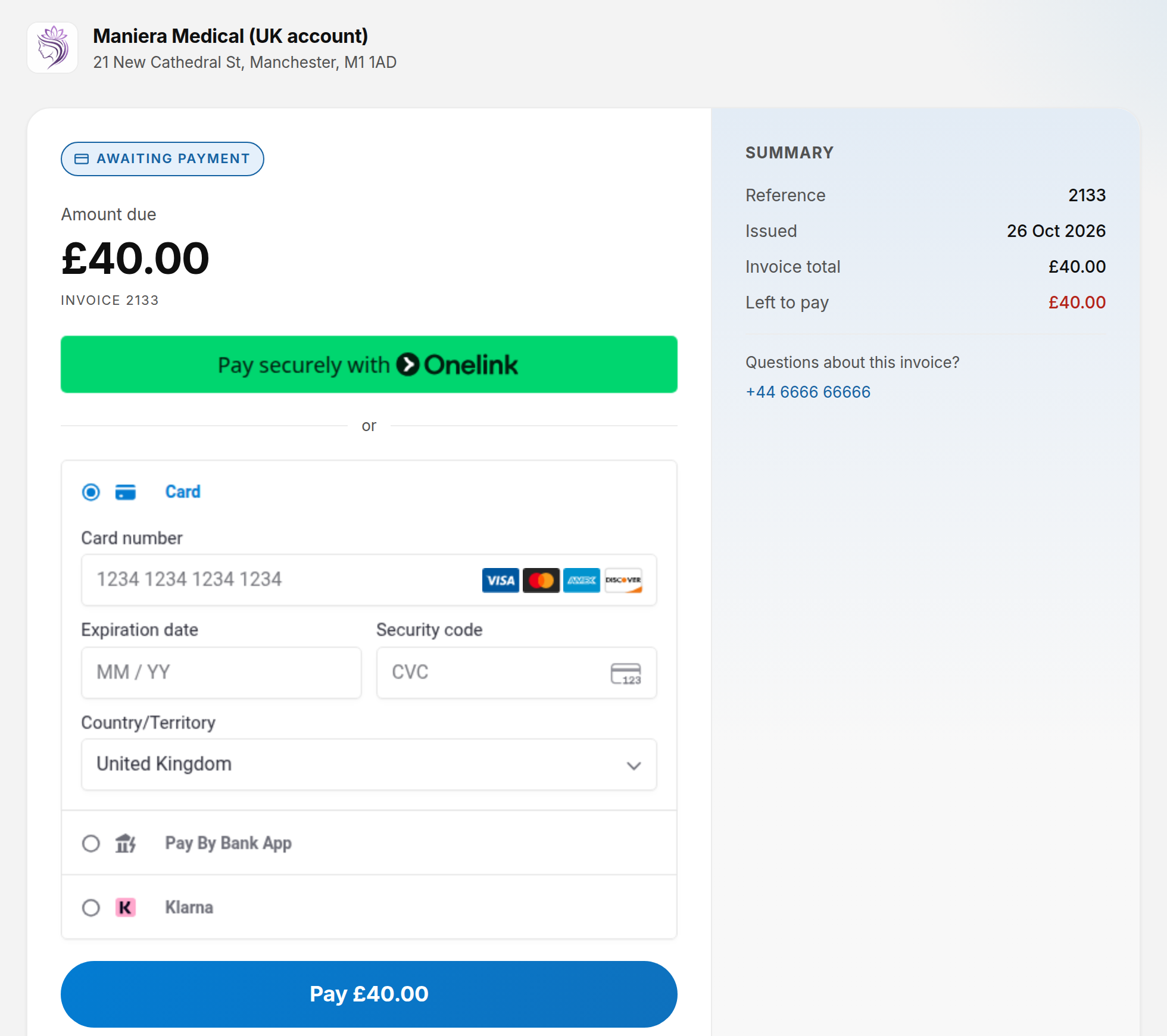
Once the payment has gone through, they see Payment received. If the link has expired, they are asked to contact the clinic for a new one.
Once the invoice has been paid, you can view the payment status on the client card under the Financials tab.
You've now successfully processed a payment using the self-pay method. By following these steps, you can easily offer your clients flexibility while keeping your invoicing efficient and organized.
Was this guide helpful? Let us know by voting below - your feedback helps us write clearer articles.
For more guides, browse the related articles below or use the search bar at the top of the page. You can also watch our video learning series, the Pabau Academy, or visit the Support page for additional help.