
Step 1: Open the Inventory Tab
Go to Stock and open the Inventory tab. Click Print count sheet at the top right of the page, next to Warehouse.

Print count sheet sits at the top of the Inventory tab
Step 2: Choose What Goes on the Sheet
The Print a count sheet window opens. Choose:
- Location — the location you are counting. Expected quantities are the stock at this location.
- Product types — Retail, Consumables and Injectables are all included to start with. Click a type to leave it out.
- Categories — pick the categories to print, or leave it on All categories to print every category of the chosen product types.
- Show expected quantities — leave it on to print the quantity Pabau expects next to each product. Turn it off for a blind count, so staff count without seeing the expected figure.
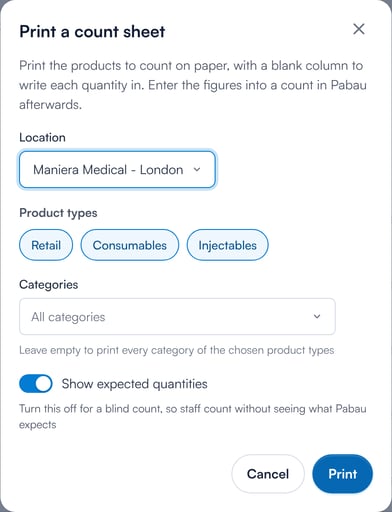
Choose the location, product types, categories and whether to show expected quantities
Step 3: Print the Sheet
Click Print. Your browser’s print window opens, so you can print the sheet or save it as a PDF.
The sheet is A4. Products are grouped by category, A–Z, with the products A–Z inside each group. Each row shows the product (with its size or unit), its code, the expected quantity (unless you chose a blind count), an empty Counted box and a Notes box. Counted by, Date and Checked by lines are at the end, and the column headers repeat on every page.
NOTE: A sheet can hold up to 2,000 products. If your selection has more, only the first 2,000 are printed and Pabau tells you so — choose fewer categories to print everything.
Step 4: Enter the Figures Into Pabau
Once the counting is done, enter the quantities from the sheet into an inventory count in Pabau. See How to Start a New Inventory Count.
Can I Print the Sheet for a Count I’ve Already Started?
Yes. In the counts list on the Inventory tab, click the three dots on a count with the Started status and choose Print count sheet. The sheet lists exactly that count’s categories at its location and is titled with the count’s name, so the paper matches the count you enter the figures into. It always shows expected quantities.

Print count sheet on a started count
Was this guide helpful? Let us know by voting below - your feedback helps us write clearer articles.
For more guides, browse the related articles below or use the search bar at the top of the page. You can also watch our video learning series, the Pabau Academy, or visit the Support page for additional help.