
Step 1: Navigate to the Client Card
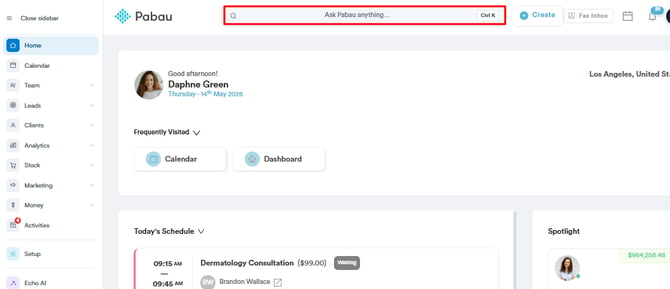
Start by logging in to your Pabau account using your login credentials. Then navigate to the search bar at the top of the page and proceed to type at least three letters of the client's name. Pabau will filter the results as you type.
Step 2: Open the Prescriptions Tab
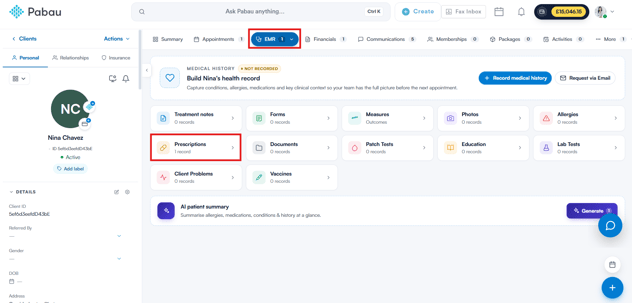
Open the "EMR" section of the client card and click the "Prescriptions" tab. Here, you will find a list of all prescriptions associated with the client.
Step 3: Select the Prescription to Print
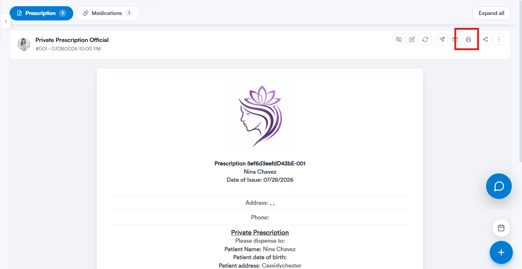
From the list, hover over the prescription you’d like to print — a toolbar of actions appears in the top-right corner of the row. You can also click the prescription itself to preview it; the most recent one opens automatically.
Step 4: Print the Prescription
Click the printer icon ("Print prescription") in the toolbar. A window titled "What would you like to do?" appears.
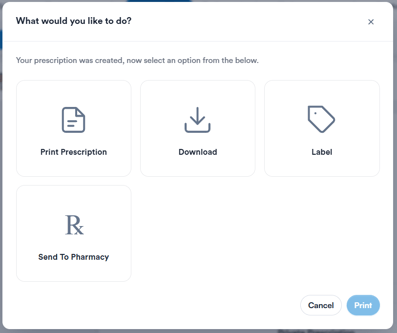
Select Print Prescription and click Print — the printout opens in another browser tab and your browser’s print dialogue appears; proceed as you normally would. Prescriptions containing controlled drugs print on the FP10 layout.
From the same window you can also choose Download to save the prescription as a PDF, print a Label for the medication, Email Prescription to send it to the client, or Send To Pharmacy (not available for controlled drugs).
What's printed on the prescription?
The standard printout shows:
- your company logo,
- the prescription number, the client's name and the Date of Issue,
- the prescription form itself, including the medication table,
- an Allergies line directly under the medication table,
- the prescriber's signature, or a blank Prescriber signature line if the prescription hasn't been signed, and
- the prescriber's Prescription Info text.
Does it print the company address?
Not on its own. The standard printout has no address field. To show your clinic's address, add it to the prescriber's Prescription Info, which prints as written, or include it in your company logo image. FP10 printouts are different: they print the address of the prescriber's location, plus your company name, phone number, email and website.
Does it print allergies and NKDA?
Yes. The Allergies line lists the client's active allergies as they are when you print, not when the prescription was written. If the client has a No Known Drug Allergies record, it prints as No Known Drug Allergies (NKDA). If nothing is recorded, the line reads None recorded. FP10 printouts don't include allergies.
IMPORTANT: Adding an allergy doesn't remove an existing NKDA record. If a client with NKDA on file has since had an allergy recorded, delete the NKDA record from their Allergies before you print, or both will appear.
Where this comes from: the logo from your business details; Prescription Info from the prescriber's staff profile, under Personal Details; allergies from the Allergies section of the Client Card; the FP10 address from the location the prescriber is assigned to.
By following these steps, you can easily print a prescription in Pabau, allowing you to provide a physical copy to your clients or keep a record for your files.
Was this guide helpful? Let us know by voting below - your feedback helps us write clearer articles.
For more guides, browse the related articles below or use the search bar at the top of the page. You can also watch our video learning series, the Pabau Academy, or visit the Support page for additional help.