
This feature is part of the new client card version and is currently available to select users only, starting August 2026. A wider rollout to all accounts is coming soon.
Conditional logic keeps the client card clean by only displaying fields when they are relevant. For example, a “Preferred practitioner” field can stay hidden and only appear when “Yes” is selected in a “Have you visited us before?” field. In this setup, the field containing the answer is the controlling field, and the fields it shows or hides are the dependent fields.
Step 1: Create the Controlling Field
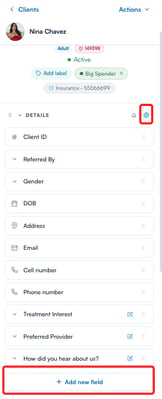
Log in to your Pabau account and open a client card. In the details panel on the left, click the cog icon next to the “Details” heading, then click the “Add new field” button.
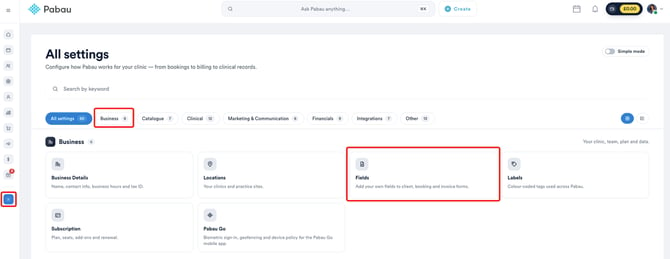
Alternatively, navigate to Setup and, under “Business”, select “Fields”.
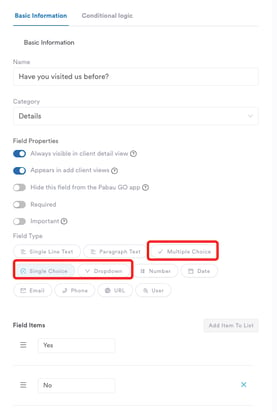
Give the field a name and a category, and select one of the choice-based field types — dropdown, multiple choice or single choice. Conditional logic is only available for these three field types, as the logic is triggered by the option the client’s answer matches. Add the answer options, then save the field.
NOTE: The fields you want to show or hide also need to exist before you can add them as dependent fields, so create those as well if you haven’t already.
Step 2: Open the Conditional Logic Tab
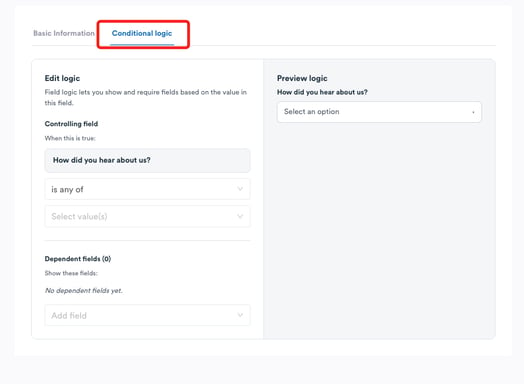
Open the field for editing on the Fields page in Setup (fields created from the client card also appear there). You will see two tabs at the top of the field settings: “Basic Information” and “Conditional logic”. Click the “Conditional logic” tab to set up the rules.
TIP: The field must be saved before you can add conditional logic, so save it first if you’ve just created it.
Step 3: Set the Condition
In the “Edit logic” section on the left, define when the rule should apply. Under “Controlling field”, you will see the name of the field you are editing, followed by the condition. Choose an operator — “is any of”, “is none of” or “is known” — then select which answers trigger the rule, for example “Referred by a GP”. You can select one or more answers, and the rule applies when the client’s answer matches any of them.
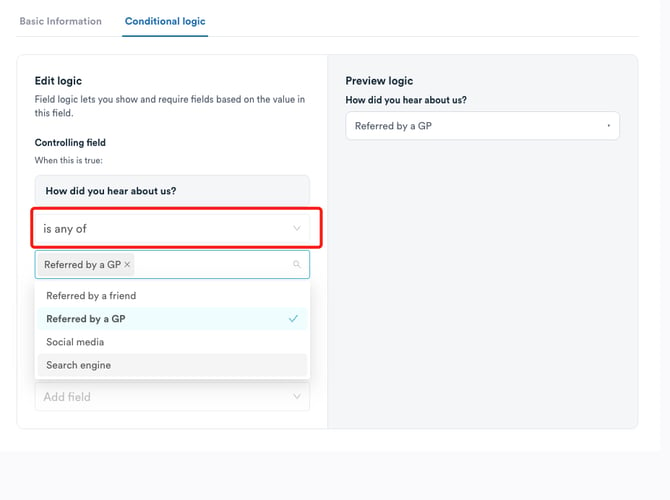
Step 4: Add the Dependent Fields
Under “Dependent fields”, use the “Add field” dropdown to select the fields that should be displayed when the condition is met — for example, a “GP Name” field. You can add multiple dependent fields to a single rule. For each dependent field, you can also:
- Required: tick this checkbox to make the field mandatory whenever it is displayed.
- Remove: remove the field from the rule.
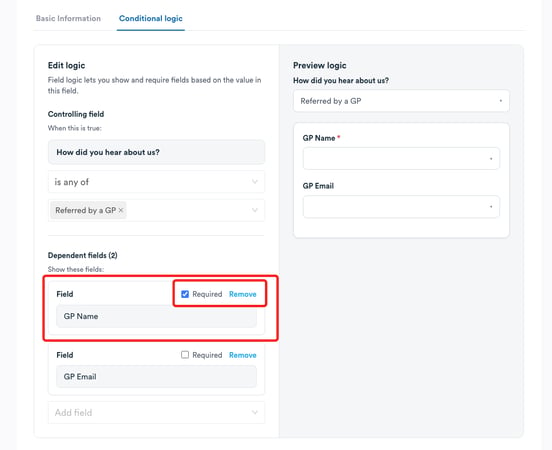
Step 5: Preview the Logic
The “Preview logic” pane on the right shows how the rule behaves in practice: the controlling field with a qualifying answer selected, and the dependent fields that will appear beneath it — required fields are marked with a red asterisk.
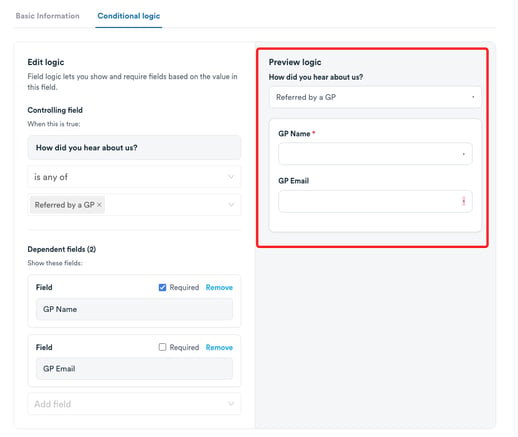
NOTE: Dependent fields are saved to the rule as you add them. If you change the condition after adding dependent fields, click “Apply condition” to update the rule.
Once the logic is set up, the dependent fields stay hidden on the client card and only appear when the controlling field’s answer matches the condition, keeping the details panel focused on what is relevant for each client.
For more guides, refer to related articles below, select additional guides, or use the search bar at the top of the page. These guides will help you get the most out of your Pabau account.
Additionally, to help you fully utilise and understand your Pabau account, we recommend exploring additional guides and resources offered at the Pabau Academy. It offers in-depth video tutorials and lessons, offering a holistic learning experience that can equip you with the essential skills for achieving success with Pabau.