
Step 1: Navigate to Team
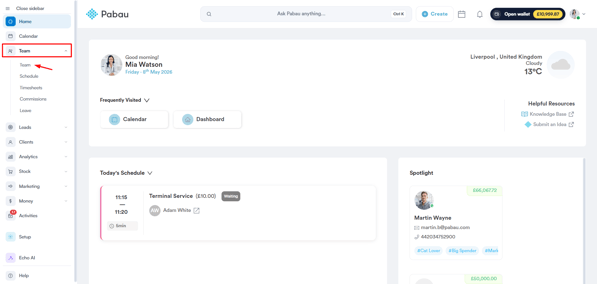
Start by logging into your Pabau account using your login credentials. Then, navigate to the Team tab. Click to expand it and select the "Team" sub-tab.
Step 2: Access Staff Member Profile
On the "Team" page, you'll see a list of all your staff members. Select the staff member whose permissions you want to adjust.
NOTE: Credit note permissions are enabled by default.
Step 3: Switch to the Permissions Tab
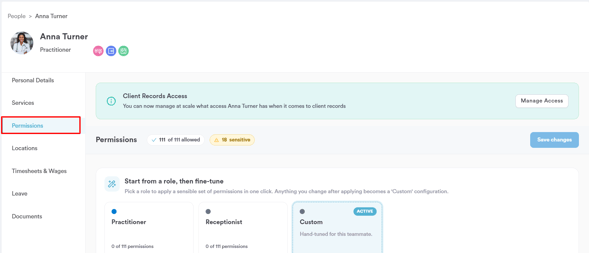
On the staff member's profile, navigate to the "Permissions" tab to make the necessary adjustments.
Step 3: Set Up Permissions
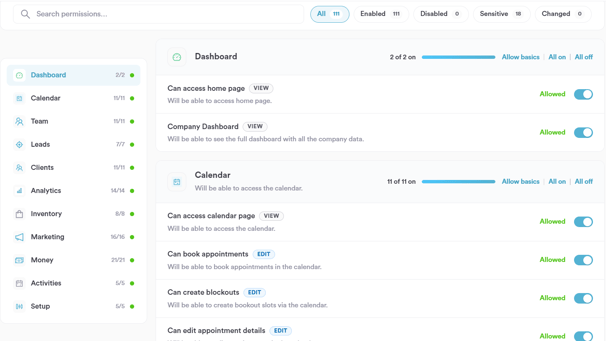
In the Permissions section, you will find a list of permission categories on the left side, each corresponding to a main feature in Pabau — such as Dashboard, Calendar, Team, Leads, Clients, Analytics, Inventory, Marketing, Money, Activities, and Setup.
Each category displays the number of active permissions out of the total available (e.g. 11/11), along with a green dot indicating that all permissions in that category are enabled.
Click on a category to expand it and view its individual permissions on the right side. Each permission includes:
- A name describing the specific action (e.g. "Can book appointments")
- A tag indicating the type of action — View for read-only access or Edit for the ability to make changes
- A short description of what the permission allows within the system
- A toggle on the right to enable or disable it individually — when enabled, it will display Allowed in green
To manage all permissions within a category at once, use the options displayed at the top right of each category:
- Allow basics — enables only the essential permissions for that category
- All on — enables all permissions within the category at once
- All off — disables all permissions within the category at once
At the top of the page, you can use the search bar to quickly find a specific permission by name, or filter the list using the following options — All, Enabled, Disabled, Sensitive, and Changed.
Step 4: Enable/Disable Credit Note Permissions
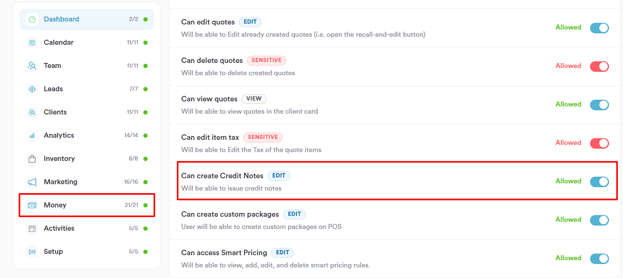
To manage credit note permissions, select the Money category from the left side panel. Once expanded, scroll through the list of permissions until you find the credit note-related permission:
- Can create Credit Notes — controls whether the user is able to create credit notes within the system
Toggle the switch on the right to enable or disable the permission based on the access level you want to grant to this user. When enabled, the toggle will appear blue and display Allowed.
Step 5: Save Changes
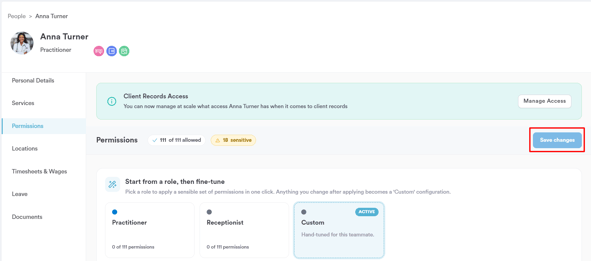
Make sure to click "Save Changes" at the top right corner of the page to update the staff member's permissions.
By following these steps, you can manage your staff member's permissions to issue credit notes.
For more guides, refer to related articles below, select additional guides, or use the search bar at the top of the page. These guides will help you get the most out of your Pabau account.
Additionally, to help you fully utilize and understand your Pabau account, we recommend exploring additional guides and resources offered at the Pabau Academy. It offers in-depth video tutorials and lessons, offering a holistic learning experience that can equip you with the essential skills for achieving success with Pabau.