
This feature is part of the new client card version and is currently available to select users only, starting August 2026. A wider rollout to all accounts is coming soon.
Client alerts and notes keep your whole team on the same page about a client. An alert is something everyone should see before treating the client — an outstanding balance, a safeguarding concern, a strong preference — while a note is everyday internal context for the team, visible to clinic staff only and never to the client.
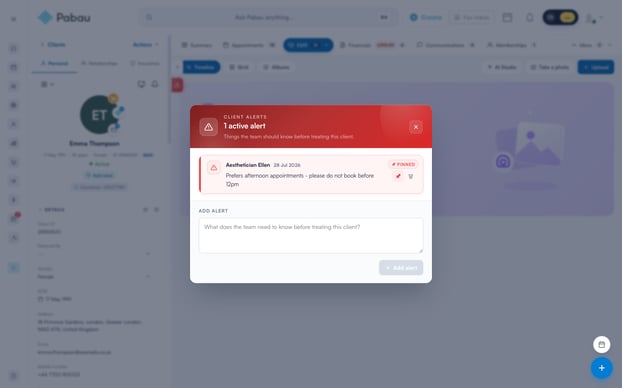
On the new client card, alerts and notes live on the Summary tab and in two dedicated pop-up windows. Alerts can also be pinned, so they open automatically the moment anyone opens the client’s card — ideal for anything nobody should miss.
1. Open the client card
- Go to Clients and search for the client — for example, Emma Thompson.
- Click the client’s name to open their card. The card opens on the Summary tab.
If the client already has a pinned alert, the Client alerts window opens by itself as soon as the card loads. Read it, then close it to carry on — it won’t reopen until the card is next opened.
2. View a client’s alerts
- When a client has active alerts, a red tab appears on the divider between the left panel and the main area of the card. Hover over it and it expands to read Show alerts, along with the number of active alerts.
- Click the tab to open the Client alerts window. The header shows the total (for example, 3 active alerts), and each alert lists who added it and when.
- Alerts also appear on the Summary tab, in the Alerts column of the Alerts, Allergies & Notes widget, with a count next to the heading.
The red tab only appears when the client has at least one active alert. If there’s nothing flagged, the Alerts column on the Summary tab simply shows No alerts.
3. Add an alert
- On the Summary tab, find the Alerts column and click the + next to its heading. The Client alerts window opens.
- In the Add alert box at the bottom of the window, type your alert — it prompts you with “What does the team need to know before treating this client?”
- Click Add alert. The alert appears in the list straight away, and everywhere else alerts are shown, including the red tab and the Summary tab.
The Add alert button stays greyed out until you’ve typed something, so you can’t save an empty alert by accident.
4. Pin an alert so it opens automatically
- In the Client alerts window, hover over an alert and click the pin icon.
- Pinned alerts jump to the top of the list with a red Pinned badge, and the remaining alerts sit below an Other alerts divider.
- From then on, whenever anyone opens this client’s card, the Client alerts window opens automatically — so the pinned alert can’t be missed. It opens once per visit; closing it won’t interrupt you again until the card is next opened.
- To unpin an alert, click the pin icon again.
5. Edit or delete an alert
- To change an alert’s wording, go to the Alerts column on the Summary tab, hover over the alert and click the pencil icon. Amend the text, then click Save — or Cancel to discard the change. The pencil only appears on alerts you added yourself.
- To delete an alert, click the bin icon. From the Alerts column you’ll be asked to confirm; from the Client alerts window the alert is removed as soon as you click.
Deleting an alert removes it for the whole team and can’t be undone. In the Client alerts window there is no confirmation step — the alert is removed the moment you click the bin icon.
6. View and add client notes
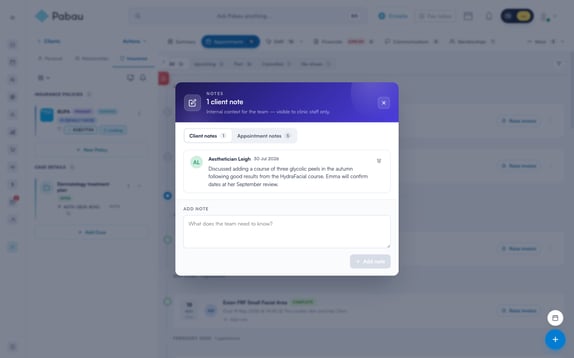
- On the Summary tab, the Notes column lists the client’s notes, each with its date and author.
- Click the + next to the Notes heading to open the notes window. The header shows how many client notes there are and reminds you they’re internal — visible to clinic staff only.
- The window has two tabs: Client notes and Appointment notes, each with its own count. Appointment notes come from the client’s bookings and are view-only here.
- To add a note, stay on the Client notes tab, type in the Add note box at the bottom — it prompts you with “What does the team need to know?” — and click Add note.
7. Edit or delete a note
- In the notes window (or the Summary tab’s Notes column), hover over a note and click the pencil icon to edit it, then click Save. The pencil only appears on notes you wrote yourself, and Save stays greyed out until you’ve actually changed the text.
- Click the bin icon to delete a note. You’ll be asked to confirm — the note will be permanently removed for everyone on the team, and this can’t be undone.
Can’t see alerts or notes anywhere on the card? They may be switched off for your user group in your clinic’s client card visibility settings — ask an administrator to check.
With alerts pinned to greet the team the moment the card opens, and notes capturing the day-to-day context, everyone who opens Emma Thompson’s card knows exactly what matters before the appointment even begins.
Was this guide helpful? Let us know by voting below - your feedback helps us write clearer articles.
For more guides, browse the related articles below or use the search bar at the top of the page. You can also watch our video learning series, the Pabau Academy, or visit the Support page for additional help.