
Step 1: Navigate to the Client Card
Start by logging in to your Pabau account using your login credentials. Then navigate to the Search bar at the top of the page and proceed to type at least three letters of the client's name. Pabau will filter the results as you type.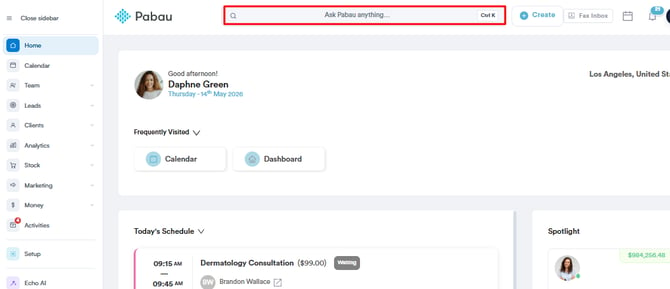
Step 2: Switch to the Allergies Tab
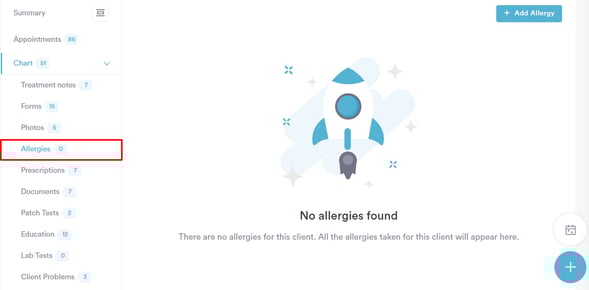
You can find the Allergies tab when expanding the Chart tab in the client card.
Step 3: Locate the Allergy
Locate the allergy you wish to edit or delete in the client card and click on the three dots at the far right side of the allergy.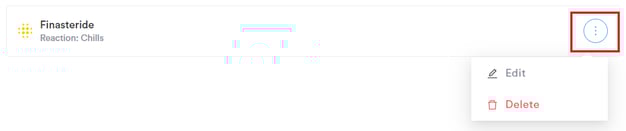
Edit Allergy
When you click on "Edit," you will be prompted to modify the details you previously added when creating the allergy. The process remains the same as when recording an allergy.
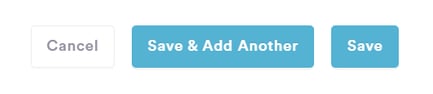
Click on Save to confirm, or Save & Add Another to confirm and record another allergy.
Delete Allergy
When selecting "Delete," you will receive a prompt to confirm if you'd like to proceed with deleting the allergy.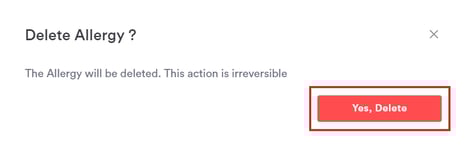
When selecting "Yes, Delete" you will permanently delete the allergy from the client card.
Was this guide helpful? Let us know by voting below - your feedback helps us write clearer articles.
For more guides, browse the related articles below or use the search bar at the top of the page. You can also watch our video learning series, the Pabau Academy, or visit the Support page for additional help.