
Step 1: Navigate to Medical Form Templates
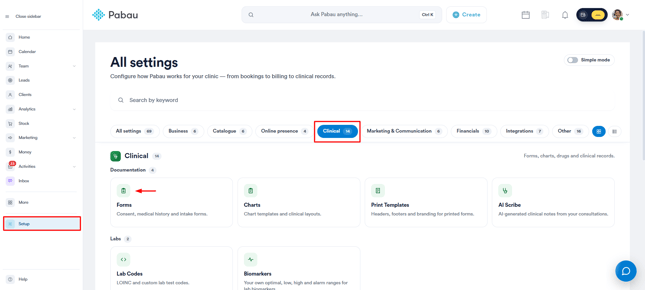
Start by logging into your Pabau account. Then, navigate to Setup, and click on "Forms" under the Clinical section.
Step 2: Locate the Desired Medical Form
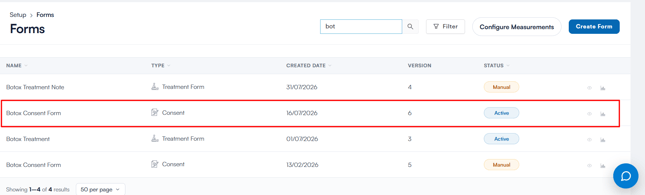
Identify the medical form you want clients to complete before their appointment. Select the form and click to open it for editing.
Step 3: Configure Form Settings
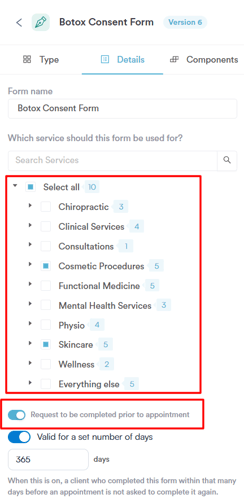
In the "Details" tab located on the top left corner of the medical form, select the services for which this form should be completed. Toggle the "Request to be completed prior to appointment" option so the forms will be sent automatically once one of the services is booked.
Step 4: Configure Client Notifications
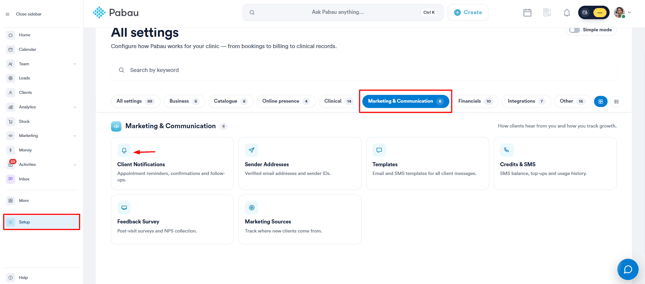
Next, navigate to Client Notifications by going back to Setup. Under "Marketing & Communication," find and click on "Client Notifications".
After you open Client Notifications, locate and open both the "New appointment is booked" and "Upcoming appointment reminder" email templates.
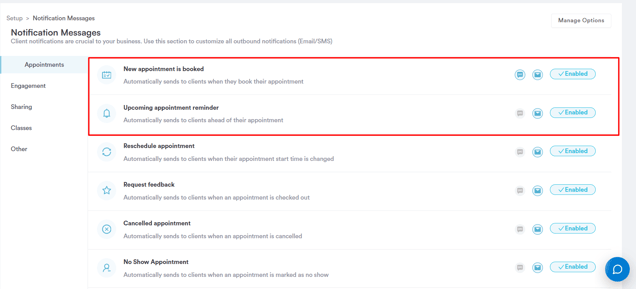
Ensure that the "Add complete form button" option is ticked in both the appointment confirmation and reminder email templates. You should see the "Complete Forms" button in the email preview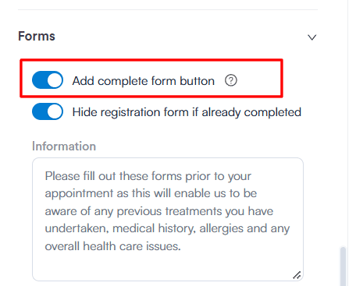
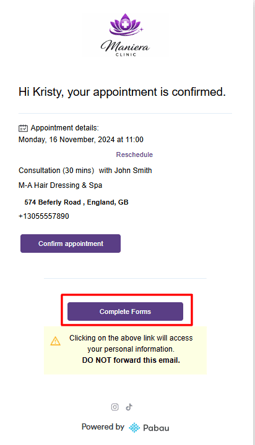
By completing these steps, whenever an appointment is booked manually or online, they will receive the confirmation email. Within this email, clicking the "Complete Forms" button will redirect them to Pabau Connect.
Was this guide helpful? Let us know by voting below - your feedback helps us write clearer articles.
For more guides, browse the related articles below or use the search bar at the top of the page. You can also watch our video learning series, the Pabau Academy, or visit the Support page for additional help.