
Step 1: Navigate to the Payments Page
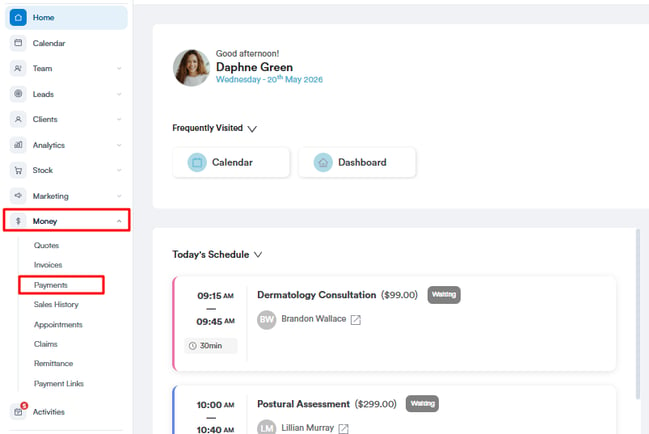
Log into your Pabau account and click on Money in the left sidebar menu. From the sub-tabs, select Payments. This page displays all payments recorded in your Pabau account.
Step 2: Locate the Deposit Payment
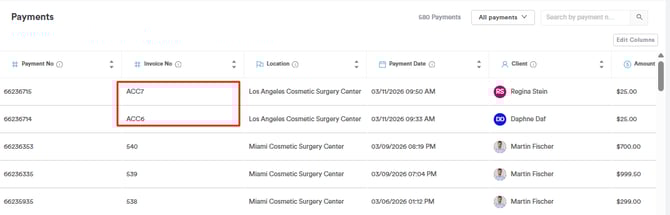
Use the search bar at the top right corner of the Payments page to search for deposit payments. These payments appear with 'ACC' at the beginning of the invoice number.
Step 3: Open the Payment
Click on the invoice number of the deposit payment to open its details. You will be able to see the payment amount, date, and the client it belongs to.
Step 4: Link the Payment
Within the payment details, navigate to the 'Appointment' field. It will state 'None assigned' if an appointment is not linked.
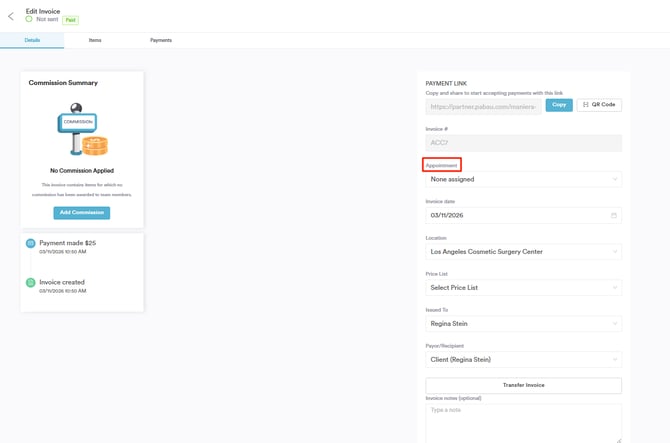
Click this field to open a dropdown and select the relevant appointment for that client. Select the correct record and confirm the link.
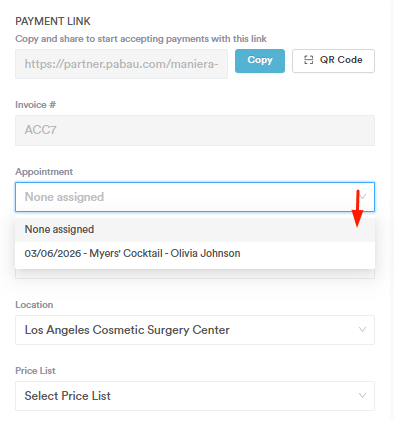
This action will update the invoice details.

To finalize, navigate to the top right corner of the screen and click the 'Save changes' button.

Step 5: Confirm the Payment is Added as Money on Account
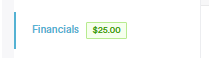
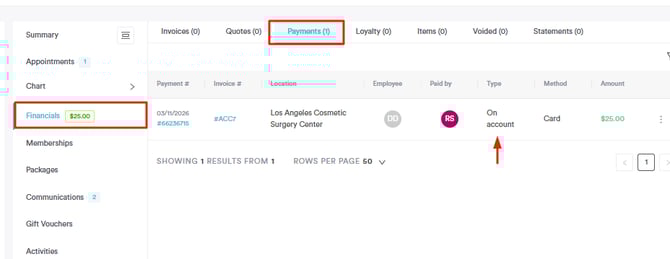
Once linked, the deposit will be applied to the client’s account. You can verify this by navigating to the Client Card and opening the Financials tab. The amount will appear highlighted in green in the tab, indicating the balance available on the client’s account.
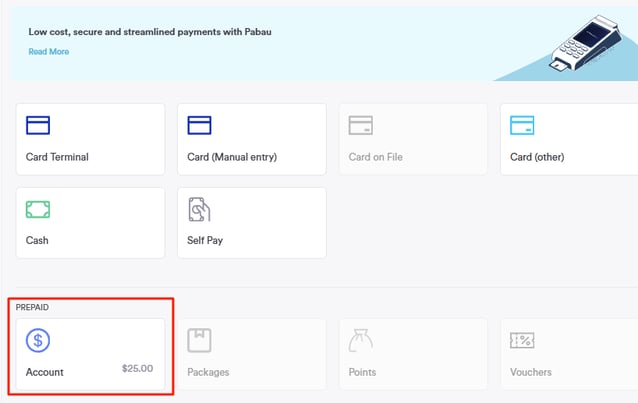
The payment should also appear under the Payments section, and the funds will be available as Money on Account to be used against future invoices.
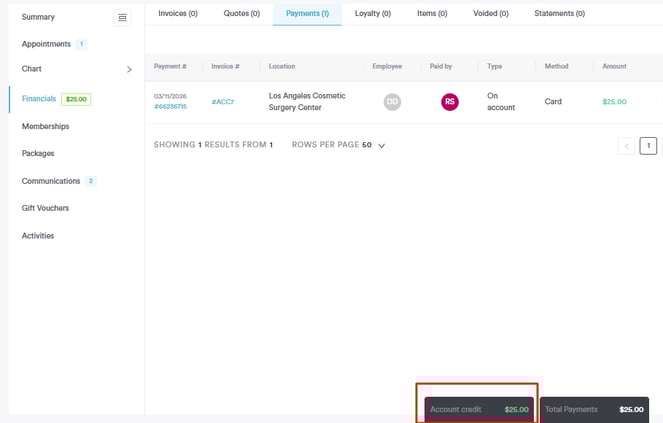
It also shows on the screen below as Account Credit.
Step 6: Perform Sale
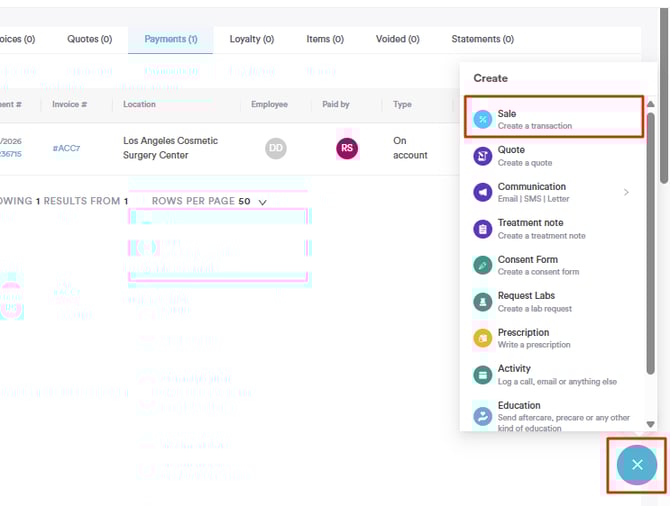
Navigate to the 'Create' button represented as a blue plus sign on the bottom right corner of the screen. This will reveal many available actions from the client card. Proceed to select 'Sale' to raise an invoice.
Select the item the client would like to purchase (for example, a gift voucher, package, service, etc.).
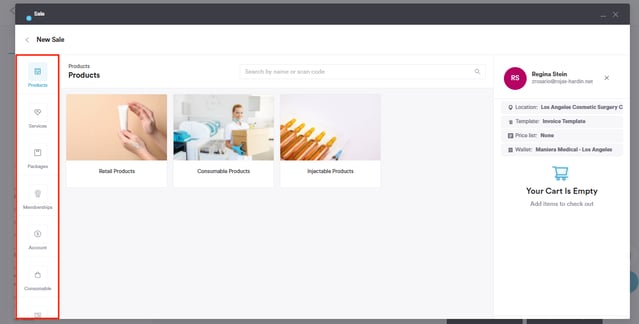
Then proceed to the Choose Payment Method step. You will see the option to pay using the money on account.
For more guides, refer to related articles below, select additional guides, or use the search bar at the top of the page. These guides will help you get the most out of your Pabau account.
Additionally, to help you fully utilize and understand your Pabau account, we recommend exploring additional guides and resources offered at the Pabau Academy. It offers in-depth video tutorials and lessons, offering a holistic learning experience that can equip you with the essential skills for achieving success with Pabau.