
The Pabau BETA Program lets your clinic try new features before they're released to everyone, and tell the Pabau product team what works and what doesn't. You can browse what's coming, ask to join a beta, send feedback and report issues while you test.
NOTE: Joining is a request. Pabau reviews it before the beta is switched on for you, so the feature may not appear straight away.
Step 1: Open the BETA Program
- Click your profile picture in the top right corner and choose Help & Support.
- Click Beta Program.
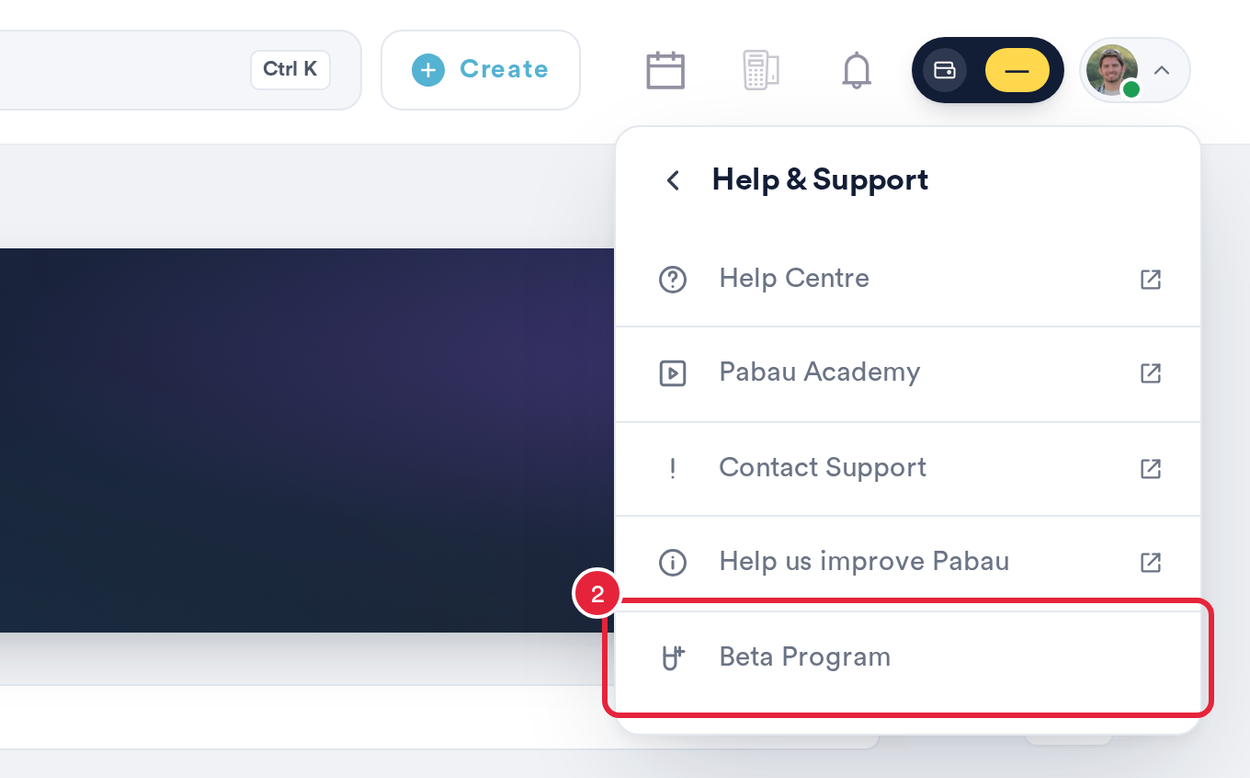
Beta Program is under Help & Support in your profile menu
Step 2: Browse the Betas
- Use the filters on the left. The page opens on In beta: the betas you can try now. Live lists features that have been released to everyone, In development and Brainstorming show what's being worked on, and Your Betas lists the ones your account is on. Under By app you can narrow the list to one area of Pabau, and Search betas finds one by name.
- Click a beta's name to open its details.
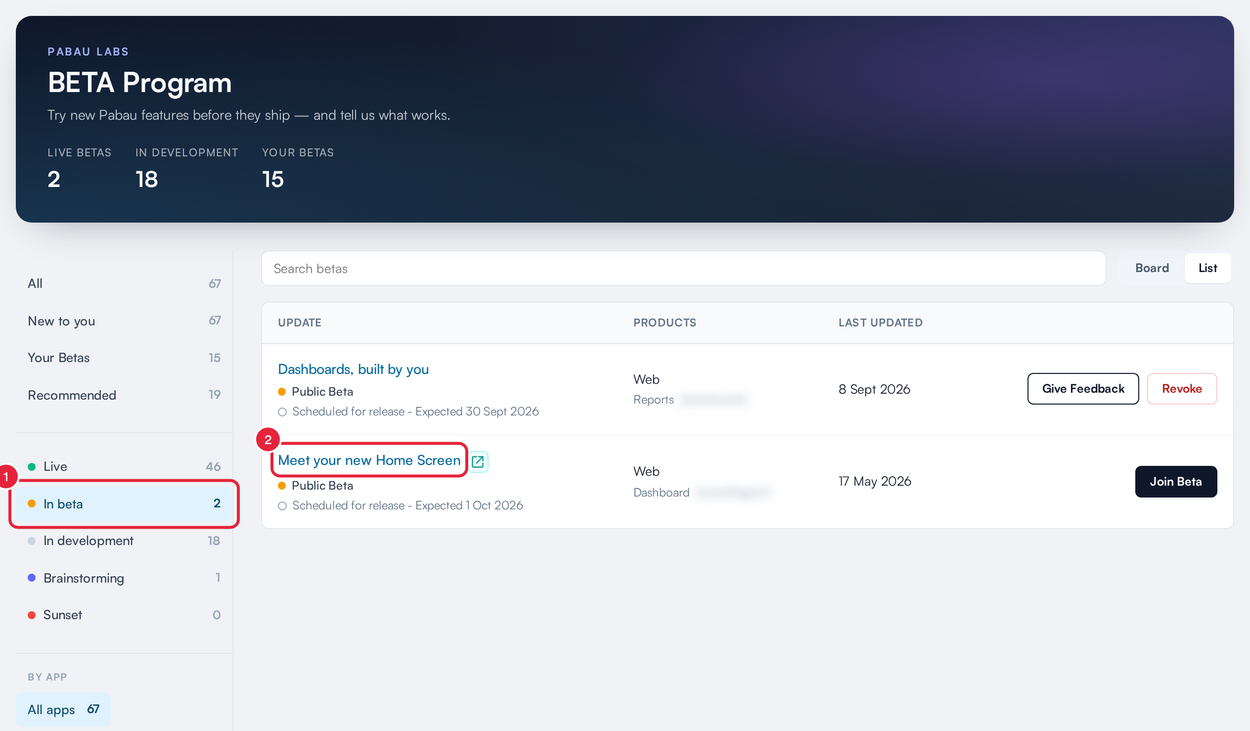
The BETA Program page, filtered to betas open for testing
Each beta shows its stage, such as Public Beta, Private Beta, Closed Beta, In development, Brainstorming, Live or Sunset. The banner at the top counts the live betas, the betas in development and your betas. Switch between List and Board to change the layout.
Step 3: Read the Details and Join
The details panel opens on About, which explains what the feature is, why it matters and how it works.
- Click Details to see a clickable prototype (click Preview) where there is one, which part of Pabau the beta updates, and whether your account is enrolled.
- Click Join Beta.
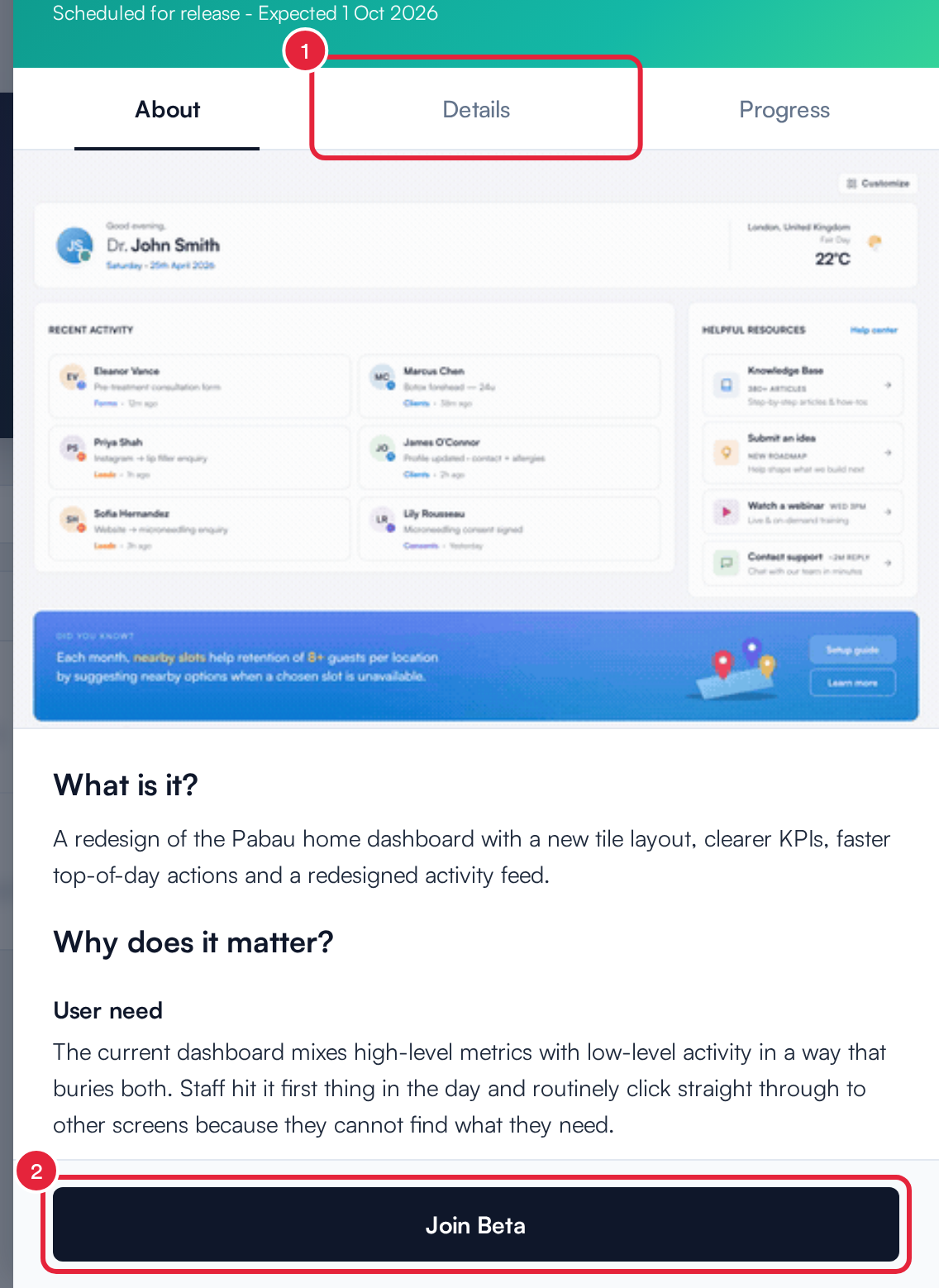
Read about the beta, then click Join Beta
Step 4: Choose Who Joins
- Choose who the beta is for: Enroll only me, or Enroll entire account to switch it on for everyone in your clinic.
- Tick the box to agree to the Pabau Beta Terms. Click the link to read them first.
- Click Join beta.
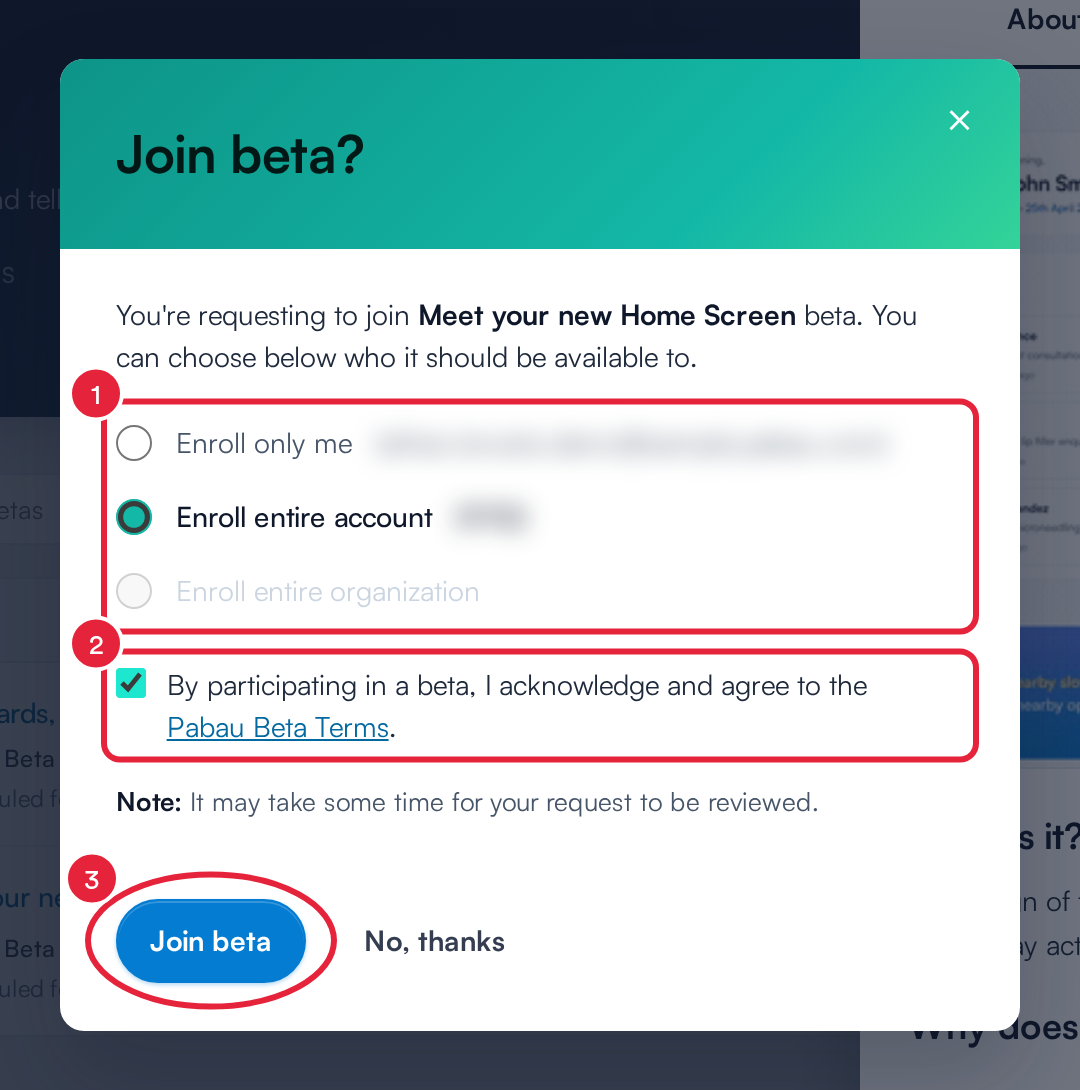
Pick who the beta is for, agree to the terms and click Join beta
You'll see Beta request sent, and the beta's button changes to Pending review. Once Pabau approves the request, the feature is switched on and the beta appears under Your Betas.
NOTE: Closed betas for the Pabau GO app show Request Beta instead. Clicking it opens an email to Pabau support so the team can add you. If a beta's button is greyed out, it isn't open for sign-up yet.
Step 5: Give Feedback
- On a beta you're taking part in, click Give Feedback, either in the list or at the bottom of the beta's details. Type your feedback in What should we know? (up to 1,500 characters). To attach a screenshot, copy it and paste it into the window (up to 8 MB).
- Click Submit. You'll see Feedback sent.
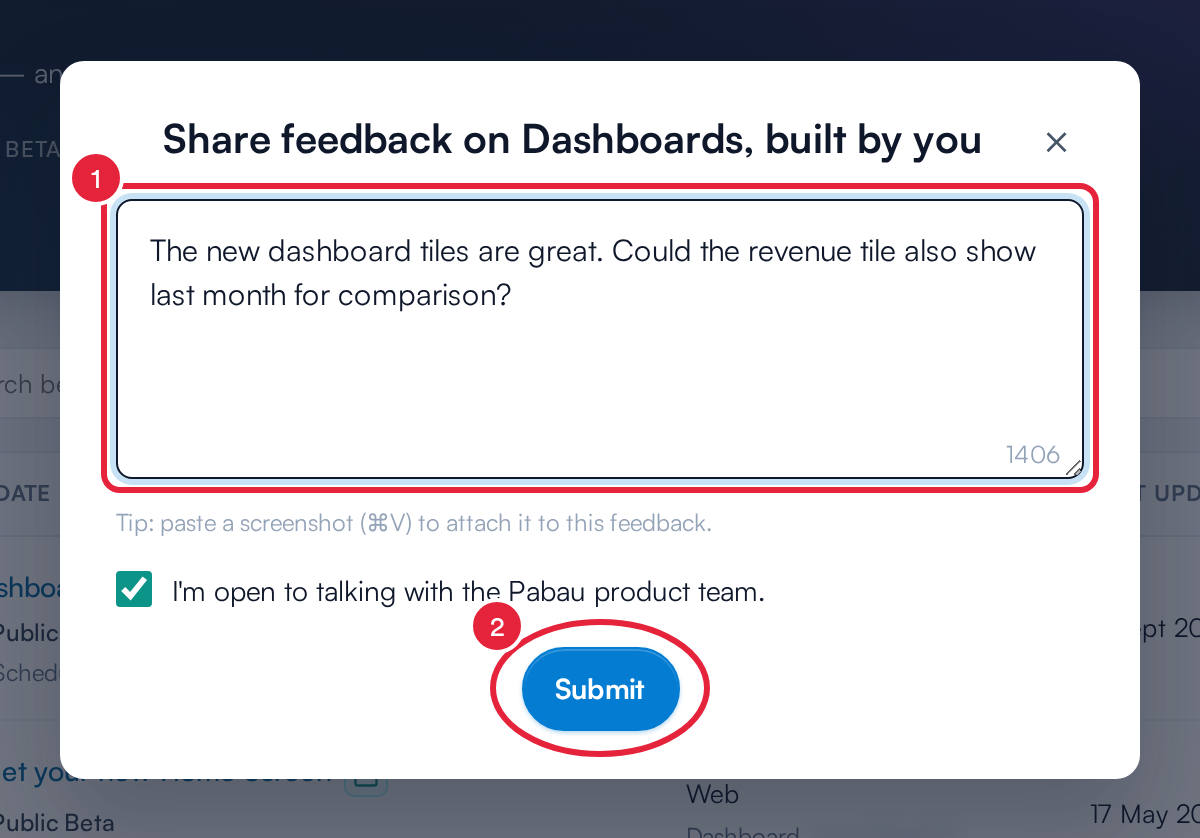
Tell the product team what you think
I'm open to talking with the Pabau product team. is ticked unless you untick it, so the team may get in touch about your feedback.
Step 6: Report an Issue While You Test
- On any page in Pabau, press Ctrl+Shift+B (⌘+Shift+B on a Mac). A Report Issue button appears in the bottom right corner. Click it. You can drag the button out of the way, and press the shortcut again to hide it.
- If Pabau can't tell which beta the page belongs to, choose the feature in What are you testing? and click Continue. Then describe the issue and submit it as in Step 5.
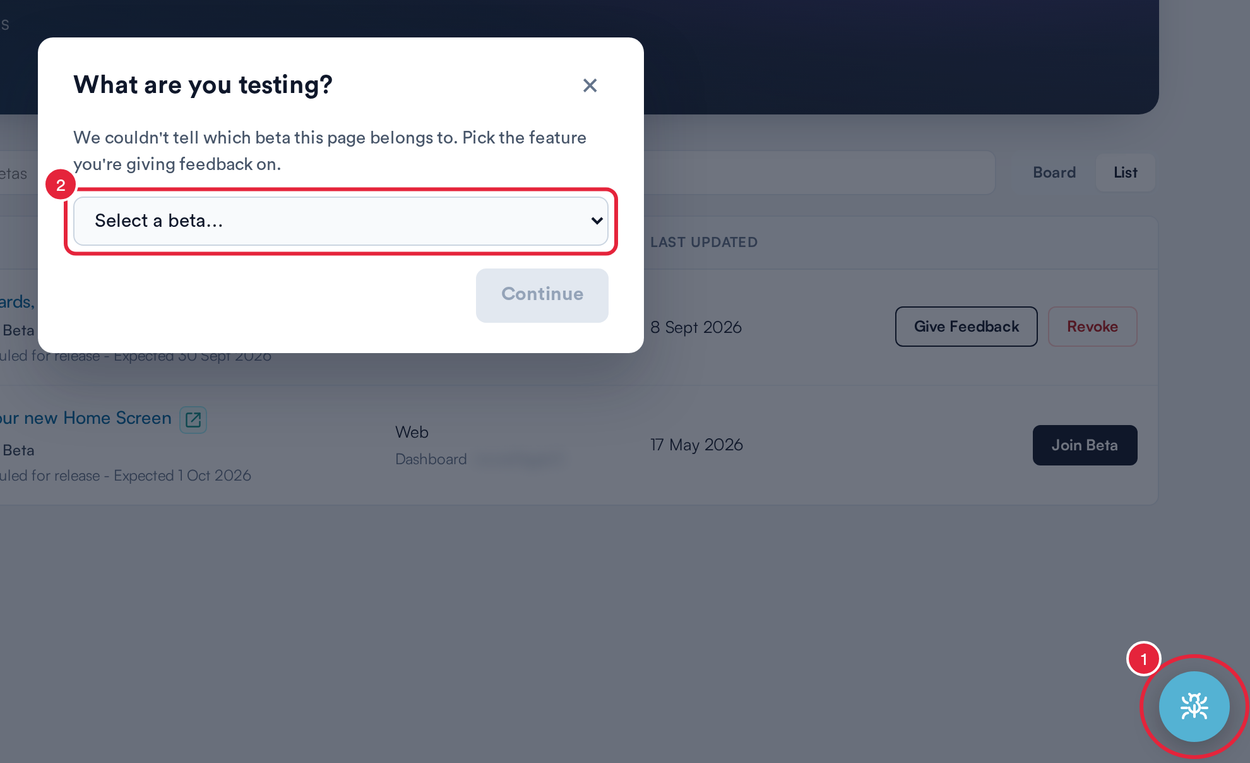
The Report Issue button and the beta picker
Step 7: Leave a Beta
To stop using a beta, click Revoke next to it in the list, or Revoke this beta in its details, and confirm. The feature turns off the next time the page loads. Features that are already Live are part of Pabau for everyone and can't be revoked.
TIP: Open your notifications (the bell icon) and click the News tab to see betas that have just gone live or started development. Click one to open it in the BETA Program.
What's next?
Check the Live filter now and then to see what's been released, and browse the Pabau Knowledge Base for guides to features once they launch.
Questions? Reach us any time via the in-app chat. We're happy to help.
Was this guide helpful? Let us know by voting below - your feedback helps us write clearer articles.
For more guides, browse the related articles below or use the search bar at the top of the page. You can also watch our video learning series, the Pabau Academy, or visit the Support page for additional help.