
NOTE: SignatureRx integration is available exclusively for clinics located in the United Kingdom.
SignatureRx is a secure, UK-based digital prescription platform that allows clinicians to send prescriptions electronically to pharmacies — no printing, scanning, or posting required.
Step 1: Navigate to ePrescriptions
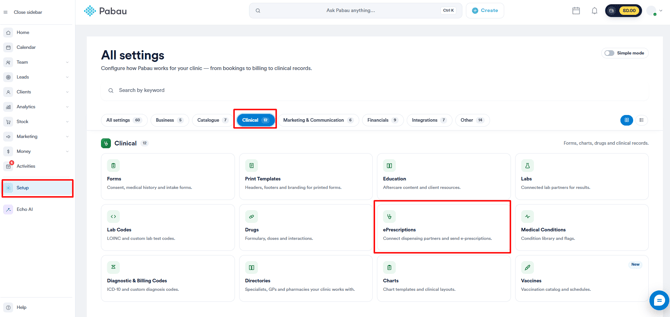
Start by logging into your Pabau account using your login credentials. Then navigate to the Setup page located on the bottom right corner of the screen. Then, click on the "ePrescriptions" tab located under the "Clinical" section.
Step 2: Set Up Signature RX
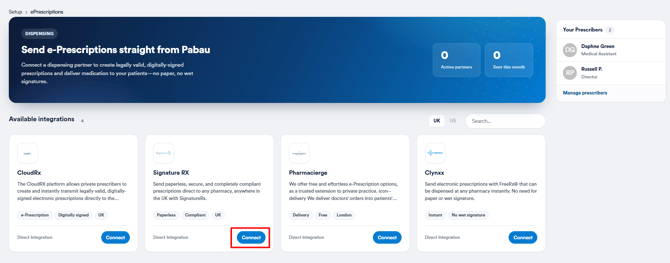
On the "ePrescriptions" you’ll see a list of all available pharmacies you can integrate with Pabau. To connect SignatureRx, simply click the “Connect now” button next to the SignatureRx option to get started.
A pop-up window will appear where you’ll be prompted to enter the source code provided by your SignatureRx representative. You’ll also see a slider to set a markup fee, giving you the option to add a percentage-based charge to prescriptions if you choose to.
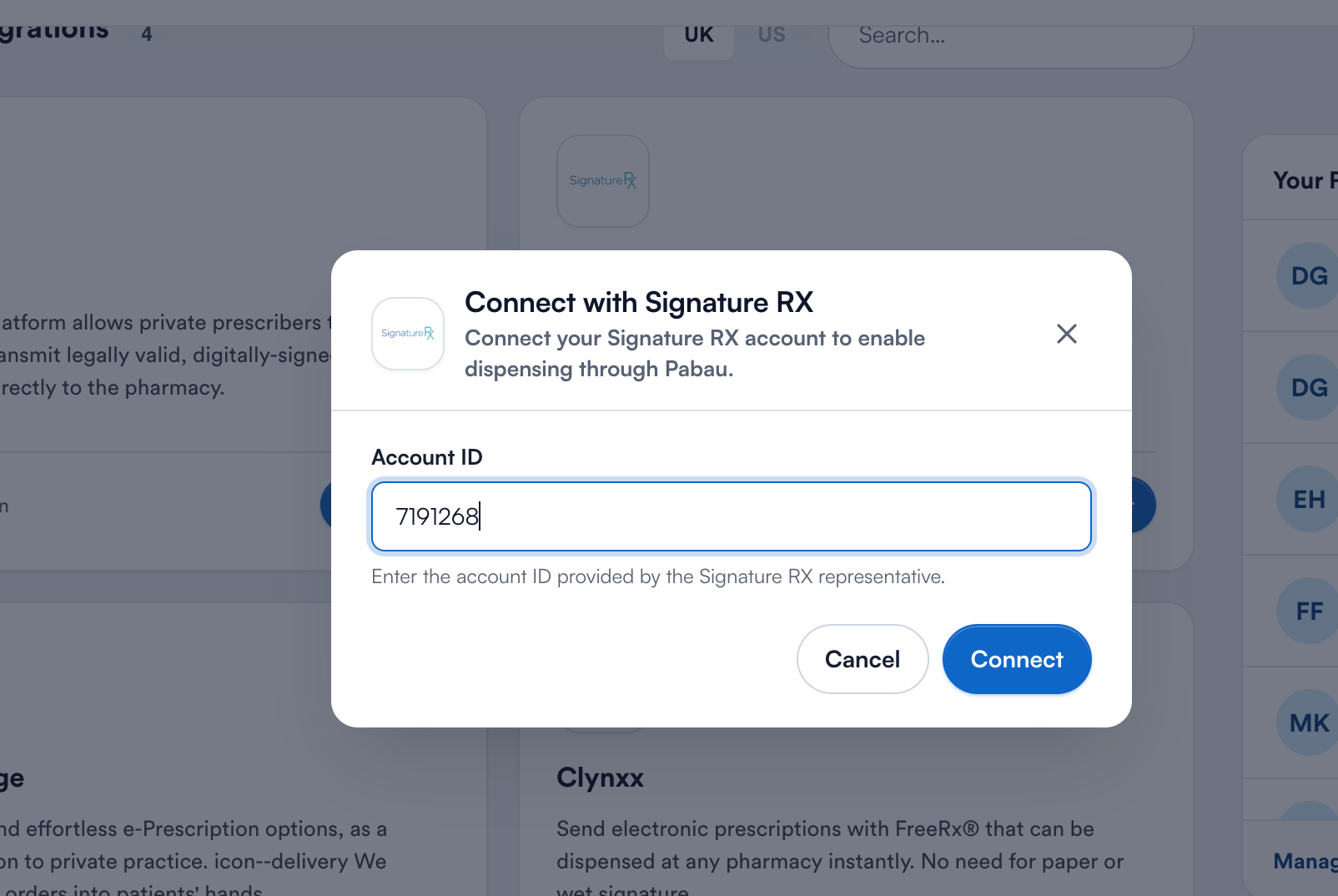
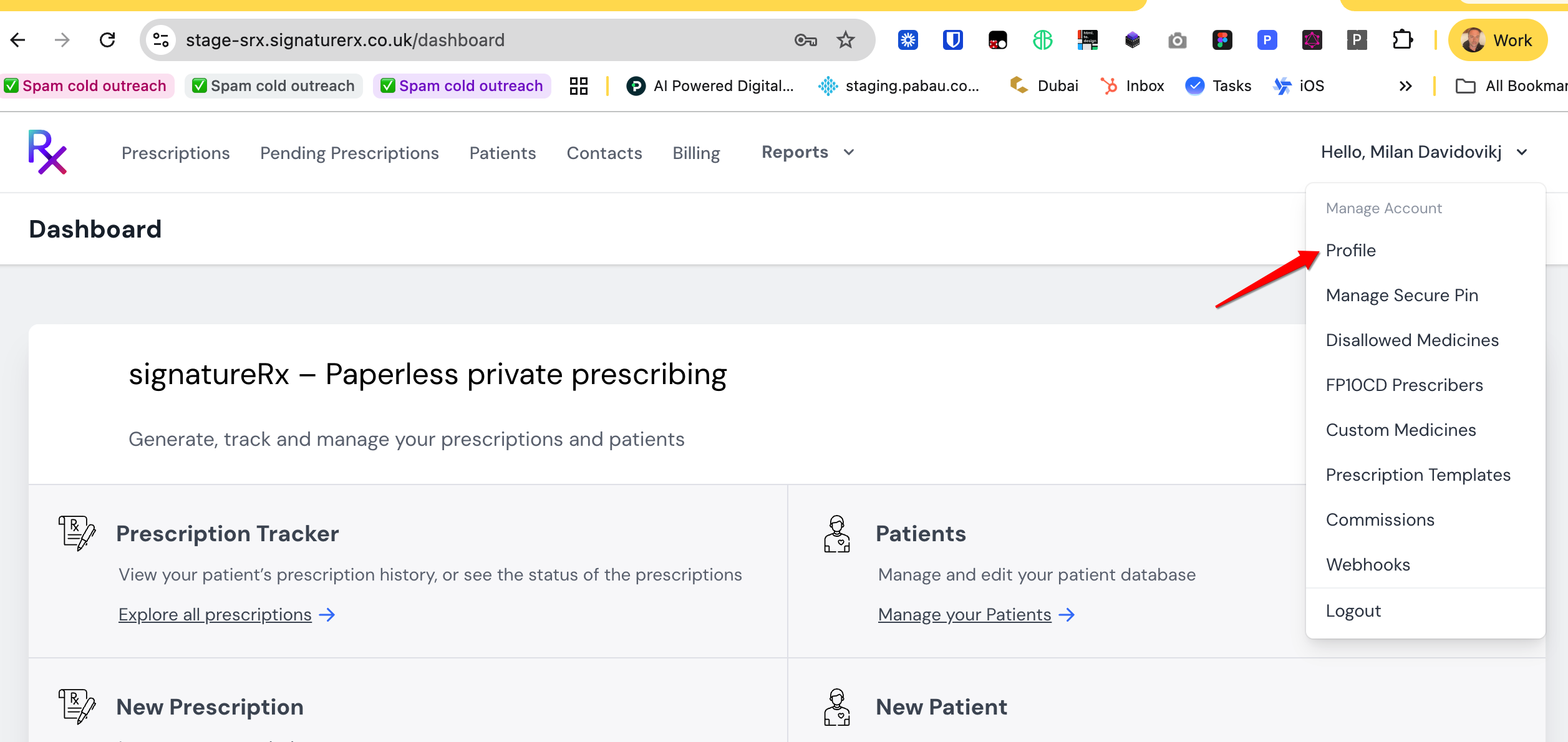
This number needs to match SignatureRx's Clinic ID
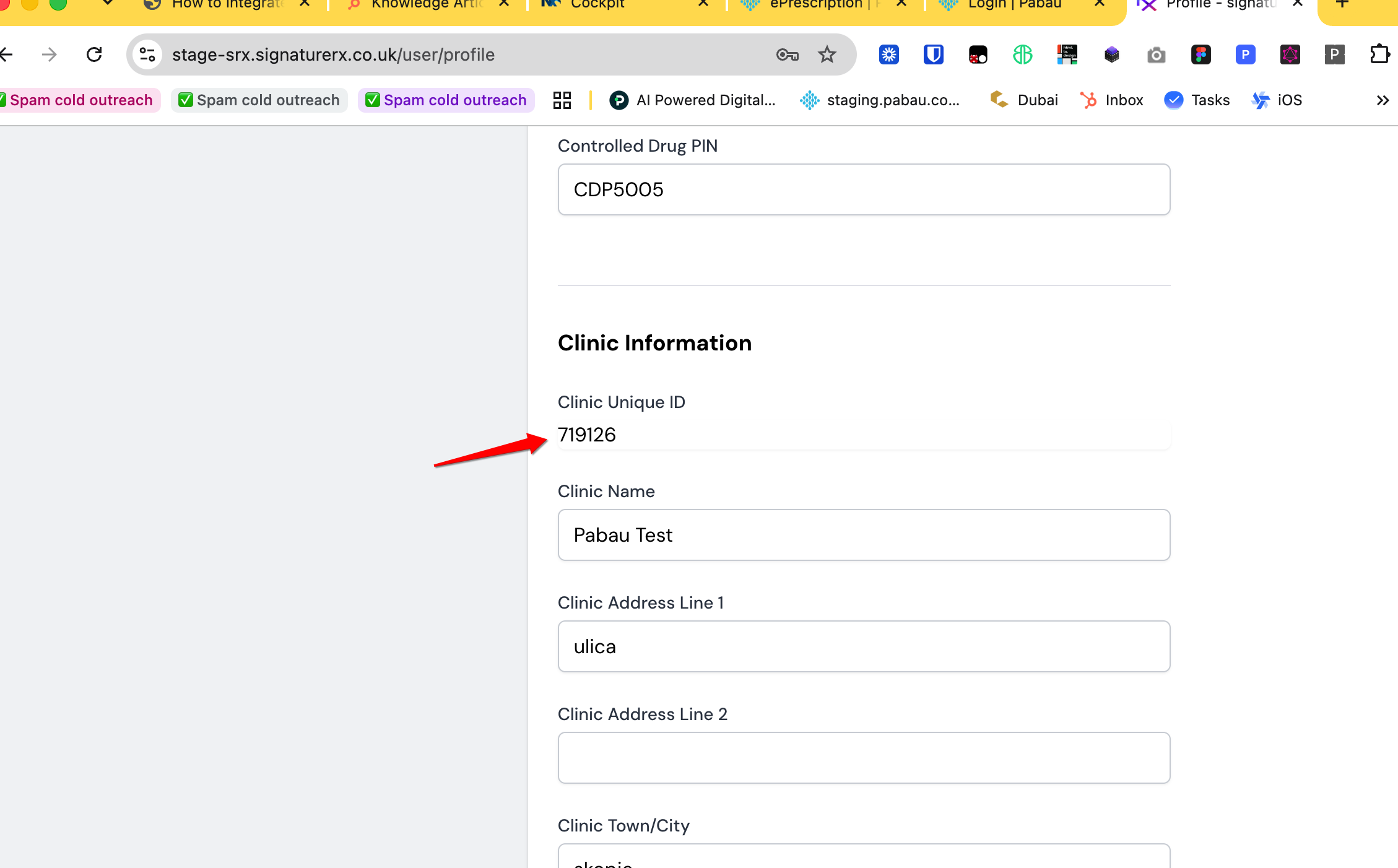
To finalize, click the "Save" button in the bottom right corner of the pop-up. By following these steps, you will successfully integrate SignatureRx to your Pabau account.
IMPORTANT: The email address on a prescriber's Pabau staff profile must match the email on their SignatureRx account. If the two don't match, SignatureRx can't match the prescriber and prescription sends fail with a lookup error such as "Prescriber account not found for provided registration number." Make sure every prescriber uses the same email address in both Pabau and SignatureRx before sending.
Sending a Prescription to SignatureRx
Once SignatureRx is connected, prescriptions are sent from the Prescriptions page — Pabau's prescription workspace where every prescription moves through a clear status flow: Awaiting approval → Ready to send → Sent → Dispensed. See the full step-by-step walkthrough with screenshots here.
Step 1: Create the Prescription
Open the client's card, click the Create (+) button, and select "Prescription". Add the medications, complete any prescription form fields, and sign to issue it. (See How to Create a Prescription for the full prescribing flow.)
Step 2: Open the Prescription in the Prescriptions Page
Navigate to the Prescriptions page to see all of your clinic's prescriptions with their current status, or use the "Send as eRx" action on the client card to jump straight to that prescription's send screen.
Step 3: Approve the Prescription
A prescription must be approved by a prescriber before it can be sent. If the status shows "Awaiting approval", click "Approve". Prescriptions marked "Needs action" have failed validation — open them to review what's missing (for example, no prescriber assigned) before they can be approved.
Step 4: Send to Pharmacy
Open the prescription's "Send to pharmacy" screen, then:
- Under "Dispense from", select SignatureRx (connected pharmacies are labeled "e-Prescribing · connected").
- Under "Medications", untick any medication that should not be sent, and use "+ Note" to add an optional note to the pharmacist (e.g. brand preference, packaging, urgency).
- Under "Fulfilment", choose "Deliver to patient" (the patient's address on file) or "Collect from pharmacy".
- Click "Send to pharmacy".
The prescription is transmitted securely to SignatureRx and its status changes to "Sent". Once the pharmacy confirms the dispense, the status updates to "Dispensed". You can review the full timeline of any prescription (created → approved → sent) via its History panel.
NOTE: Each prescription can only be sent to SignatureRx once. A prescription-send fee is deducted from your Pabau account balance for each successful send, and SignatureRx bills prescriptions via tokens on their side — see How to Log into SignatureRx and Buy Tokens.
Getting Dispense Updates Back Automatically (Incoming Webhook)
By default, a prescription shows as "Sent" once it reaches SignatureRx. If you'd like Pabau to update the status to "Dispensed" automatically when the pharmacy dispenses the medication — with no manual checking — set up the SignatureRx Incoming Webhook. This is a one-time setup per clinic.
Step 1: Open the Incoming Webhook window
On the ePrescriptions page, find the connected SignatureRx card under "Your pharmacies" and click "Incoming Webhook".
Step 2: Generate and copy your webhook URL
Click "Generate URL", then "Copy". This is your clinic's unique Pabau address that SignatureRx will send dispense notifications to.
Step 3: Add the URL in SignatureRx
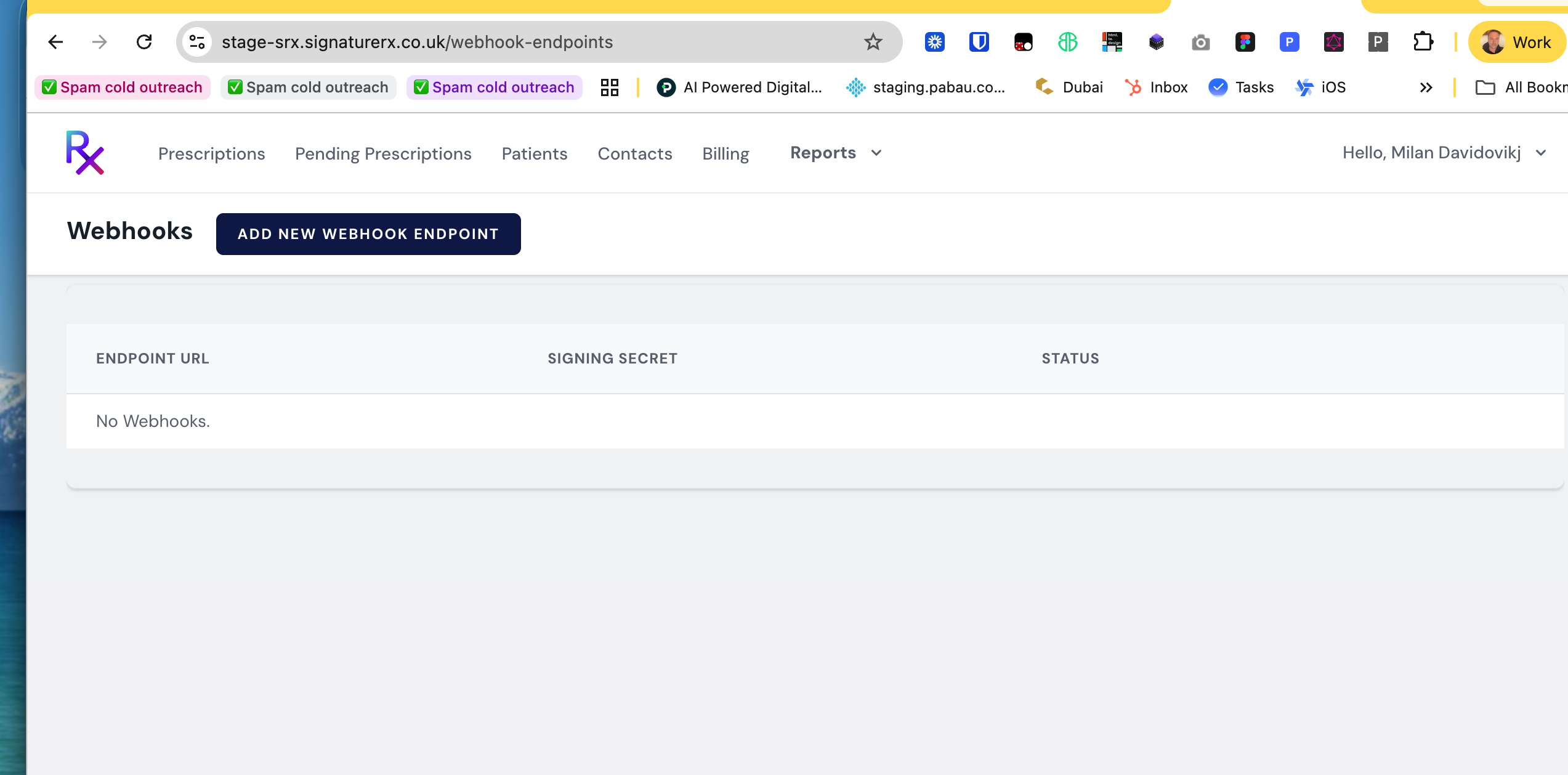
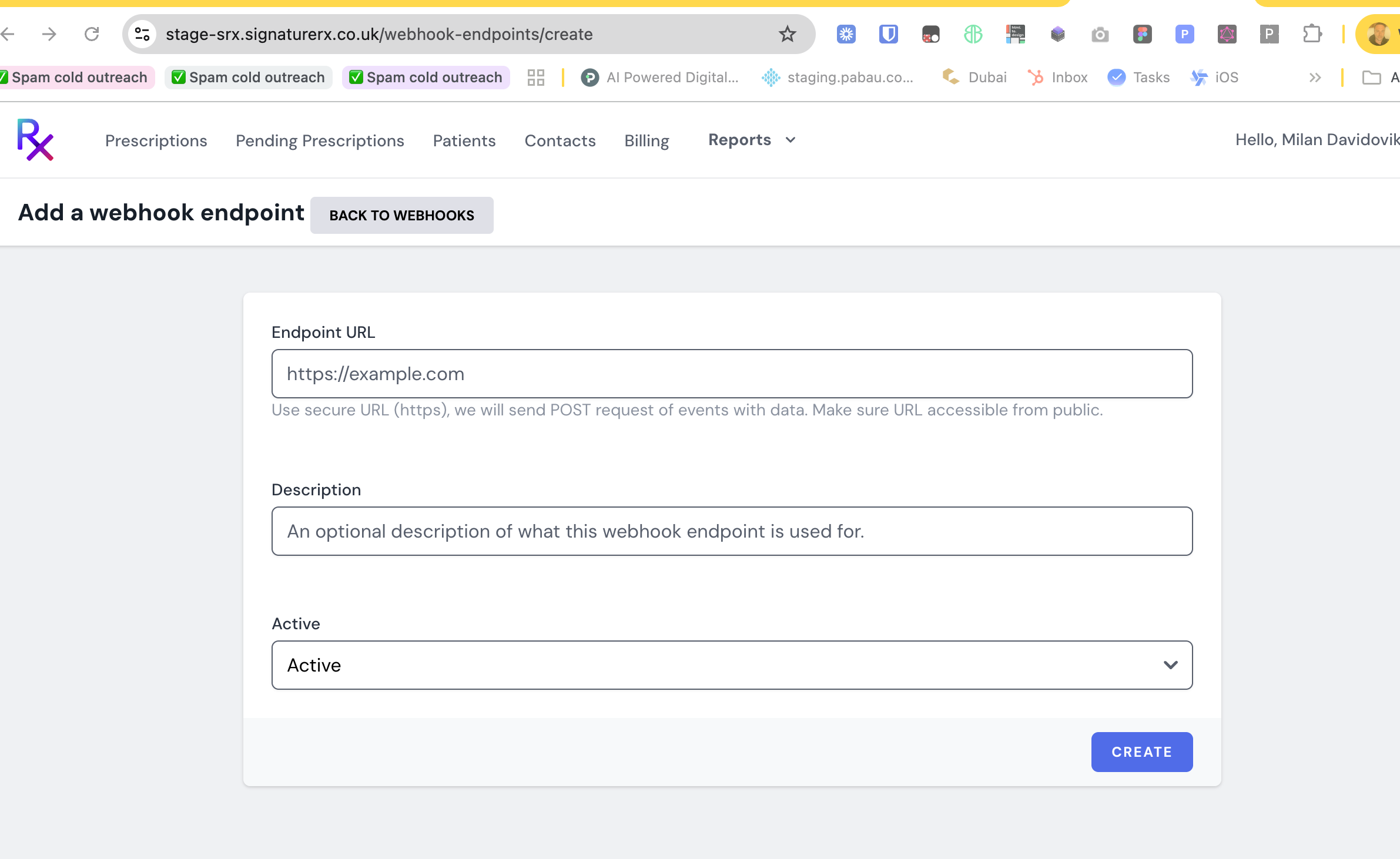
Log into SignatureRx and go to Webhooks settings → Add a webhook endpoint. Paste the URL into the Endpoint URL field, set the status to Active, and click Create.
Step 4: Save the signing secret in Pabau
After the endpoint is created, SignatureRx displays a signing secret (it starts with whsec_). Copy it, return to the Pabau Incoming Webhook window, paste it into the Signing secret field, and click Save.
NOTE: The signing secret lets Pabau confirm each notification genuinely came from SignatureRx. Save it as soon as you've added the endpoint — until you do, Pabau accepts notifications without verifying them. If you ever regenerate the URL in Pabau, the previous URL stops working immediately, so remember to update it in SignatureRx too.
That's it. When SignatureRx confirms a dispense, the matching prescription on your Prescriptions page moves to "Dispensed" automatically.
Troubleshooting: Error Messages
If a send fails, Pabau shows the reason returned by SignatureRx. Here are the messages you may encounter and how to resolve them:
| Message | What it means | How to fix it |
|---|---|---|
| "Prescriber account not found for provided registration number." | SignatureRx has no prescriber account matching the registration number (e.g. GMC number) on the prescriber's Pabau staff profile. | First, make sure the email address on the prescriber's Pabau staff profile matches the email on their SignatureRx account — if they differ, SignatureRx can't match the prescriber and the send fails. Also check the Registration Number on the prescriber's staff profile matches their SignatureRx account exactly (no extra spaces, correct prefix, not blank), and confirm the prescriber is registered with SignatureRx under your clinic. Contact your SignatureRx representative if the prescriber has not been set up yet. |
| "SignatureRx is not connected for this clinic" | The integration was never completed for your account. | Complete the "Connect now" setup above with the source code from your SignatureRx representative. |
| "Approval required" / "This prescription must be approved by a prescriber before it can be sent." | The prescription is still awaiting prescriber approval. | Click "Approve" (as a prescriber) before sending. |
| "No medications selected" | Every medication was unticked on the send screen. | Tick at least one medication to include in the order. |
| "SignatureRx prescription already sent for this prescription" | This prescription has already been transmitted to SignatureRx — duplicate sends are blocked. | No action needed. To prescribe again, create a new (or repeat) prescription. |
| "Validation failed" (with one or more field errors) | SignatureRx rejected the prescription because required patient or prescription details are missing or invalid. | Check the client card has a complete date of birth, address (including postcode), and a phone number or email, then retry. |
| "Could not authenticate with SignatureRx" | Pabau could not establish a secure connection to SignatureRx. | This is a service-level issue rather than something in your setup — try again in a few minutes, and contact Pabau support if it persists. |
| "Something went wrong sending to SignatureRx. Please retry." | A temporary issue occurred and no specific reason was returned. | Retry the send. If it keeps failing, contact Pabau support with the prescription details. |
TIP: A failed send is never recorded as sent — once you've resolved the cause, simply send the prescription again.
For more guides, refer to related articles below, select additional guides, or use the search bar at the top of the page. These guides will help you get the most out of your Pabau account.
Additionally, to help you fully utilize and understand your Pabau account, we recommend exploring additional guides and resources offered at the Pabau Academy. It offers in-depth video tutorials and lessons, offering a holistic learning experience that can equip you with the essential skills for achieving success with Pabau.