
The AI Form feature turns the forms you already use into Smart Forms in Pabau. Upload a PDF, Word document or photo of a form and Pabau’s AI rebuilds it with the right field types: headings, text fields, tick boxes and signatures. Because you can upload several forms at once, it’s a quick way to bring a whole set of consent, medical history and intake forms across without building them from scratch.
NOTE: We recommend reading our Medical Forms article before generating a Smart Form.
IMPORTANT: An AI-generated form is not intended to replace the advice or care of a qualified healthcare professional. Review every form carefully before you use it with clients, and consult experts if you have any questions about legal requirements.
Step 1: Open Forms and Choose Generate with AI
- Go to Setup and open Forms, then click Create Form. If the button is greyed out, you need the Can create forms permission; ask your clinic admin.
- In What would you like to do?, choose Generate with AI.
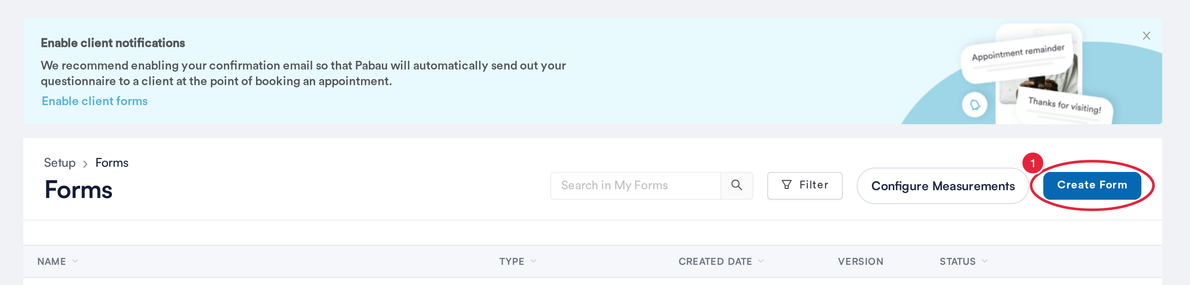
Create Form starts a new form
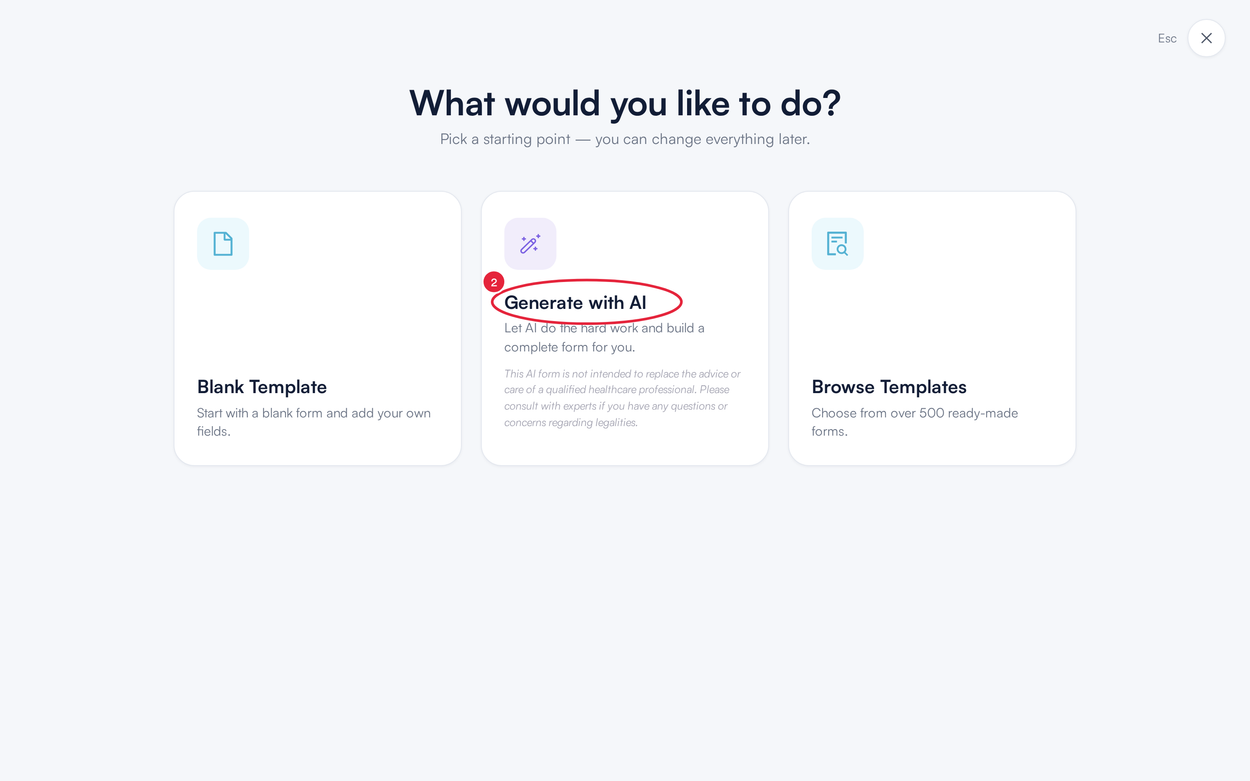
Generate with AI builds the form from your own document
The AI form importer opens on Upload your medical forms, in the same browser tab.
Step 2: Upload Your Forms and Generate
- Drag your documents onto the box, or click choose files. You can add one form or many: PDF, Word (.doc or .docx), ODT or an image, up to 15MB each. Files of any other type are skipped, and Pabau tells you which.
- Click Generate followed by the number of forms, for example Generate 1 smart form.
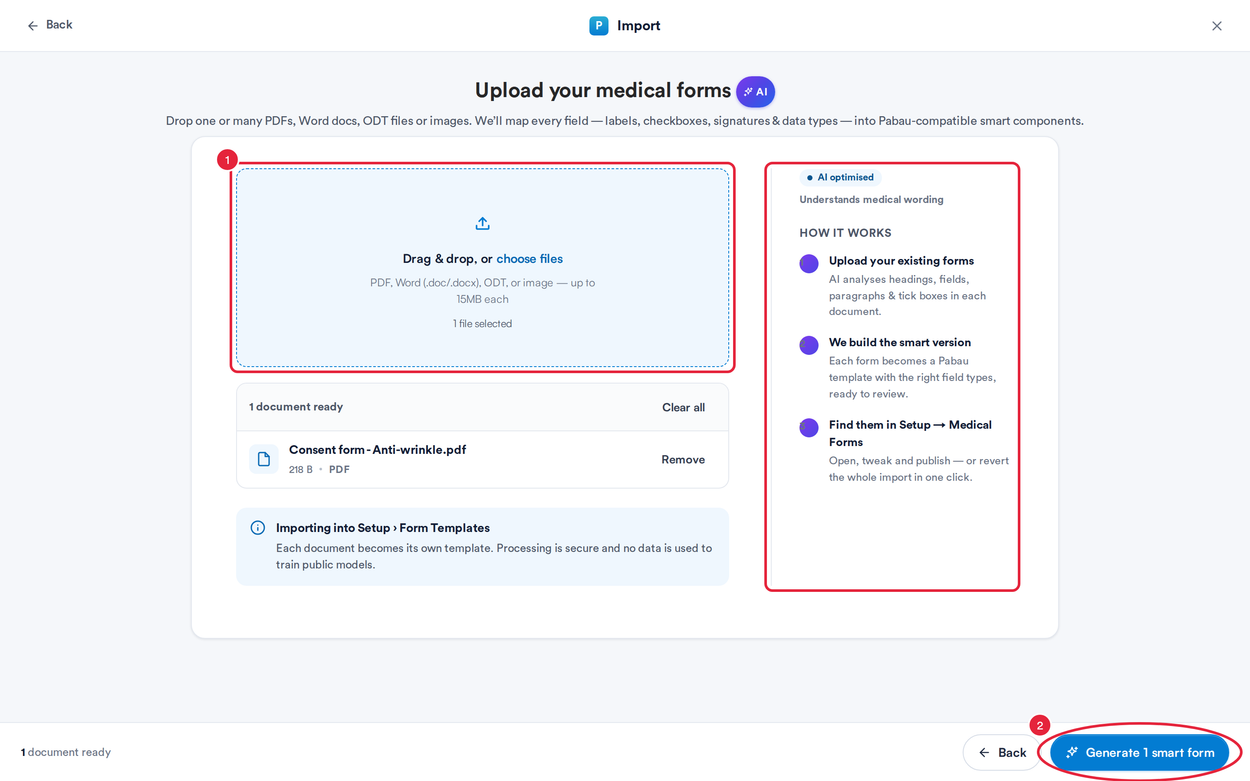
Add every form you want to convert, then generate
The How it works panel sums up what happens next: the AI reads the headings, fields, paragraphs and tick boxes in each document, builds each one as a Pabau form template, and puts it in Setup → Forms. Each document becomes its own form, and your documents are not used to train public AI models.
Step 3: Let Pabau Build the Forms
The forms are built in the background (Building smart forms…). If other forms are ahead of yours, you’ll see Queued — building forms in the background first. If it takes longer than expected, your forms may still be building; check Setup → Forms a little later.
When it finishes, Import complete lists every form it created. Click Preview to look over a form, or click Open in editor to open it in the form editor in a new tab. View form templates takes you to Setup → Forms.
Step 4: Review and Save Each Form
Open each new form in Setup → Forms and check that every field, section and signature has been captured correctly. Make any changes you need directly in the form, then click Save.
Don’t want one of the generated forms? Delete it from Setup → Forms like any other form. If you close the importer without generating, you go straight back to Forms and nothing is created.
What's next?
Was this guide helpful? Let us know by voting below - your feedback helps us write clearer articles.
For more guides, browse the related articles below or use the search bar at the top of the page. You can also watch our video learning series, the Pabau Academy, or visit the Support page for additional help.