
This article covers the new Client Card, available to selected clinics from August 2026. If your Client Card looks different, see the How to Generate a Payment Link and QR Code from an Invoice (Classic) guide instead.
Step 1: Navigate to Setup
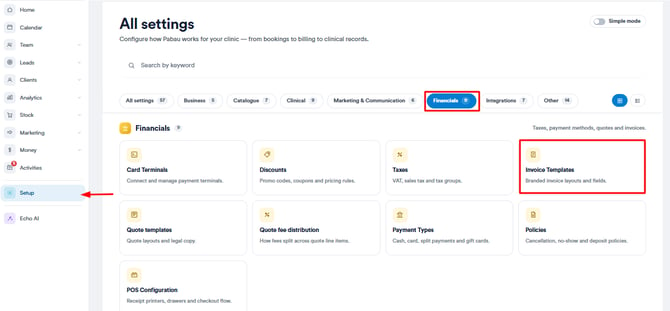
Start by logging in to your Pabau account using your login credentials. Then, navigate to Setup. Under the Financials section, you will find the Invoice Templates tab.
Step 2: Enable Payment Options
On the Invoice Templates page, click to edit the default invoice template and switch to the Payment info tab. Once you’ve selected that, the Payment sub-tab will be revealed.
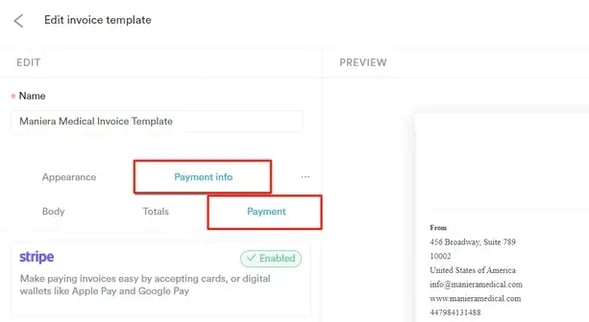
Here you can display your bank details on the invoice for clients to pay via bank transfer, or enable Stripe payments and a QR code for clients to pay online.
NOTE: To integrate your Pabau account with Stripe, please follow the steps provided in this article.
If you’ve recently upgraded from Pabau Classic to Pabau 2, please reconnect your Stripe integration using the steps provided in this article. This update is necessary as Pabau 2 features a new connection method with Stripe.
Reconnecting will ensure that all Pabau Pay terminal features function smoothly and will also unlock 12 additional payment processing options.
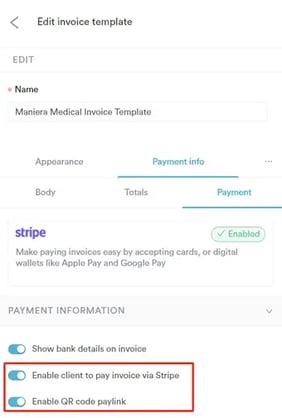
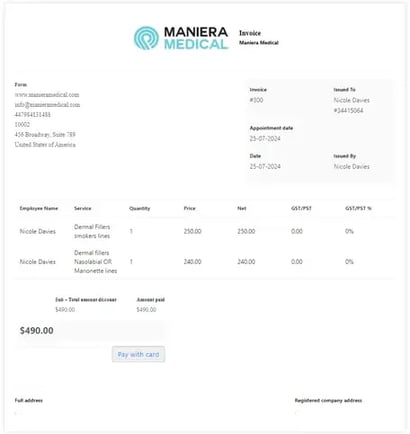
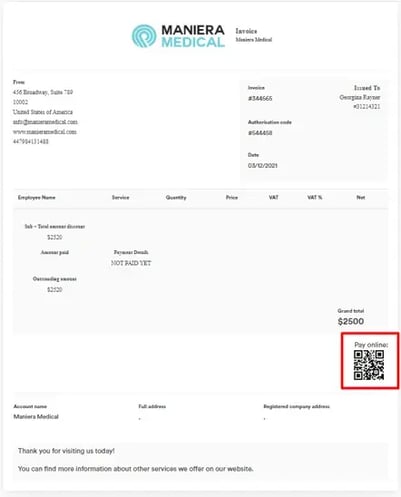
With QR codes and/or payment links enabled, these options are added to each issued invoice. Clients can pay their invoices by clicking the Pay with card option or scanning the QR code included in their invoice.
Step 3: Navigate to the Client Card
If you need to resend the payment link or QR code to the client, you can do so from within the client card.
To copy the payment link of a specific invoice, search for the client in the search bar and open their client card.
Step 4: Switch to the Financials Tab
Once you’re in their client card, select the Financials tab to view all invoices raised for the client.
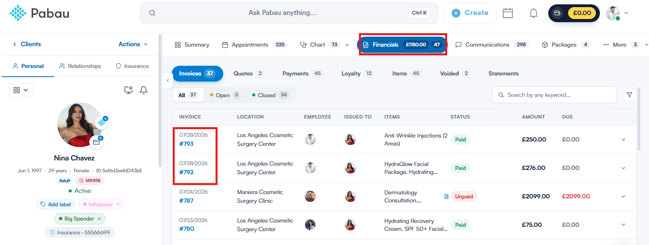
Step 5: Locate the Invoice
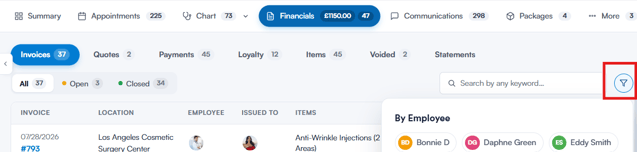
You can use the filter to narrow the invoice list by employee, who the invoice was issued to, status, and issue date, making it easy to find what you’re looking for. Click the invoice number to open it.
Step 6: Copy the Link or QR Code from the Details Tab
Once the invoice is opened, the Details tab appears first. At the top you’ll see the Payment link card, which holds the shareable link for this invoice:
- Click Copy to copy the payment link so you can share it with the client
- Click QR Code to view the invoice’s QR code — from there, click Download to save it as an image, or Done to close the window
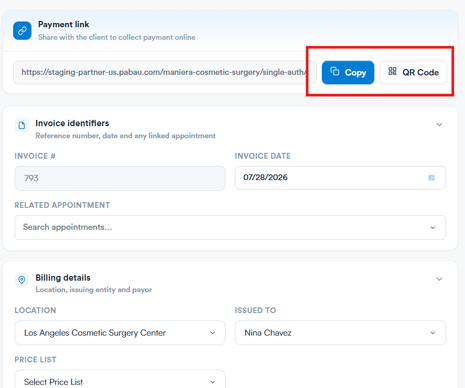
By sharing the link or QR code with the client, they can pay the invoice online.
Was this guide helpful? Let us know by voting below - your feedback helps us write clearer articles.
For more guides, browse the related articles below or use the search bar at the top of the page. You can also watch our video learning series, the Pabau Academy, or visit the Support page for additional help.