
This article covers the new Client Card, available to selected clinics from August 2026. If your Client Card looks different, see the How to Generate a Full Client Data Export Using Print Details (Classic) guide instead.
Responding to GDPR data requests can be time-consuming when information is spread across the system. The Print Client Details feature solves this by generating a complete, printable report of all key client data — including communications, consents and personal details — making it easy to provide a full data export securely.
Step 1: Navigate to the Client Card
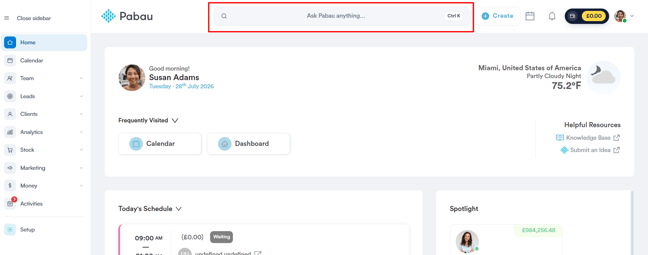
Log in to your Pabau account, then type the client’s name into the search bar at the top of the screen. The client will appear in the search results — click to open their client card.
Step 2: Open the “Actions” Dropdown
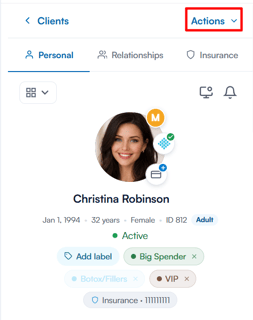
On the client card, click the “Actions” dropdown at the top of the card to view the available actions.
Step 3: Click “Print Client Details”
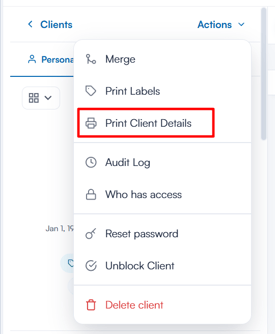
To generate the full client data export, select “Print Client Details” from the dropdown.
Step 4: Choose the Sections to Include
The “Print Client Summary” window opens, where you choose which sections to include in the printout — for example Basic Information, Appointments, Medications, Allergies & Alerts, Medical History, Treatment Notes, Client Notes, Consents and Communications. Use “Check all” to include everything, and tick “Show table of contents” to add a table of contents to the report. The footer shows how many sections are selected.
When you’re happy with the selection, click “Print summary”.
Step 5: Print the Client Summary
A full-screen preview of the generated report opens. If you included the table of contents, it appears at the top and lists the sections you selected, letting you jump straight to any of them. Below, each section displays the relevant client details.
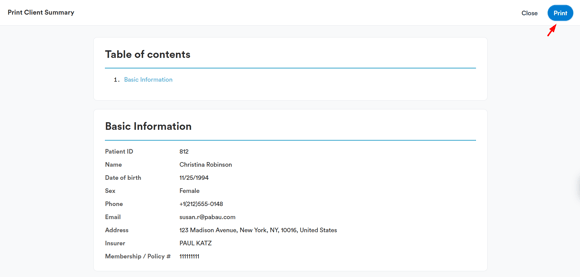
Once the report has finished loading, your browser’s print dialog opens automatically, letting you print the report or save it as a PDF. You can also click “Print” in the top right to open the print dialog again, or “Close” to exit without printing.
By following these steps, you can easily produce a GDPR-ready data export for any client.
Was this guide helpful? Let us know by voting below - your feedback helps us write clearer articles.
For more guides, browse the related articles below or use the search bar at the top of the page. You can also watch our video learning series, the Pabau Academy, or visit the Support page for additional help.