
NOTE: The card only appears if your clinic uses Workflows and a live (published) workflow starts a run for that client. It shows what the workflow is doing; it does not change what the workflow does.
Step 1: Save a Change on the Client Card
Make a change on a client card as you normally would. When the save starts a workflow for that client, a card appears in the bottom-right corner of the screen. It follows workflows on any trigger, not only lead workflows, including saves to:
- The client – details, labels, custom fields, permissions, family and emergency contacts, merging and deleting.
- Clinical records – notes, alerts, allergies, forms and treatment notes, prescriptions, labs, letters, photos, documents and imaging.
- Appointments – cancelling, reinstating, notes, reminders, and booking or rescheduling on the calendar you open from the client card.
- Sales and payments – sales at the till (memberships included), invoices, payments, refunds, credit notes, quotes, plans, memberships and packages.
The card can take up to about two minutes to appear, because workflows pick up new changes once a minute. You can keep working while you wait.
Step 2: Read the Card
The title tells you where the workflow is up to: Workflow running, Workflow scheduled, Workflow complete or Workflow failed. When one save starts several workflows, it reads, for example, 2 workflows running or A workflow failed. The workflow's name is shown underneath.
Each step of the workflow is listed with its status:
- Running or Up next – the step is in progress or waiting its turn.
- Done – the step has finished.
- Waiting – the workflow is on a delay. Continues shows the day and time it carries on.
- Held: no marketing consent – the client has not given marketing consent, so the message was not sent.
- Failed – the step could not finish.
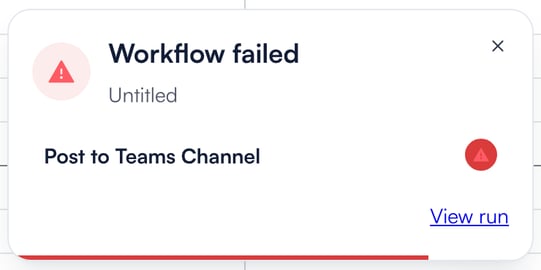
The run card after a booking started a workflow whose Post to Teams Channel step failed
Step 3: Open the Run or Dismiss the Card
Click View run to open the run in Workflows in a new tab, where you can see each step's result and why a step failed. Click × (Dismiss) to close the card. Once every run has finished, the card closes on its own after a few seconds.
Why Didn’t a Card Appear?
- No live workflow started for that client. Check the workflow is published and that its trigger and conditions match the change you made.
- The change was made outside your save, so there was nothing to follow: online payments and pay links paid later, results returned from e-prescribing and lab partners, images sent from a clinic PC, and changes clients make themselves in the client portal or online booking.
- An appointment, invoice or payment was deleted outright, so there is no record left to link the workflow to the client.
- The run started more than a few minutes after your save.
In each case the workflow still runs as normal. You can check it under Workflows → Run history.
What's Next?
To learn more about building workflows, see Workflows: Introductory guide.
Was this guide helpful? Let us know by voting below - your feedback helps us write clearer articles.
For more guides, browse the related articles below or use the search bar at the top of the page. You can also watch our video learning series, the Pabau Academy, or visit the Support page for additional help.