
Once a product kit has been created, you can edit, duplicate, or delete it at any time from the Kits tab. For a guide on how to create a product kit, read our How to Create a Product Kit article.
Step 1: Navigate to Product Kits
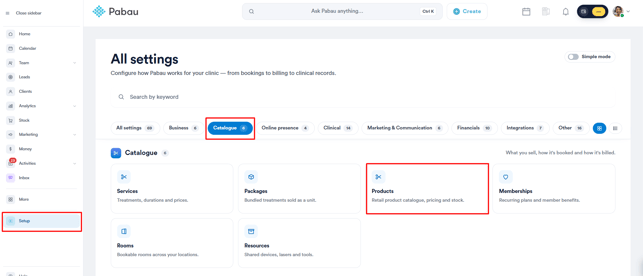
Log in to your Pabau account and in the left sidebar menu, click Setup. Then click the Catalogue tab and select Products.
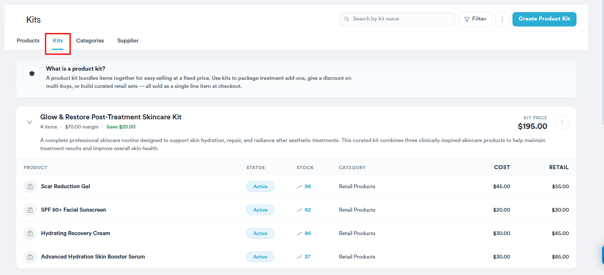
On the Products page, click the Kits tab at the top.
Step 2: Open the Kit Menu
Locate the kit you want to manage and click the three-dot menu on the kit card. This reveals the following options:
-
Edit: Opens the kit to make changes.
-
Duplicate: Creates an exact copy of the kit.
-
Delete: Permanently deletes the kit.

Step 3: Edit the Kit
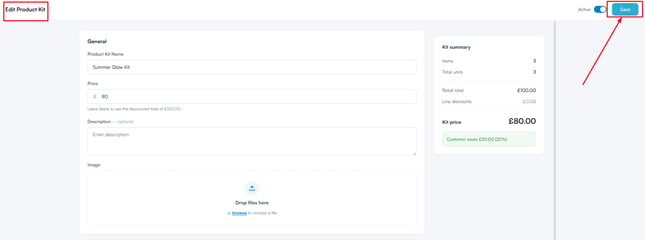
If you wish to edit an existing kit, select "Edit" from the three-dot menu. The kit will open in the same form as the creation form, with all existing settings pre-populated, including the kit name, price, description, image, and all product lines with their quantities and discounts.
Make any changes you need and click "Save" to apply them. Changes take effect immediately once saved.
Step 4: Duplicate a Kit
If you'd like to create a variation of an existing kit without rebuilding it from scratch, select "Duplicate" from the three-dot menu. This creates an exact copy of the kit, including the kit name, price, description, image, and all product lines with their quantities and discounts. The duplicate is saved as a separate kit and can be edited independently.
Step 5: Delete a Kit
To permanently remove a kit, select "Delete" from the three-dot menu.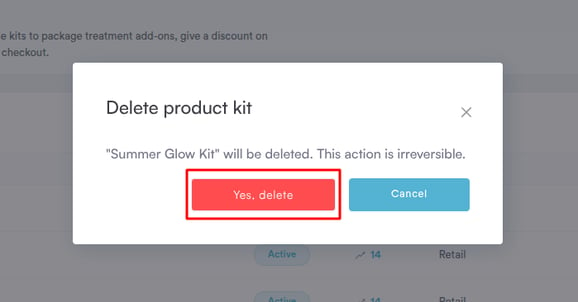
NOTE: Deleting a kit is permanent and cannot be undone. The products that were part of the kit are not affected - only the kit itself is removed. Any previously sold kits will still appear in invoice logs and client cards.
With your product kit updated, the changes will be reflected immediately across the system, including at the Point of Sale.
Was this guide helpful? Let us know by voting below - your feedback helps us write clearer articles.
For more guides, browse the related articles below or use the search bar at the top of the page. You can also watch our video learning series, the Pabau Academy, or visit the Support page for additional help.