
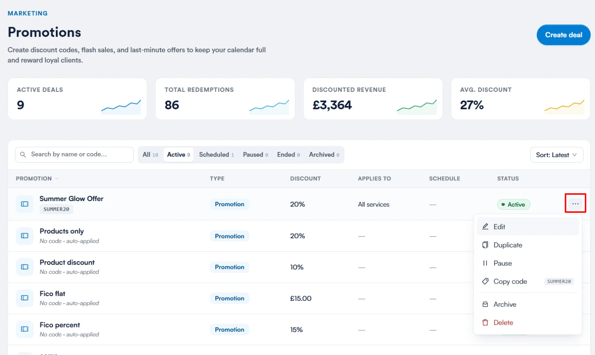
Once a deal has been created, you can manage it at any time from the Promotions dashboard. Each promotion has a More actions menu, giving you quick access to the most common management options.
Access the More actions menu
From the Promotions dashboard, click the three-dot menu on the right-hand side of any deal's row.
Edit a promotion
Select Edit to open the promotion and make changes. The edit form follows the same structure as the Create deal flow, with all existing settings pre-populated, so you can update any field without starting from scratch.
Duplicate a promotion
Select Duplicate to create an exact copy of the promotion. The copy is added to your list with "Copy" as a prefix to the name, making it a useful starting point when setting up a similar deal.
Pause a promotion
Select Pause to temporarily suspend the promotion. While paused, the discount will not be applied at checkout, even if a client already has the code. For a paused promotion, this option becomes Resume, allowing you to reactivate it at any time.
NOTE: Pausing a promotion takes effect immediately. It will not apply to any new checkouts from that point on, even if the client already has the code.
Copy a discount code
Select Copy code to copy the promotion's discount code to your clipboard, ready to share with clients or your team. This option only appears for promotions that use a code — it isn't available for auto-applied deals such as Flash sales.
Archive a promotion
Select Archive to remove the promotion from the active list without deleting it. Archived promotions can still be found under the Archived tab on the dashboard.
Delete a promotion
Select Delete to permanently remove the promotion. This is a soft deletion - any invoices where the discount was applied will still reference it, even after the promotion itself has been deleted.
By following the steps above, you can keep your promotions organized and up to date as your clinic's needs change.
Was this guide helpful? Let us know by voting below - your feedback helps us write clearer articles.
For more guides, browse the related articles below or use the search bar at the top of the page. You can also watch our video learning series, the Pabau Academy, or visit the Support page for additional help.